Change or remove a video screen
All screens in the scene are listed on the left of ALF > Content Creation > YouTube Player Setup, under YouTube players in this scene. Each row shows the screen's name and its video.
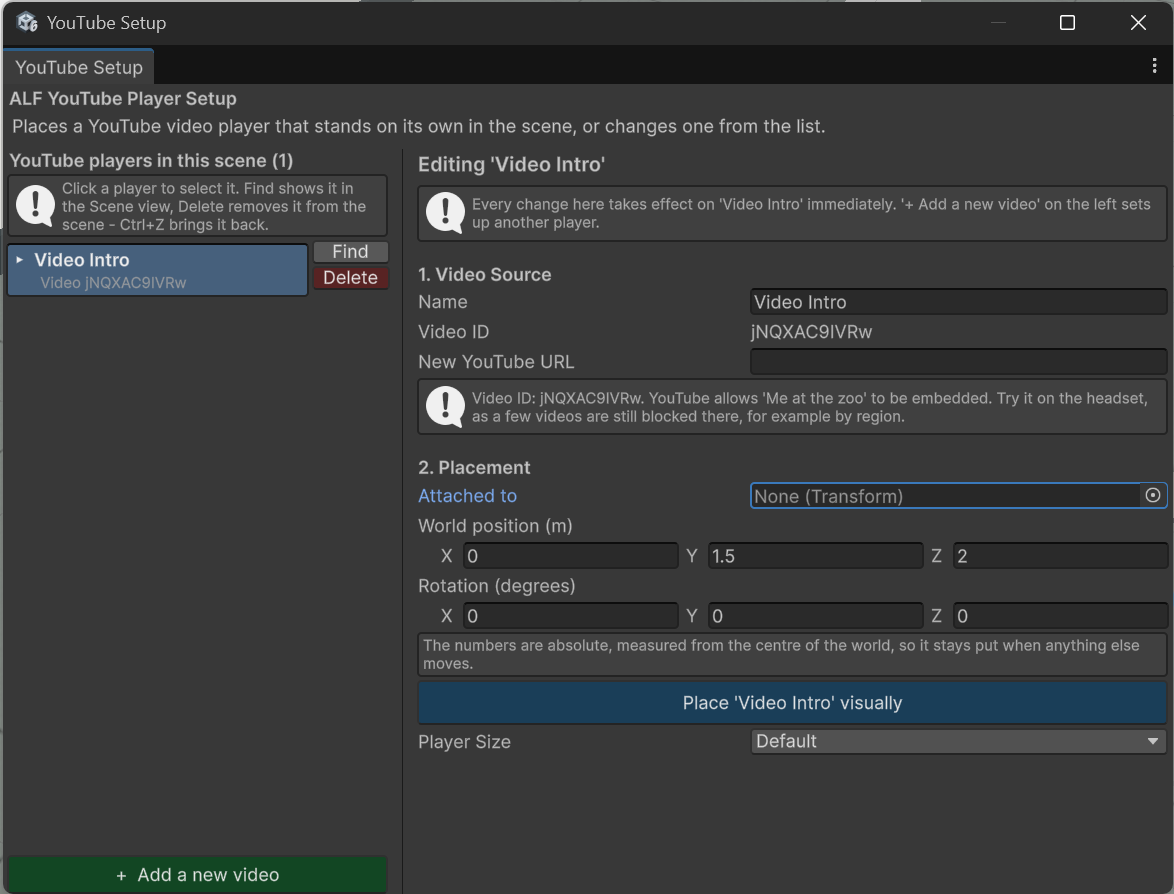
Change a screen
-
Open ALF > Content Creation > YouTube Player Setup.
-
Click the screen in the list. The right half now says Editing '…'. Every change you make there applies to that screen straight away.
-
Change what you need:
To change… Do this The name Type a new Name. The video Paste a link into New YouTube URL. The Video ID changes, and the video check below shows whether the new video can be embedded. Where it stands Change the position and rotation under 2. Placement, or move the screen in the Scene view. Its size Choose another Player Size. -
Save the scene with Ctrl+S.
Each change can be undone with Ctrl+Z.
Find a screen in the scene
Click Find in the screen's row. Unity shows it in the Scene view.
Remove a screen
- Click Delete in the screen's row.
- Save the scene with Ctrl+S.
Ctrl+Z brings the screen back.
Add another screen
Press + Add a new video below the list. The form on the right empties for a new screen; the size and position you used last are kept. Then follow Add a video screen from step 3.