Make a part slide
Goal: make a part move back and forth in a straight line, like a slider, drawer or piston.
Steps
-
Put the part in its starting position in the scene.
-
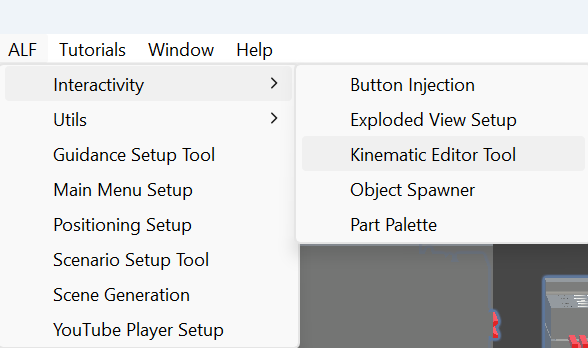
Open ALF > Interactivity > Kinematic Editor Tool.
-
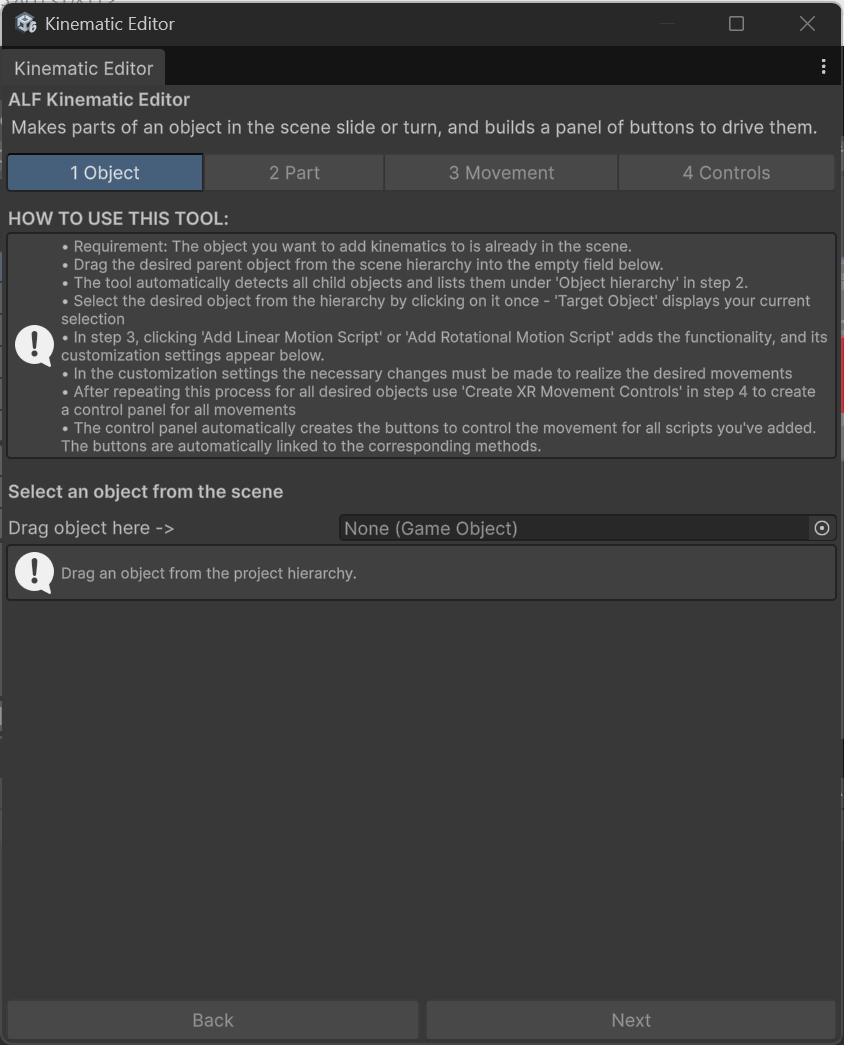
1 Object: drag the machine from the Hierarchy into Drag object here ->.
-
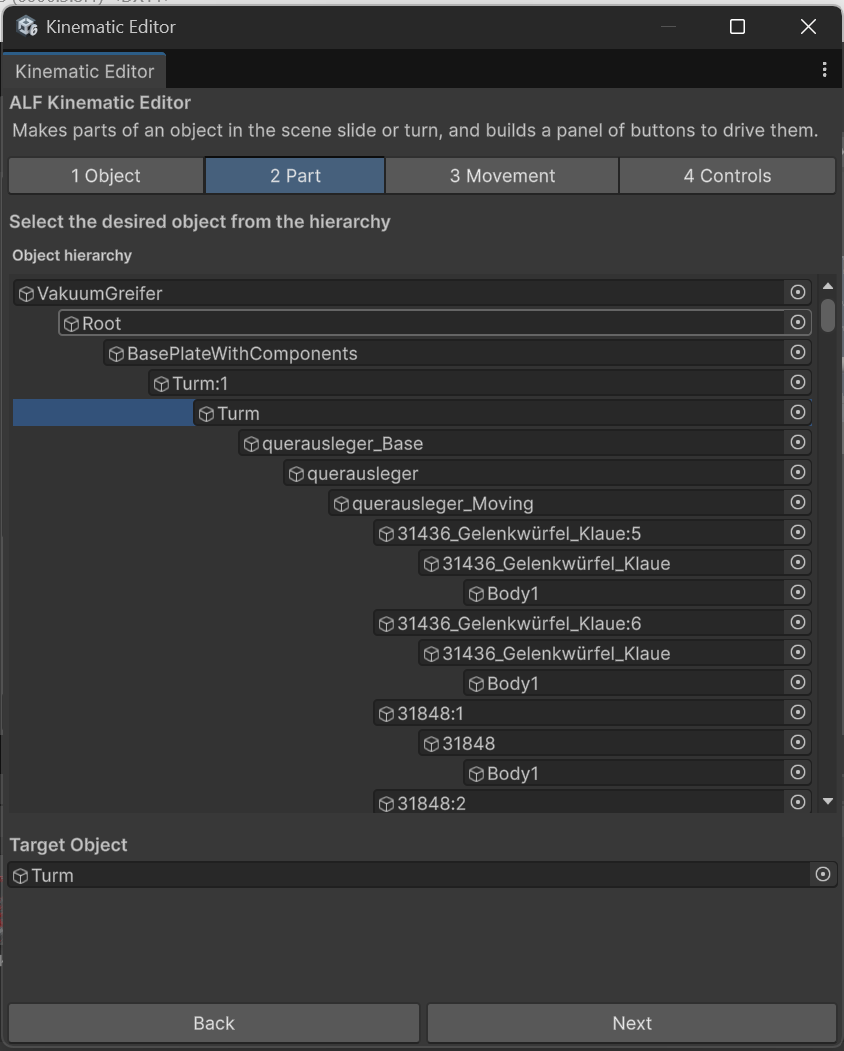
2 Part: click the part in the Object hierarchy list. Check that Target Object shows it.
-
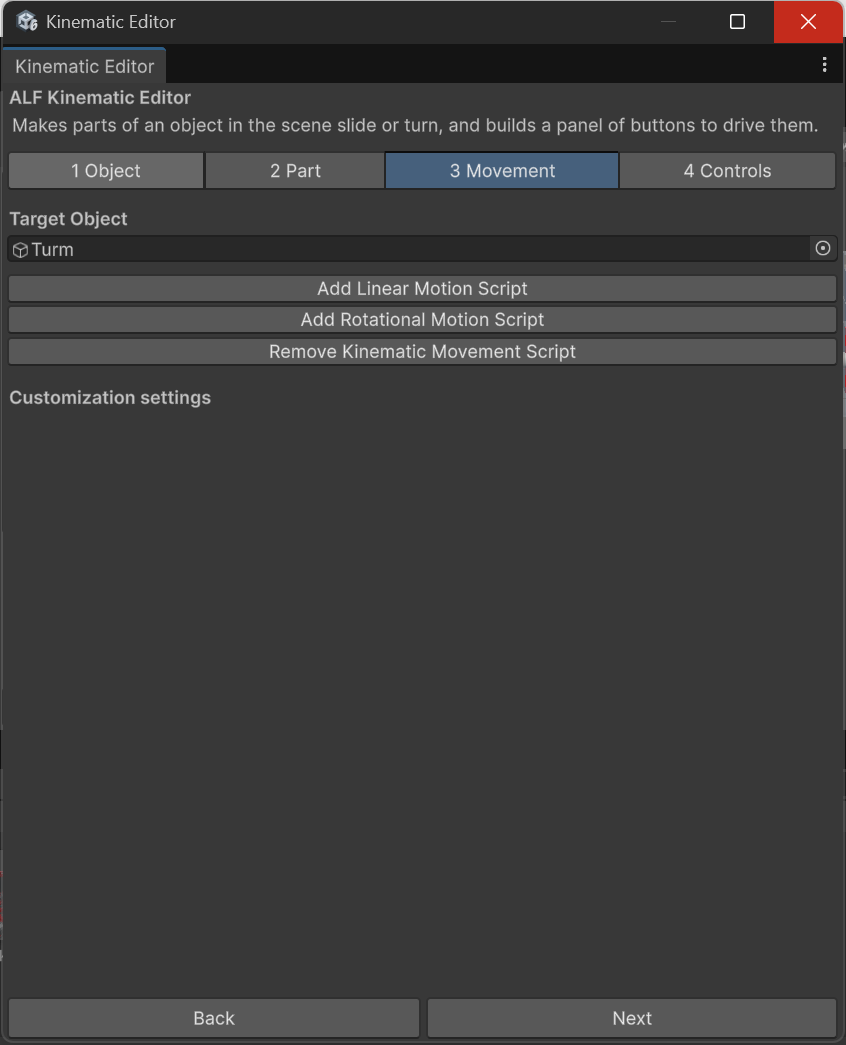
3 Movement: press Add Linear Motion Script.
-
Under Linear Motion Settings, set:
Field What to enter Movement Axis The direction to slide in: X, Y or Z of the part's parent. Lower Limit How far it can move in the negative direction, in metres. Usually 0, the start.Upper Limit How far it can move in the positive direction, in metres. For example 0.3for 30 cm.Speed How fast it moves, in metres per second. For example 0.1.Display Name Optional: a name for this movement, shown on the control panel. 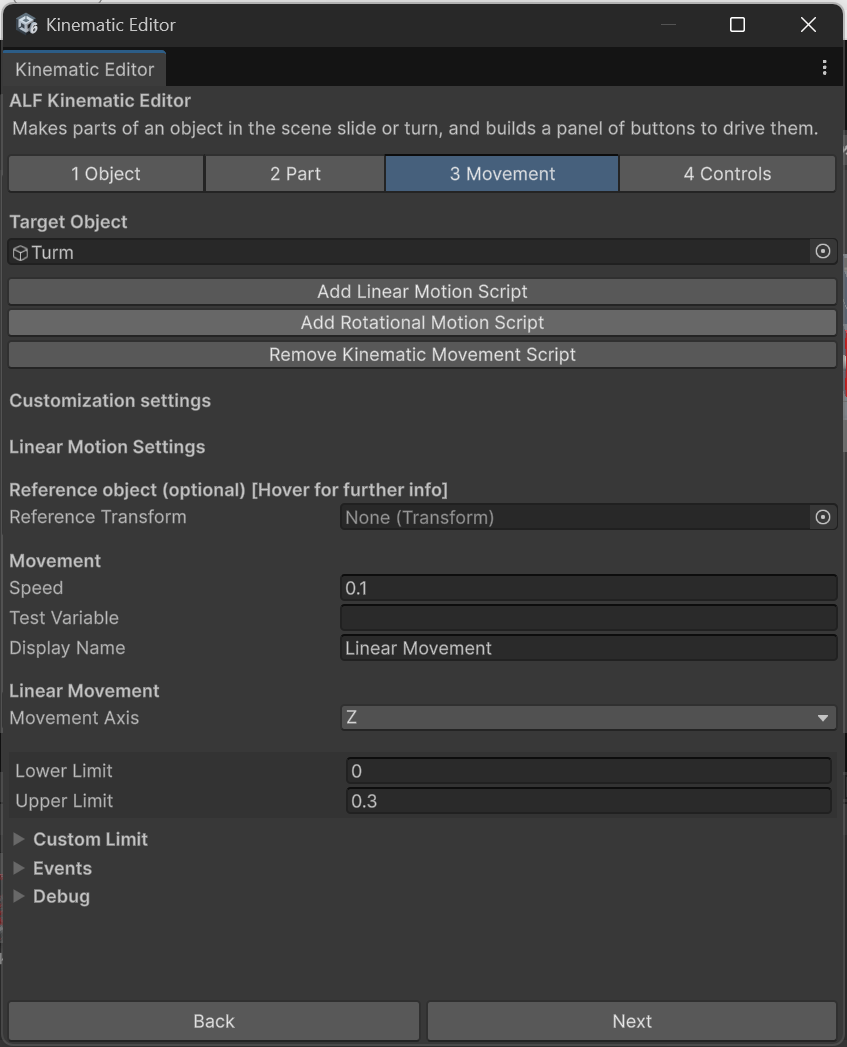
-
Check the limits in the Scene view. With the part selected, you'll see:
- a green sphere at the lower limit,
- a red sphere at the upper limit,
- a yellow line joining them.
If the line points the wrong way, change the Movement Axis, or use a negative number, for example a lower limit of
-0.3and an upper limit of0. -
Add buttons so learners can move it. See Add buttons that move the parts.
-
Save the scene with Ctrl+S.
Result
When told to move in the positive direction, the part slides towards the red sphere and stops there. In the negative direction, it slides back towards the green sphere and stops.
Good to know
- Limits are measured from the starting position, so
0always means "where it starts". - If you enter the limits the wrong way round, they're swapped automatically and a warning appears in the Console.
- To stop partway, see Stop a part partway.