Import the texts
Goal: put the translated or reworded texts back into the scene.
Steps
-
Open the scene you exported from.
-
Open ALF > Utils > Text Import & Export, tab Replace authored text, and go to step 3 Import.
-
Press Choose a file and pick the edited file.
-
Check What would change. The tool counts the changes per tool and lists the texts:
List What it means What happens Texts that change Texts the file changes. Imported. Changed in the scene since the export Someone changed the text in the scene after the export, while the file still has the old text. Left as they are, unless you tick Write the file's texts back over these too. Different in the scene from when the file was exported Both the scene and the file changed the text, for example because you imported once already. Left as they are, unless you tick Replace these too. Not found in this scene The object was removed, or the text no longer exists. Skipped. Export again to include new texts. No text in the file The entry is empty. Skipped. In the file more than once A text appears twice. Only the first is used. 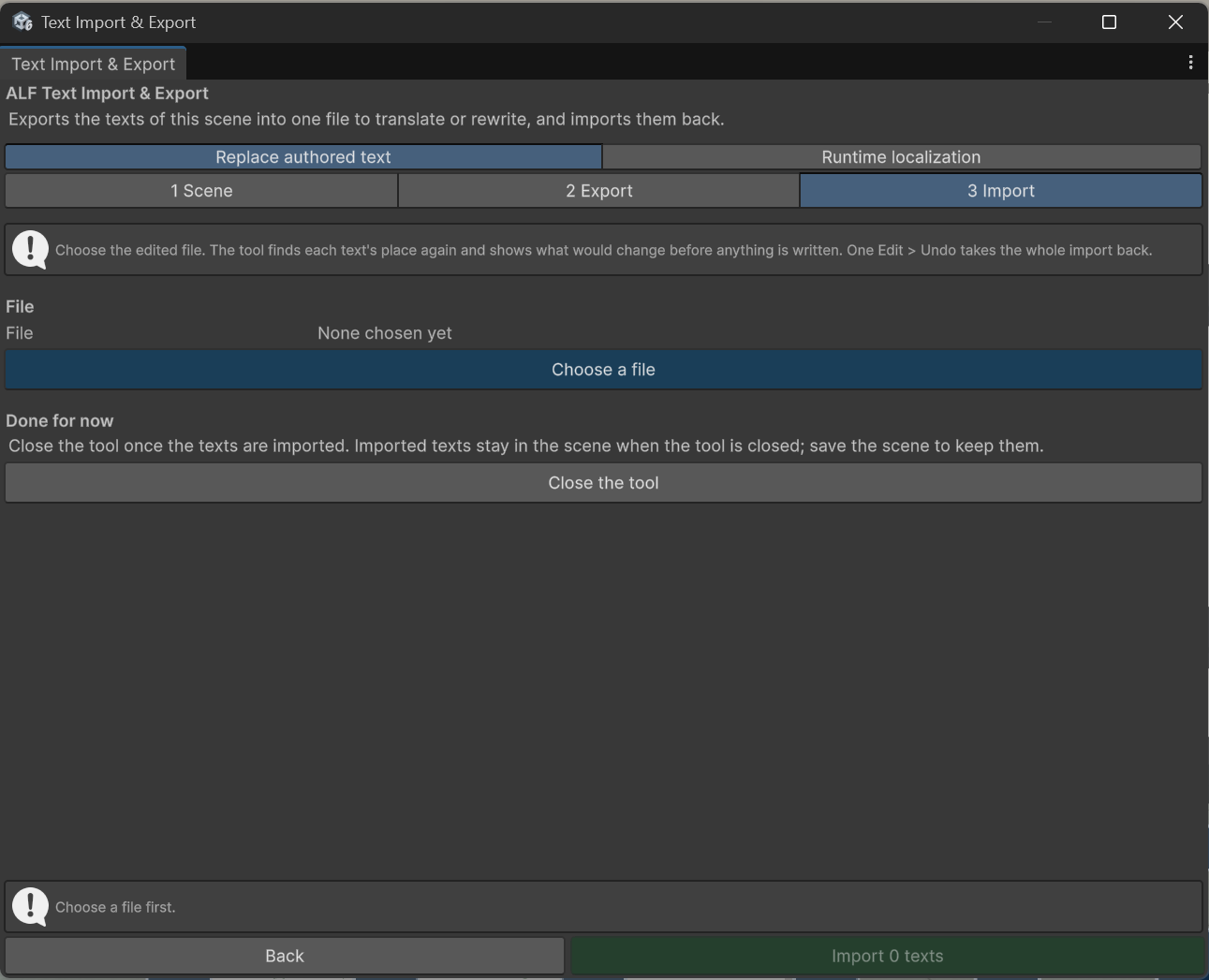
-
Press Import … texts.
-
Look at the texts in the scene and try the lesson.
-
Press Save the scene.
Result
The texts are in the scene, in the tools they belong to. If a Scenario Setup, Guidance Setup, XR Pre-Training or Button Injection window is open, it shows the new texts straight away.
Good to know
- Undo works. The whole import is one step with Ctrl+Z.
- Nothing is overwritten silently. A text that was changed in the scene since the export is only replaced when you tick the box for it.
- Back to the original language. To go back, import the original export file and tick Write the file's texts back over these too.
- A file from another scene. The tool asks before importing it. Only texts at exactly the same place are found, for example in a copy of the scene made with Save As.
- The warm-up keeps imported texts. XR Pre-Training treats them like your own changes and keeps them when you regenerate, unless you change the language or the player setup.
- Bending lessons write their texts again each time you generate them in the Mesh Deformation tools. Import after the last generate. Step 3 warns about this.