Before you start
New to Unity? The basic terms (Scene, Hierarchy, Play mode) are explained in Before you start.
Which tab do I need?
- Replace authored text swaps the texts in the scene. Use it to make a German version of an English lesson, to fix wording in many places at once, or to let a colleague proofread all texts in one file. The scene then holds the new texts; the lesson doesn't switch languages while it runs. To keep two languages, keep two exported files.
- Runtime localization keeps all languages in the app. Learners switch with a language button in the scene, and the lesson starts in the headset's own language when a translation for it exists. See Let learners switch languages.
Most of this section is about Replace authored text.
Which texts are included
| Tool | Texts |
|---|---|
| Scenario Setup, Guidance Setup | Each step's instruction text |
| XR Pre-Training | Each practice step's text and its hint |
| Infobox | The infobox text |
| Button Injection | Button labels |
| Graphs | Title, axis titles, labels of reference lines and bands |
| Syntax Highlighter | The code board's title |
| Motion | Reference page texts |
| Other texts in the scene | Signs, help texts and other panels no ALF tool owns, when Include general scene texts is ticked |
Each text goes back through the tool it belongs to, so it behaves exactly as if you had typed it there.
Which texts are left out
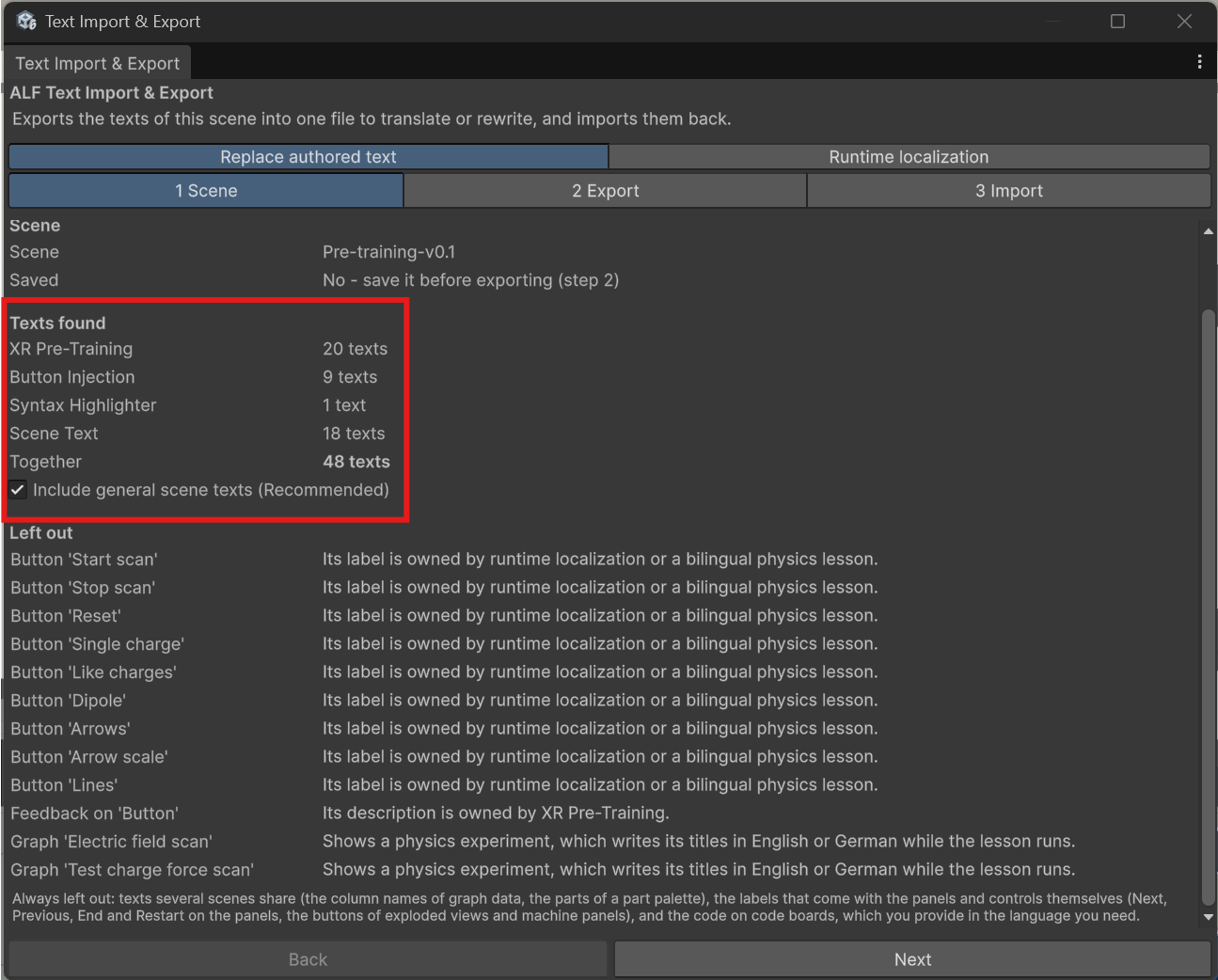
Step 1 Scene lists what's left out, with the reason:
- Physics labs (Planetary Lab, Electric Field): they come with their own English and German texts.
- Texts several scenes share, such as the column names in graph data and the parts on a part palette.
- Labels built into the panels, such as Next, Previous, End and Restart, and the buttons on Exploded View and machine panels.
- The code on code boards.
- The warm-up's success message "✓ Well done!".
- The video player's messages.
The window
| Step | What you do there |
|---|---|
| 1 Scene | See the scene, how many texts were found per tool, and what's left out. |
| 2 Export | Save the scene, copy the instructions for an AI assistant, and export the texts. |
| 3 Import | Choose the edited file, check what would change, and import. |
Not while the scene is playing
The tool doesn't work in Play mode. Stop Play mode first.