Add a code board
Goal: put a piece of code on a board in the scene.
Steps
-
Open ALF > Content Creation > Syntax Highlighter. The steps are headed New code board — type, paste or load the code.
-
In step 1 Code, choose the Language: C#, Java, C or Python.
-
Type a Title, for example the file name
Student.cs. It's shown in a bar above the code. Leave it empty for no bar. -
Add the code, in one of three ways:
- Typed or pasted: paste it into the code field.
- From a file: press Choose a file… and pick the file.
- Drag and drop: drag the file into the window from your file explorer or the Project window.
When you load a file, the language is taken from its ending (
.cs,.java,.c,.h,.py).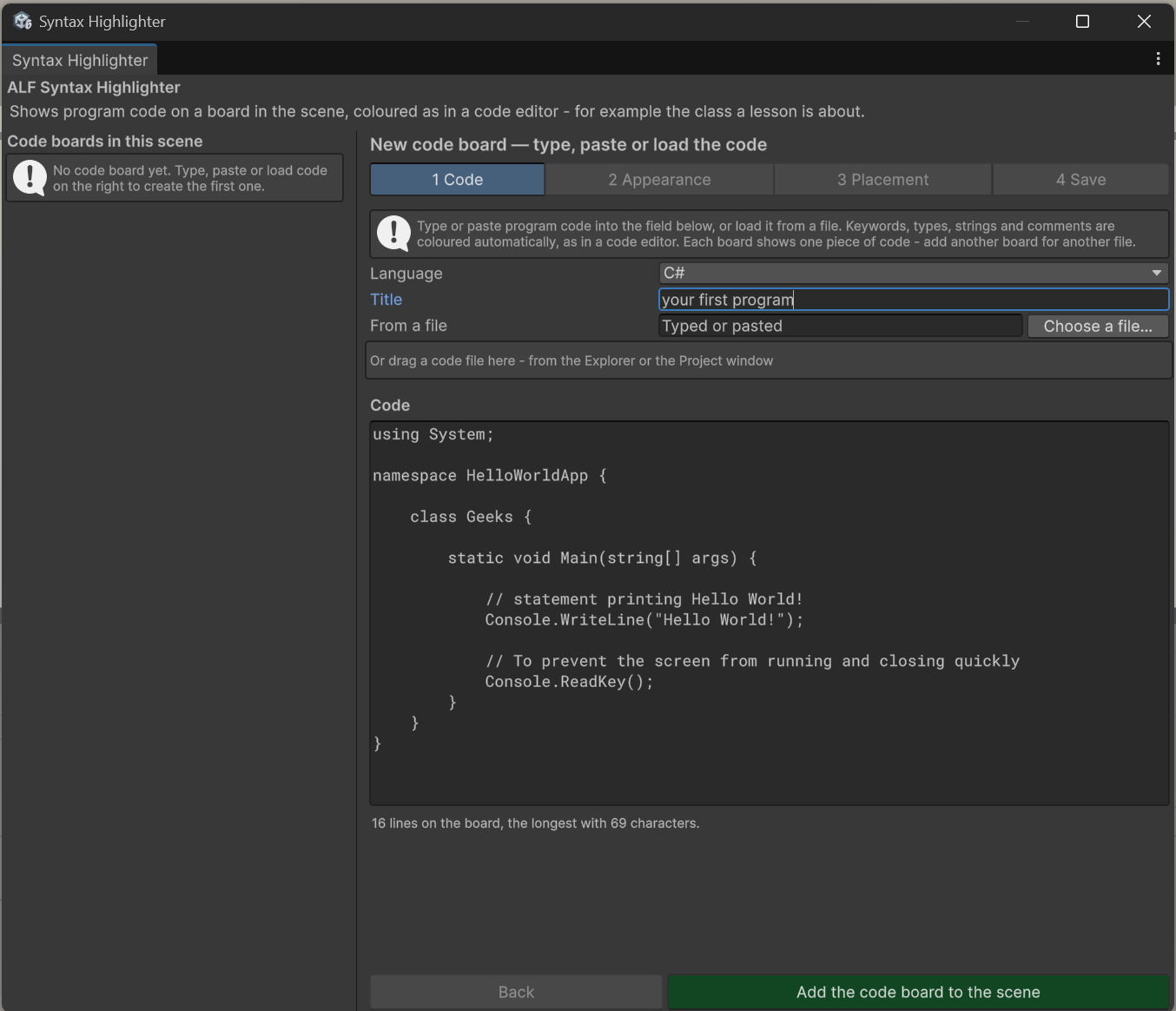
-
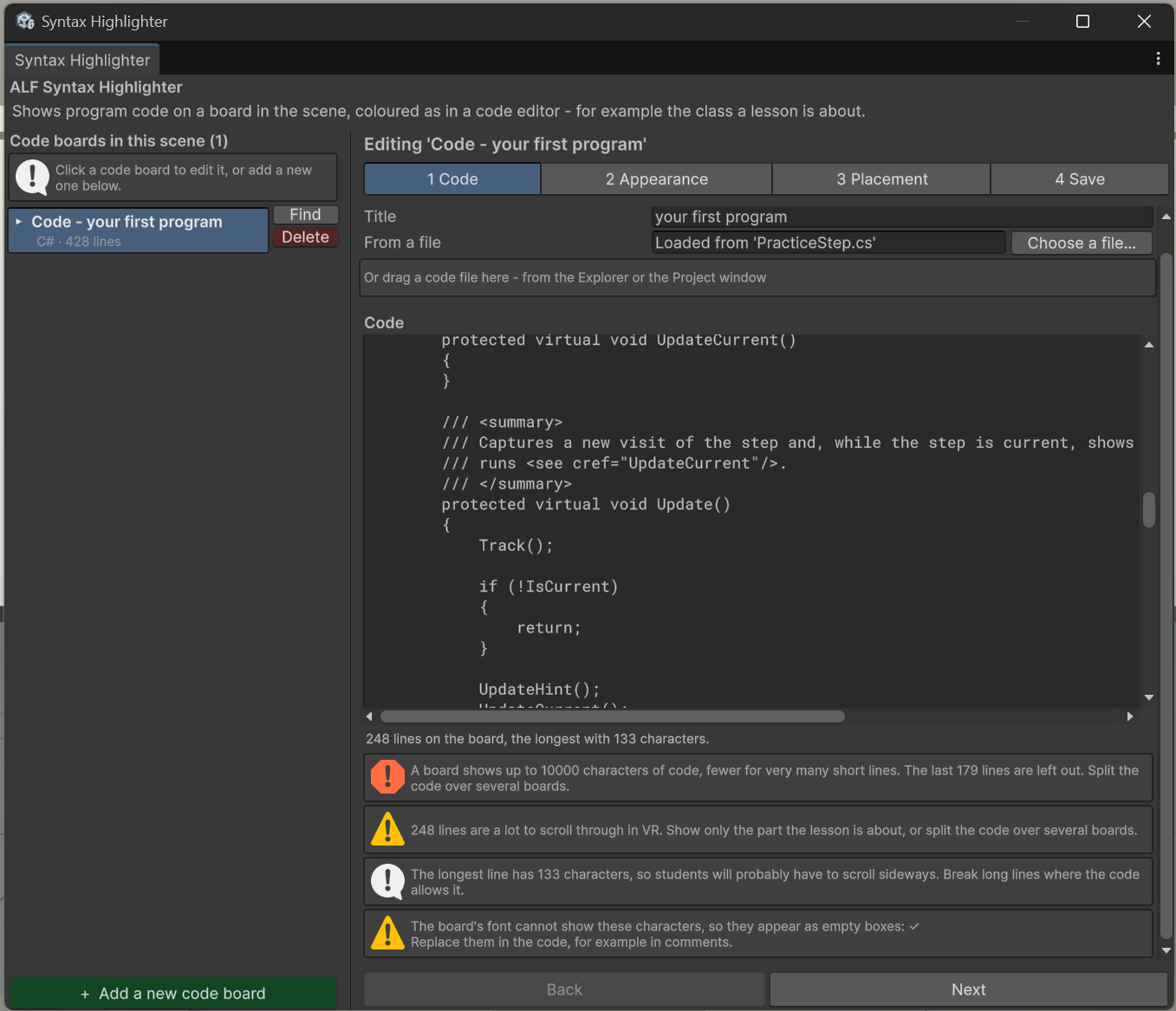
Read the notes under the code. They tell you how many lines the board shows, when it gets very tall or wide, and if the font can't show some characters.
-
Press Add the code board to the scene.
The board appears in front of the Scene view camera. It's named Code - followed by the title.
Good to know
- Indentation is tidied up. If every line of the pasted code starts with the same spaces, for example a method copied out of a class, they're removed, so the code starts at the left edge.
- Very long code is cut off. A board shows up to about 10,000 characters. The tool warns you. Split long code over several boards.
- Files up to 128 KB can be loaded.