VR or AR, and the player setups
Every lesson lives in its own scene: a file that holds the room, the machines and everything the learner sees. Scene Generation makes a new scene and puts the player setup in it, so the learner's headset, controllers or hands work straight away.
New to Unity? The basic terms (Scene, Hierarchy, Project window, Play mode) are explained in Before you start.
VR or AR?
Decide this first, because it changes what the learner sees around them.
| The learner sees… | Good for | |
|---|---|---|
| VR | A virtual room. The real world is hidden. | Lessons that take place entirely in the virtual world. |
| AR | The real room through the headset's cameras (passthrough), with your 3D content added. | Lessons next to a real machine or on a real workbench. |
The five player setups
You choose one in the Target XR Mode list:
| Option | Mode | Learners use… |
|---|---|---|
| VR Controllers | VR | The headset's controllers. |
| VR Hands | VR | Their hands (hand tracking). |
| VR Hand Locomotion | VR | Their hands, and can also move around the virtual room. |
| AR Controllers | AR | The headset's controllers. |
| AR Hands | AR | Their hands (hand tracking). |
In the list, the names may be shown with underscores, for example VR_Controllers.
Where new scenes are saved
New scenes are saved in the Project window under Assets/ALF-Generated/Scenes. The file name is the name you type in the tool.
If you add the lesson to the main menu, the scene's file name becomes the text on its button. A name like Pump maintenance works better than New Case Scene.
Opening the tool
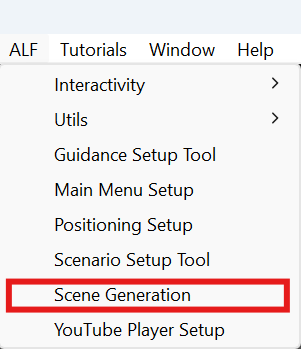
In Unity's top menu, choose ALF > Scene Generation. The window has two tabs at the top:
- Create New Scene: makes a new lesson scene.
- Update Existing Scene: changes the player setup of a scene you already have.
The tool doesn't work in Play mode. Stop Play mode first.