Write the instructions for a step
Goal: decide what the learner reads or watches during a step: text, an image or a video.
Steps
-
In tab 2 Steps, click the step in the list.
-
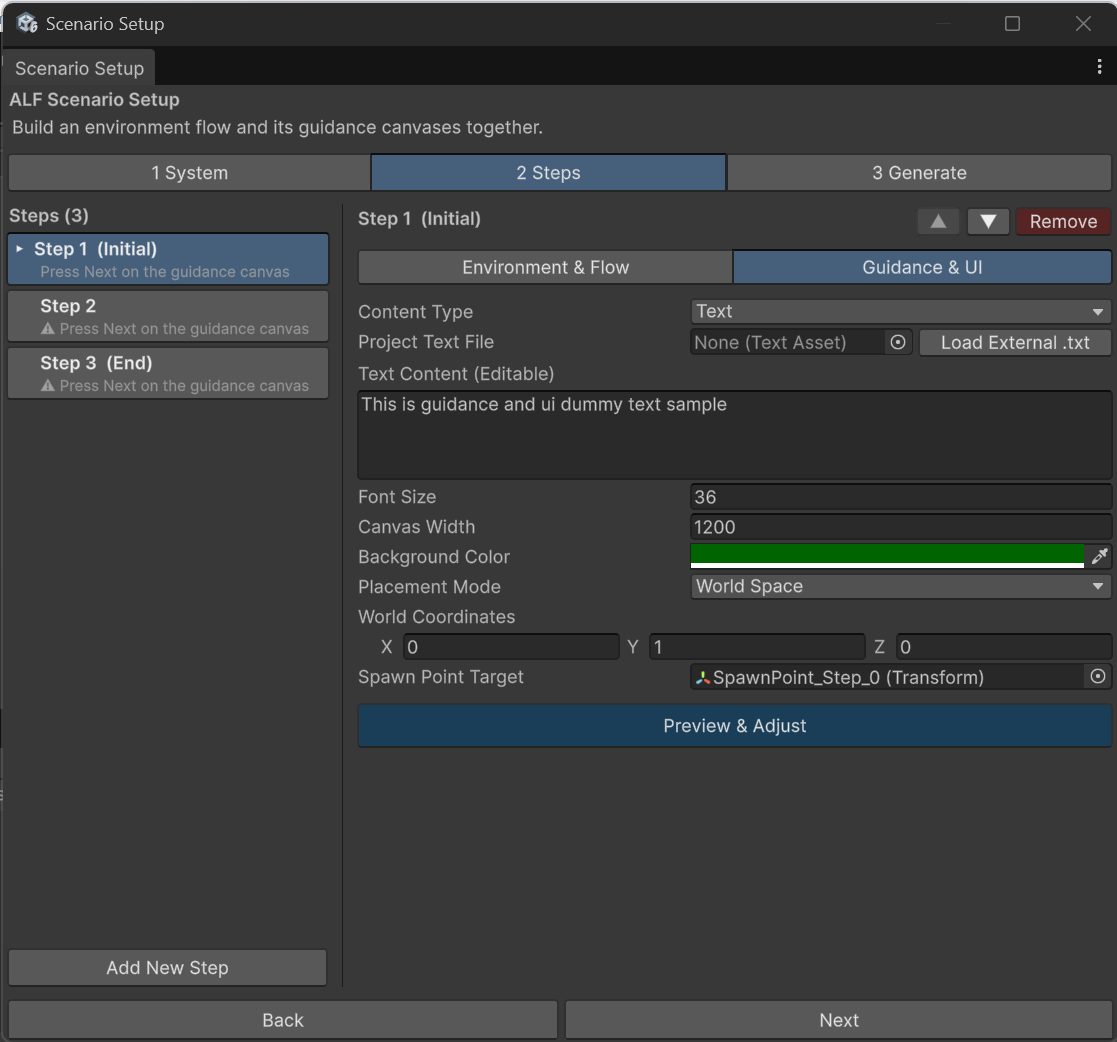
Switch to Guidance & UI.
-
Choose the Content Type, then fill in its fields as below.
-
Choose the panel's Background Color. The colour picker also sets how see-through it is.
When you're done with all steps, generate the scenario in tab 3 Generate.
Text
| Field | What to do |
|---|---|
| Text Content (Editable) | Type the instructions. |
| Project Text File | Optional: use a .txt file that's already in the project. If Text Content (Editable) also has text, that text is used instead. |
| Load External .txt | Copies the text of a .txt file from your computer into the text field, where you can edit it. |
| Font Size | How big the text is on this panel. |
| Canvas Width | How wide the panel is. Wider panels need fewer lines. |
You can format text with tags, for example <b>bold</b>, <i>italic</i> or <color=red>red</color>.
Image
| Field | What to do |
|---|---|
| Source Image | Drag a picture from the Project window. |
| Canvas Width | How wide the panel is. |
To use a picture from your computer, first drag it from your file explorer into the Project window to import it.
Video
| Field | What to do |
|---|---|
| YouTube URL | Paste the video's link. Normal, share, shorts and live links all work. |
| Video Size | Small, Default, Big or Large, or Custom with your own Custom Multiplier. |
When the link is read correctly, the tool shows Video ID detected: followed by the video's code. If it says No video ID could be read from this URL, copy the link again from YouTube.
The video plays from YouTube, so the headset must be online during the lesson.
Good to know
- Keep each step short. One instruction per step is easier to follow than a long text.
- A step without content is listed as a problem in tab 3 Generate, because its panel would be blank.