Update or remove a scenario
Change an existing scenario
-
Open the lesson's scene.
-
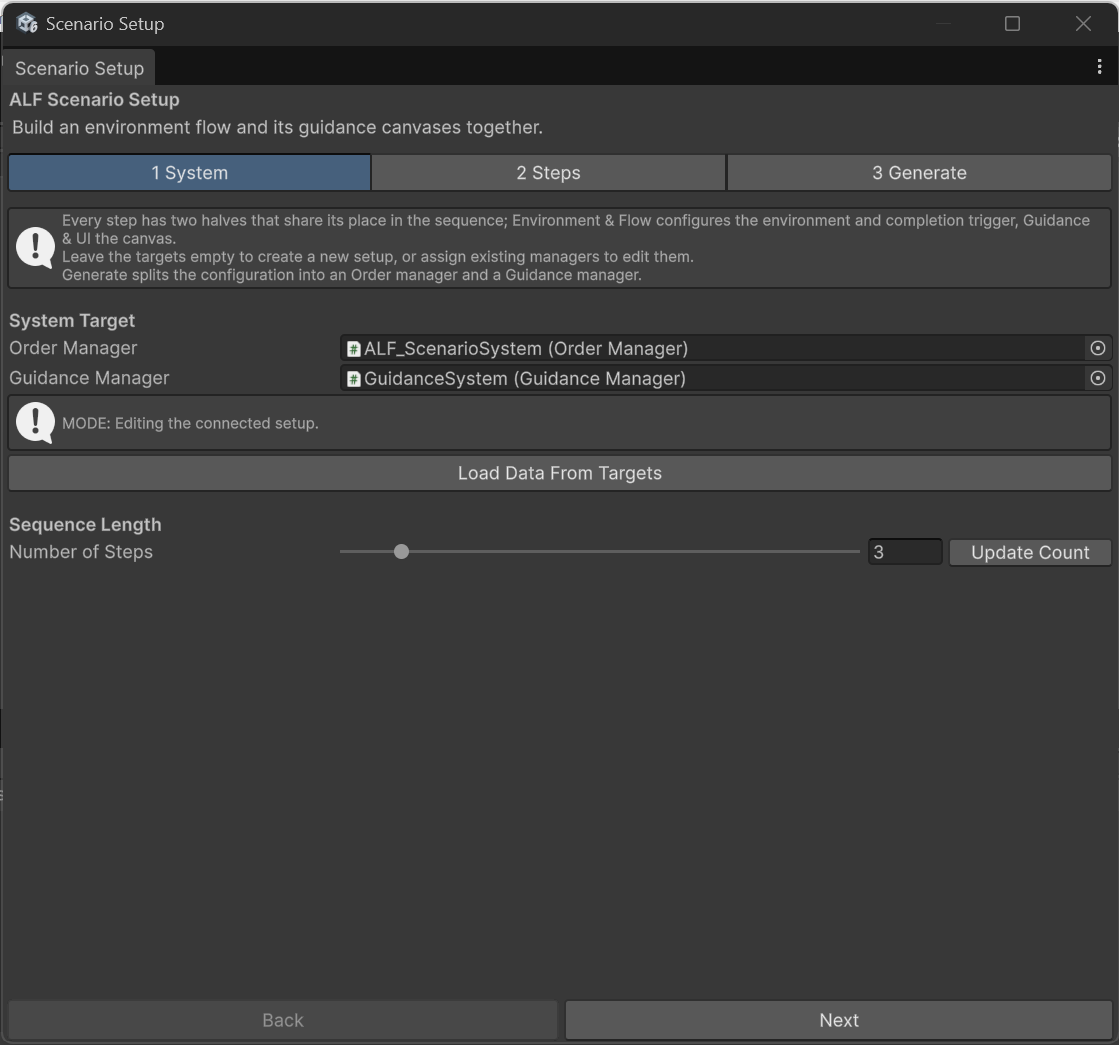
Open ALF > Scenario Setup Tool. It finds the scenario in the scene and loads its steps. Tab 1 System shows MODE: Editing the connected setup.
-
Make your changes in tab 2 Steps.
-
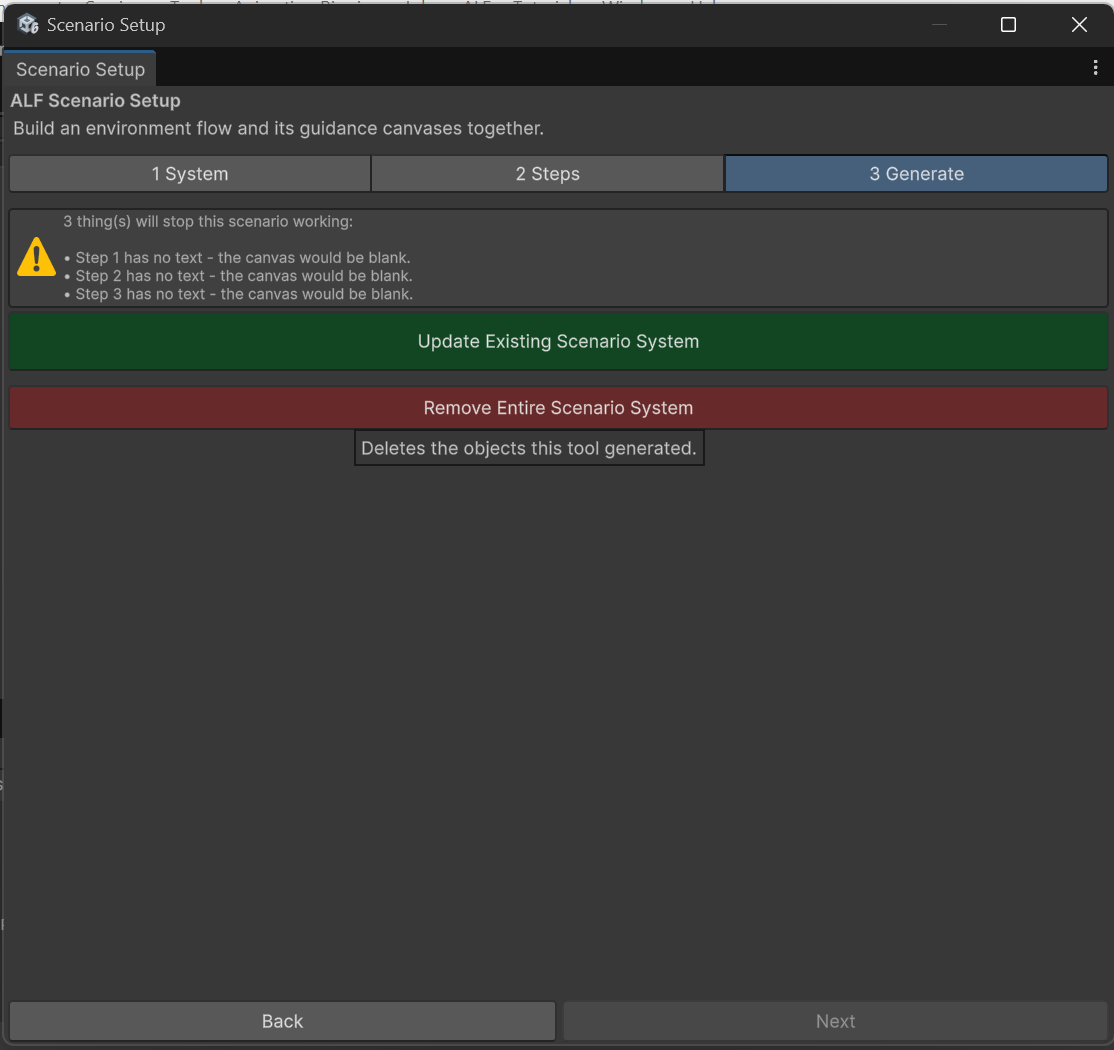
In tab 3 Generate, press Update Existing Scenario System.
-
Save the scene with Ctrl+S.
Start again from what's in the scene
If your changes in the tool went wrong, press Load Data From Targets in tab 1 System. It throws away the changes you haven't generated yet, and reloads the steps from the scene.
Remove the scenario
-
In tab 3 Generate, press Remove Entire Scenario System.
-
Confirm with Yes, Remove.
-
Save the scene with Ctrl+S.
This deletes everything the tool built: the steps, the instruction panels, and the places learners had to reach.
Good to know
- Your own objects are kept. Objects you placed with other tools, and objects you used as a Spawn Point Target or Attachment Target, are not deleted.
- Undo works. If you removed the scenario by mistake, press Ctrl+Z straight away.