Show or hide objects during a step
Goal: make objects appear or disappear when a step starts, for example showing a tool the learner needs, or hiding a cover so they can see inside a machine.
Steps
-
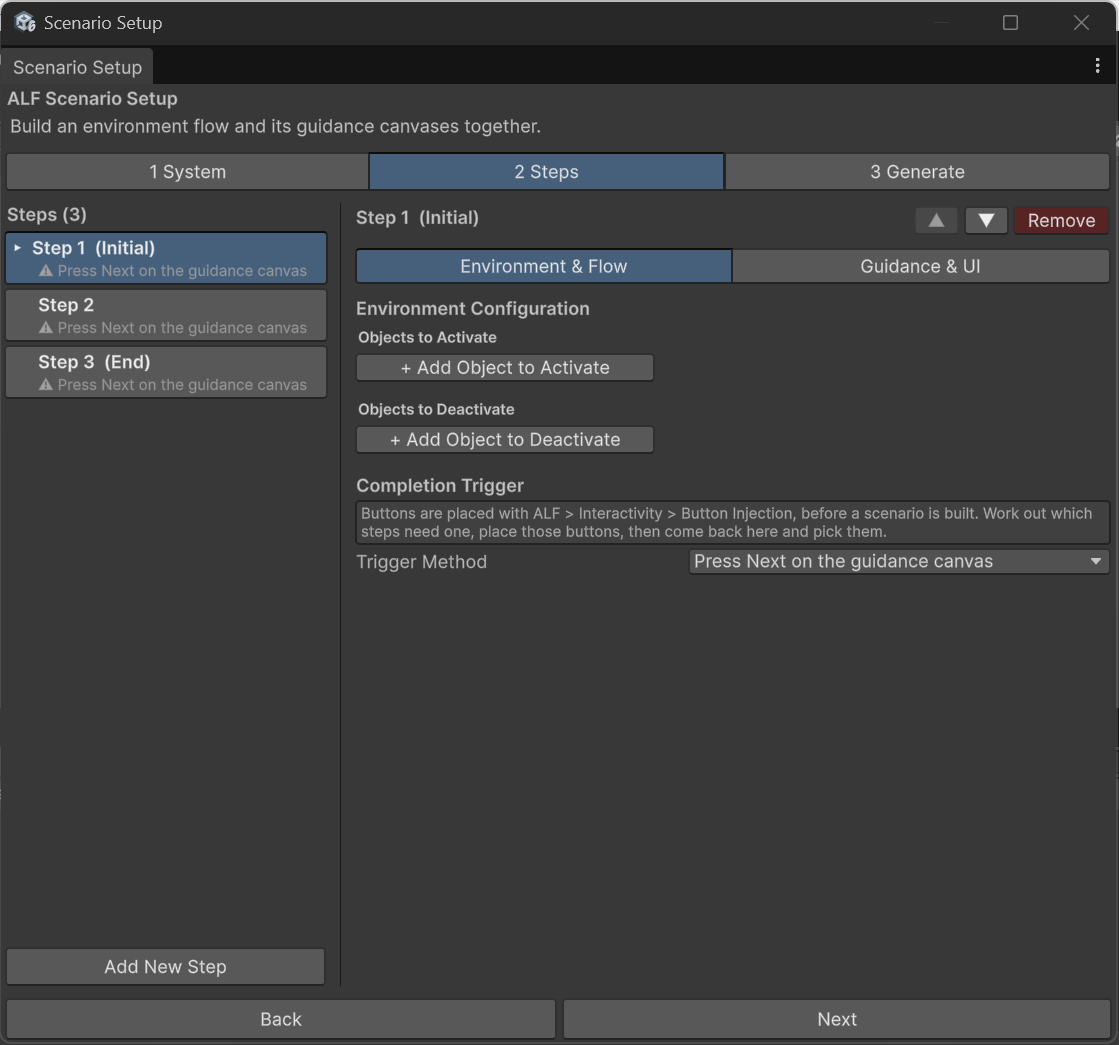
In tab 2 Steps, click the step in the list.
-
Switch to Environment & Flow.
-
Under Environment Configuration:
- To show objects, press + Add Object to Activate, then drag the object from the Hierarchy into the new slot.
- To hide objects, press + Add Object to Deactivate, then drag the object into the new slot.
-
To remove an entry, press X next to it.
-
Generate the scenario in tab 3 Generate.
How it behaves
- Changes happen when the step starts.
- Changes last until a later step changes them again. An object shown in step 2 is still there in step 5, unless you hide it.
- Going back undoes them. When the learner presses Previous, the room goes back to how it was at that step.
Tips
- Objects that should appear later must be in the scene from the start. Switch them off in the Inspector (untick the box next to their name) and show them in the right step.
- Hide a whole group at once by hiding the object that contains it in the Hierarchy.
- Exploded views add an entry here by themselves when you open them at a lesson step. You may see it in the list. Leave it there.