Place the instruction panel
Goal: decide where a step's instruction panel appears: at a fixed place in the room, in front of the learner, or on an object.
Steps
- In tab 2 Steps, click the step in the list.
- Switch to Guidance & UI.
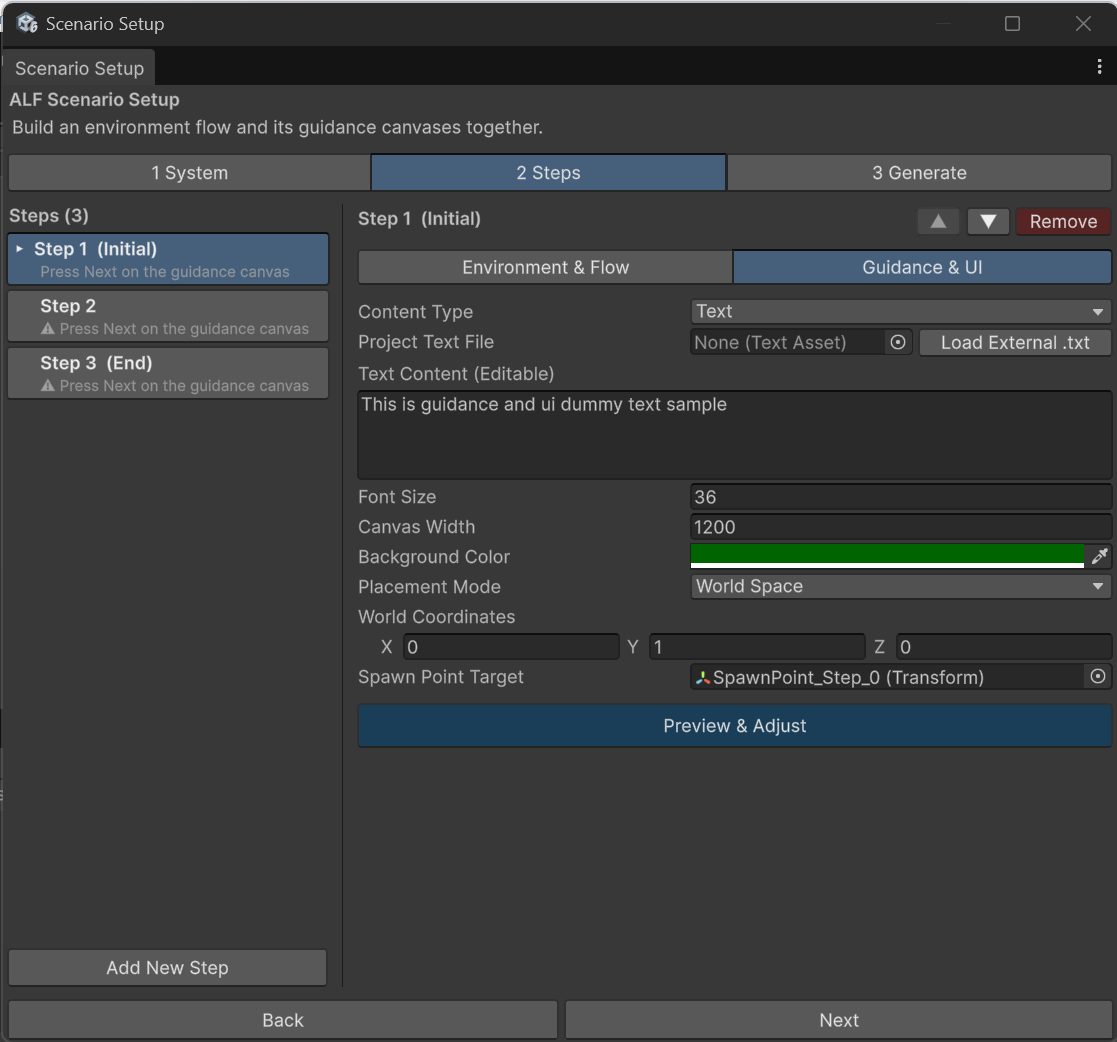
- Choose the Placement Mode:
| Placement Mode | The panel… | Fields |
|---|---|---|
| World Space | Stands at a fixed place in the room. | World Coordinates: where, in metres. Optional Spawn Point Target: an object in the scene whose position to use instead. |
| Player Attached | Appears in front of the learner when the step starts. | Spawn Distance: how far in front of the headset, in metres. |
| Object Attached | Sits on an object and moves with it. | Attachment Target: the object, dragged from the Hierarchy. Local Offset: where on the object, in metres. |
-
For World Space and Object Attached, press Preview & Adjust to move the panel by eye. A preview window opens, and the numbers follow as you drag.
Which one to choose?
- World Space for most steps: the panel stays where you put it, next to what the learner works on.
- Player Attached for the first and last steps, or when the learner moves around a lot, so the panel is always in view.
- Object Attached when the instructions belong to a machine that moves.
Good to know
- An Object Attached panel needs an object. Without an Attachment Target, it ends up at the centre of the world, and tab 3 Generate lists it as a problem.
- The learner always finds the panel. If the panel is out of view, an arrow near the learner points towards it.
- Videos are lifted off the floor. When you pick a Video Size, the height is adjusted so the video's controls stay above the floor. You can change it afterwards.