Create a scenario
Goal: build a lesson with several steps, from start to finish.
Steps
1 System
-
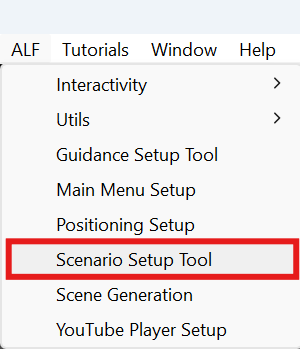
Open ALF > Scenario Setup Tool.
-
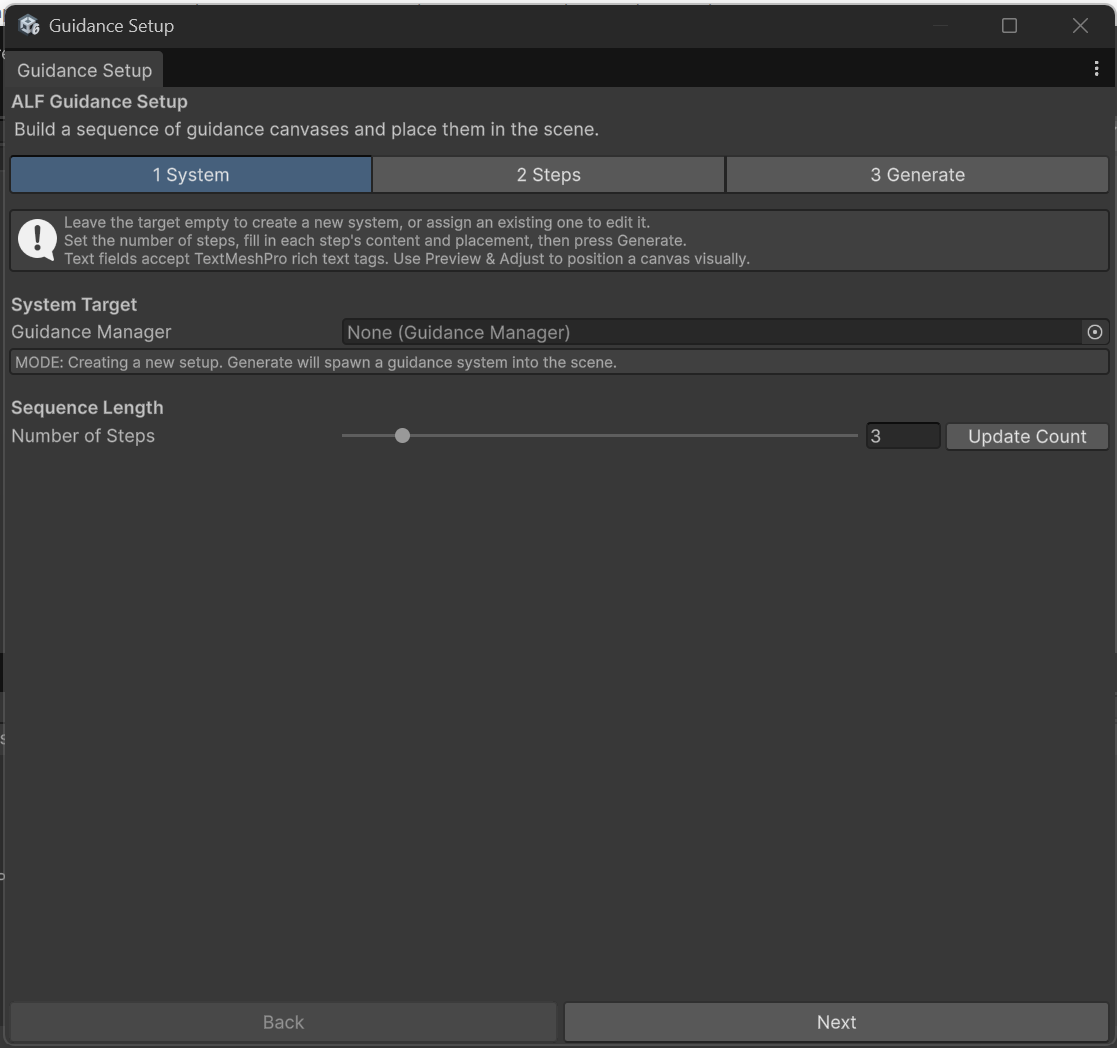
Under System Target, leave Order Manager and Guidance Manager empty. The box below says MODE: Creating a new setup.
-
Under Sequence Length, set Number of Steps, for example
5, and press Update Count. You can have up to 20 steps.
2 Steps
-
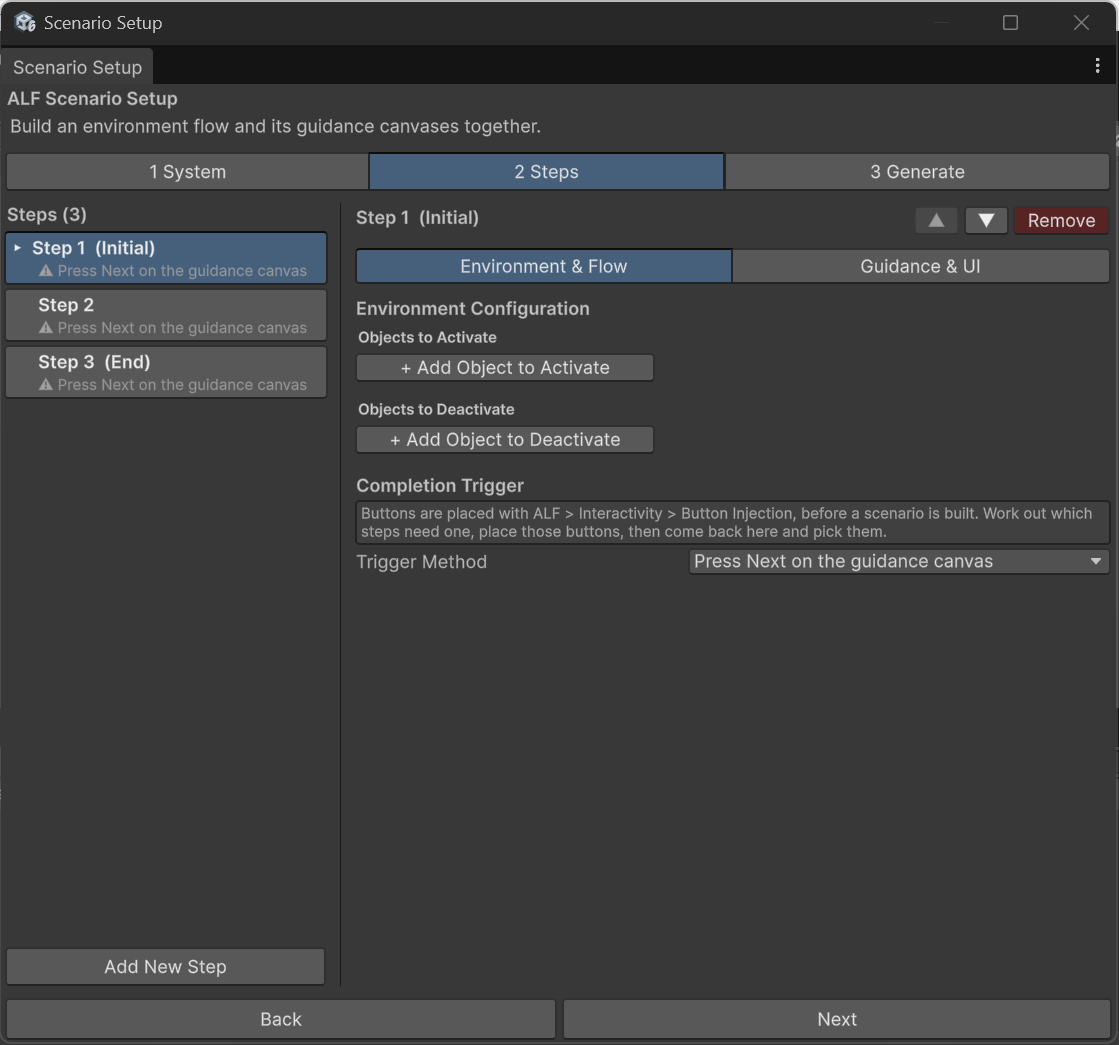
Open tab 2 Steps. The steps are listed on the left.
-
Click a step, then fill in its two halves with the tabs above it:
- Environment & Flow: show or hide objects and choose how the step finishes.
- Guidance & UI: write the instructions and place the panel.
-
Repeat for every step.
3 Generate
- Open tab 3 Generate.
- If a box lists problems, fix them first. Each one names the step it's in.
- Press Spawn New Scenario System.
- Save the scene with Ctrl+S.
Result
The scenario is built into the scene. Press Play to try the lesson from the first step.
Good to know
- The list shows what each step does. The second line of each row gives a short summary. A ⚠ means the step has a problem.
- Both halves belong to the same step. Switching between Environment & Flow and Guidance & UI doesn't change which step you're editing.
- Generating again is safe. After you change something, press the button again. It now says Update Existing Scenario System.