How a lesson is built from steps
A scenario is your lesson, broken into steps. The learner sees one step at a time and moves on when the step is finished.
New to Unity? The basic terms (Scene, Hierarchy, Project window, Play mode) are explained in Before you start.
What a step is made of
Every step has two halves, edited on two tabs:
| Half | What you set there |
|---|---|
| Environment & Flow | What changes in the room when the step starts (objects that appear or disappear), and how the step finishes. |
| Guidance & UI | The instruction panel the learner sees: text, an image or a YouTube video, and where the panel appears. |
What the learner sees
Each step shows an instruction panel. The learner moves through the lesson with the panel's buttons:
- Next goes to the next step, when the step is set to finish that way.
- Previous goes back one step. Objects shown or hidden by the step are put back as they were.
- The last step has a button to end the lesson.
If the panel is out of view, an arrow (compass) near the learner points towards it.
The first step is marked Initial and the last one End in the tool. Their panels have the start and finish buttons.
Plan the lesson first
Work in this order, because the scenario picks from what's already in the scene:
- Write the steps down: what the learner reads, does and sees in each one.
- Place what the steps need with the other tools: objects with Object Spawner, buttons with Button Injection, machines that come apart with Exploded View.
- Build the scenario with this tool.
Scenario or Guidance?
There's a simpler tool, Guidance Setup, that only makes instruction panels.
| Use | When |
|---|---|
| Scenario Setup | Steps should change the room, or finish in a way other than pressing Next, for example by pressing a button. |
| Guidance Setup | You only need a series of instruction panels, and the learner always moves on with Next. |
Use one or the other in a scene, not both.
Opening the tool
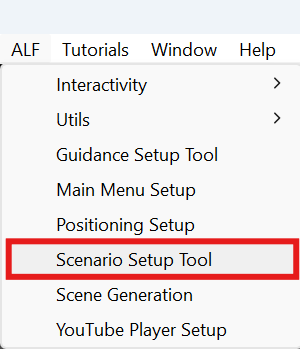
In Unity's top menu, choose ALF > Scenario Setup Tool. The window has three tabs:
| Tab | What you do there |
|---|---|
| 1 System | Start a new scenario or edit the one in the scene, and set the number of steps. |
| 2 Steps | Fill in each step. The list of steps is on the left, the selected step on the right. |
| 3 Generate | Check for problems, then build the scenario into the scene. |
What you type in tabs 1 and 2 is a draft. Nothing changes in the scene until you press the generate button in tab 3 Generate.