Set up the scene and test on the headset
Goal: connect your configuration to the lesson scene, and try it on the headset.
Set up the scene
-
Open your AR lesson scene.
-
In the tool, open step 7 Scene & Device.
-
Press Set Up Open Scene. The tool adds everything the scene needs to find the codes.
-
Check the lines under Open scene. They should all show ✓. The button now says Scene is set up.
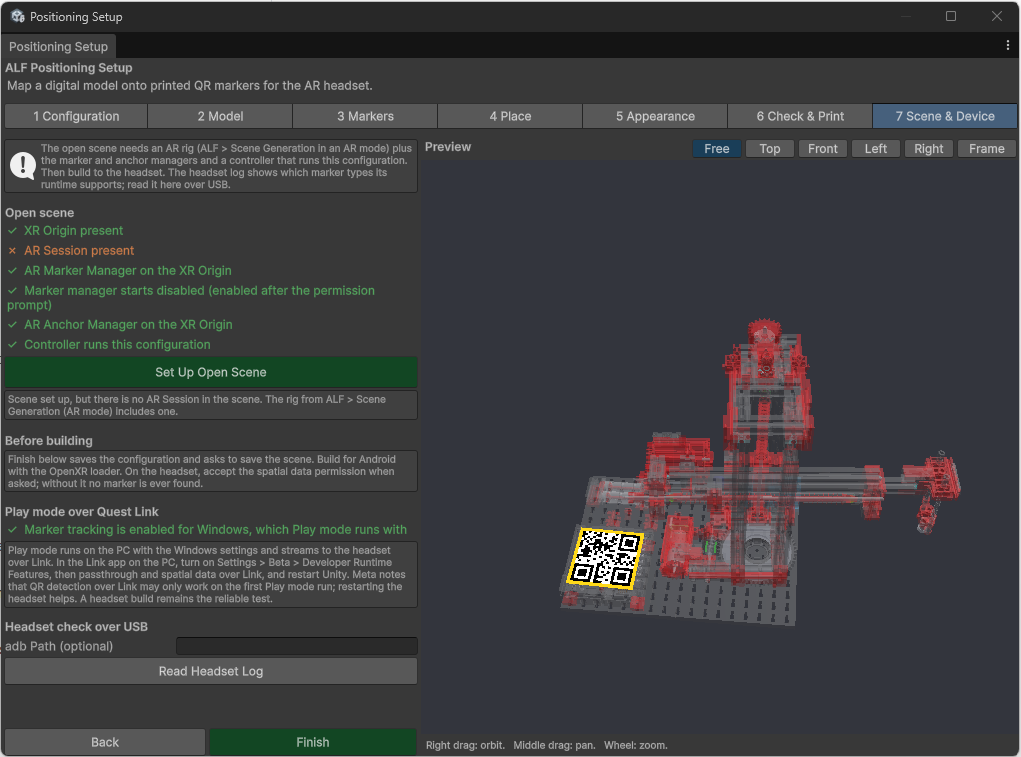
-
Press Finish. The tool saves the configuration and asks you to save the scene.
If Finish lists things that are still open, fix them, or choose Close Anyway to save the setup as it is.
Test on the headset
The reliable test is the app built onto the headset. Building is usually done by whoever maintains the project.
On the headset:
- Start the app and open the lesson.
- When the headset asks for permission to use spatial data, accept. Without it, no codes are ever found.
- Look at the codes from close up and as straight on as you can.
- The model appears on the real object.
Quick test with Play mode (Quest Link)
You can also press Play in Unity while a Quest headset is connected to the PC with Quest Link. This needs a few settings:
- Under Play mode over Quest Link, the tool must say Marker tracking is enabled for Windows. If not, turn it on in ALF > Utils > Project Status.
- In the Meta Quest Link app on the PC, turn on Settings > Beta > Developer Runtime Features, then passthrough and spatial data over Link. Restart Unity afterwards.
QR codes over Link may only be found on the first Play mode run. Restarting the headset helps.
Check the headset (advanced)
With the headset connected by USB, Read Headset Log shows what the headset reports, including whether it supports QR codes at all. This is mainly useful for whoever maintains the project.