Place the QR codes on the model
Goal: mark where each printed code will be on the real object.
First, choose where the codes go
Under Code is, choose one:
| Option | The printed code… | Good for |
|---|---|---|
| On the model | Is glued onto a face of the object, printed side out. | Objects with a large flat face. |
| Under the model | Lies on the table or floor, printed side up, with the object standing on it. | Objects without a flat face, or that you can't stick anything on. |
Steps
-
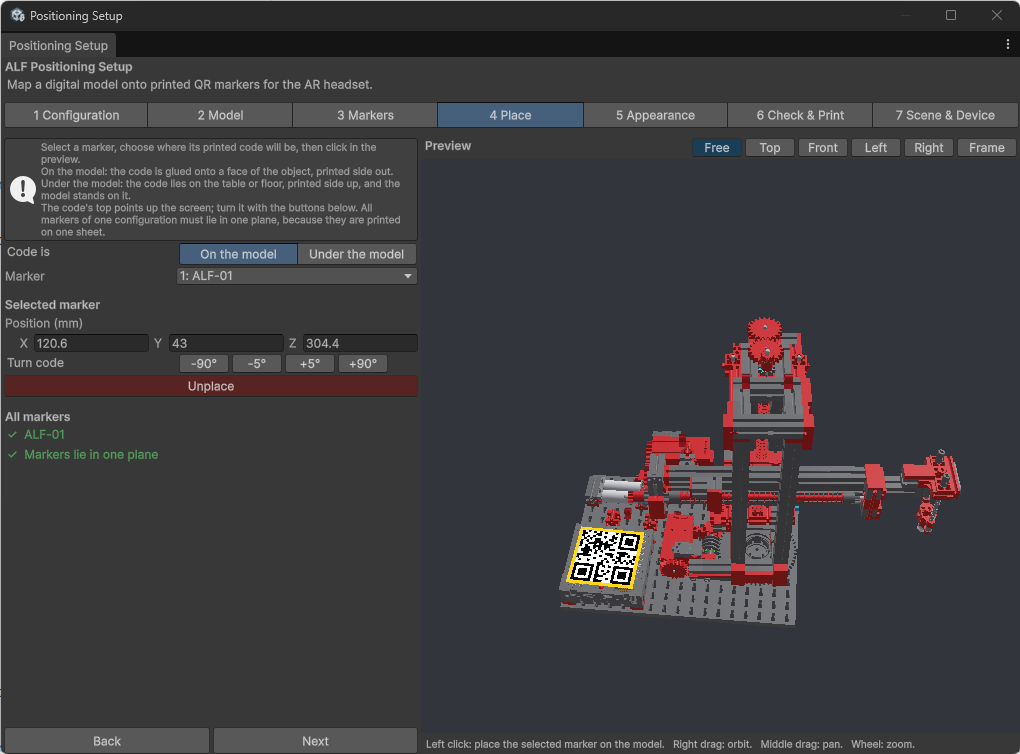
Open step 4 Place.
-
Choose On the model or Under the model.
-
Choose a code in the Marker list.
-
Left-click in the preview where the code should be: on a face of the model, or on the floor. For Under the model, you can also press Centre Under the Model.
-
Turn the code if needed with the Turn code buttons (-90°, -5°, +5°, +90°). The top of the code points up the screen.
-
Repeat for every code.
-
Check under All markers that the tool says Markers lie in one plane.
-
Press Next.
Adjust a code
With a code selected:
- Position (mm) moves it precisely.
- Turn code turns it.
- Unplace takes it off the model. It stays in the list, so you can place it again.
Good to know
- All codes must lie on one flat surface, because they're printed on one sheet. If they don't, the tool says Markers are not in one plane and won't print.
- Remember how each code is turned. On the real object, each code must face the same way as in the preview. The printed sheet helps: it keeps all codes in the right position and direction.