Create a configuration
Goal: create the file that stores everything about one real object: its model, its QR codes and how they're printed.
Steps
-
Open your AR lesson scene.
-
Open ALF > Positioning Setup. Step 1 Configuration is open.
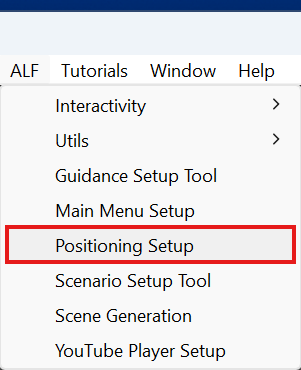
-
Press Create New Configuration....
-
Choose a name, for example
Pump positioning, and save it. By default, it goes inAssets/ALF/Positioning/Configurations. -
The box below says Editing followed by your configuration's name.
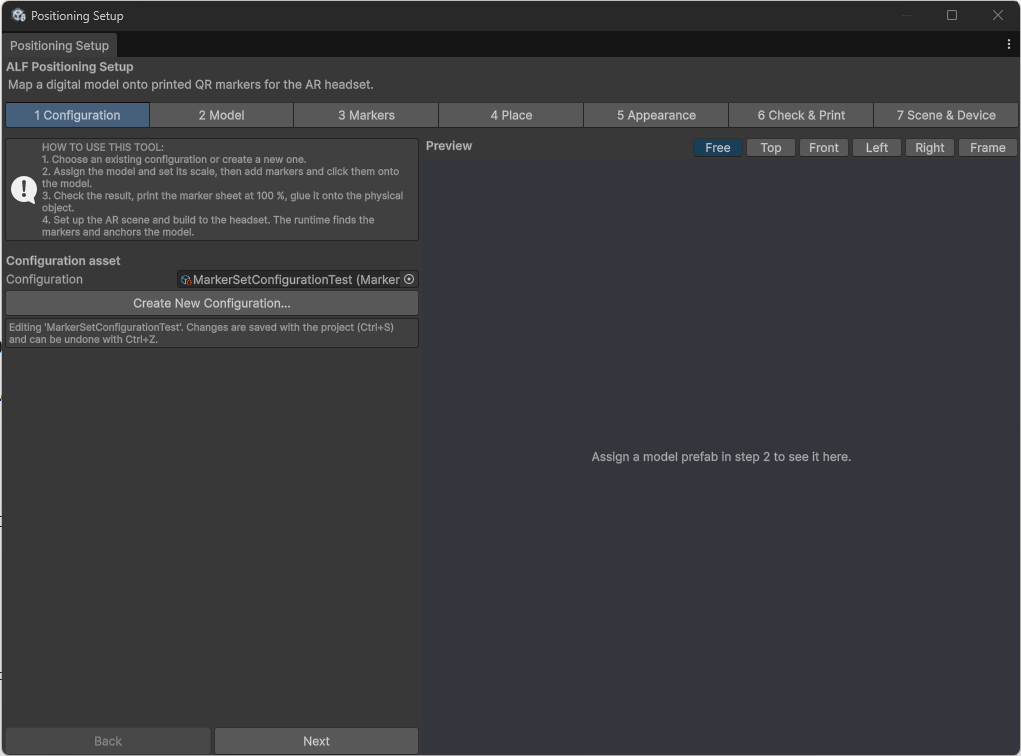
-
Press Next.
To continue an existing configuration
Drag it from the Project window into Configuration instead of creating a new one.
Project settings
If step 1 shows a warning under Project settings, the project isn't ready for QR codes yet. Press Open Project Status to see what's missing. If you're not sure how to fix it, ask whoever maintains the project.
Good to know
- One configuration per real object. If a lesson uses two real machines, create two configurations.