Check and print the QR codes
Goal: print the codes and stick them on the real object, exactly where you placed them in the tool.
Steps
-
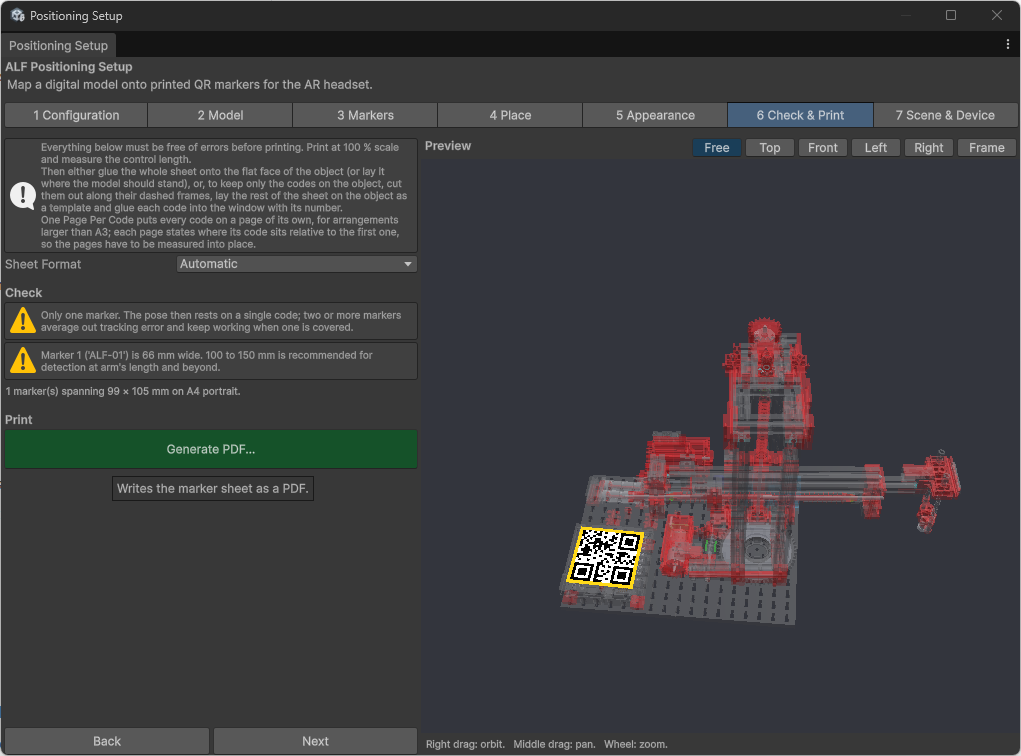
Open step 6 Check & Print.
-
Under Check, read the messages. Errors must be fixed before printing. When everything is fine, it says No problems found.
-
Choose the Sheet Format:
- Automatic: puts all codes on one A4 or A3 sheet. Use this whenever it fits.
- One Page Per Code: one code per page, for arrangements larger than A3.
-
Press Generate PDF... and save the file.
-
Press Open PDF, or Show in Folder to find the file.
-
Print at 100 %. In the print dialog, switch off "fit to page" or any scaling.
-
Measure the control length printed on the sheet. If it doesn't match exactly, the printer scaled the sheet. Print again with scaling switched off.
Stick the codes on the real object
Choose one of two ways:
- The whole sheet: glue the entire sheet onto the flat face of the object, or lay it where the object should stand.
- Only the codes: cut out each code along its dashed frame. Lay the rest of the sheet on the object as a template, and glue each code into the window with its number. Then remove the template.
One Page Per Code: each page says where its code sits relative to the first code. Measure carefully to put the pages in the right place.
Good to know
- The sheet keeps the codes in the right place. That's why it matters to print at exactly 100 % and to keep the sheet flat.
- Good light helps. The headset reads the codes better in a well-lit room, and without reflections on the paper.
- Changed the codes? Generate and print the PDF again. An old printout won't match.