How QR alignment works
Positioning Setup lines up a 3D model with a real object, using printed QR codes. It's for AR lessons, where the learner sees the real room through the headset.
New to Unity? The basic terms (Scene, Hierarchy, Project window, Play mode) are explained in Before you start.
How it works
- In the tool, you decide where each QR code sits on the 3D model.
- You print the codes on one sheet and stick them on the real object in the same places.
- In the lesson, the headset finds the codes and places the model on top of the real object.
What you need
| You need | Notes |
|---|---|
| An AR lesson scene | Made with Scene Generation, with AR Controllers or AR Hands. |
| The 3D model of the real object | As a prefab or imported file in the Project window. Its size should match the real object. |
| A printer | The codes must be printed at exactly 100 % size. |
| A flat area on the real object | All codes of one object go on one flat face, because they're printed on one sheet. Or they lie flat under the object. |
| A supported headset | Meta Quest 3 or 3S with an up-to-date system, or an Android XR headset. |
| The project set up for QR codes | Checked in ALF > Utils > Project Status. Ask whoever maintains the project if step 1 shows a warning. |
The window
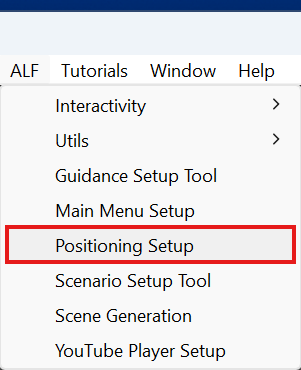
In Unity's top menu, choose ALF > Positioning Setup. The window has:
- seven steps along the top, with Back and Next at the bottom, and Finish on the last step;
- a 3D preview of the model, where you place the codes.
| Step | What you do there |
|---|---|
| 1 Configuration | Create or choose the file that stores your setup. |
| 2 Model | Add the 3D model and check its size. |
| 3 Markers | Add the QR codes. |
| 4 Place | Click where each code goes on the model. |
| 5 Appearance | Set transparency, and whether the model follows the object. |
| 6 Check & Print | Check for problems and print the codes. |
| 7 Scene & Device | Set up the scene and test on the headset. |
Using the preview
| To… | Do this |
|---|---|
| Turn the view | Drag with the right mouse button. |
| Move the view | Drag with the middle mouse button. |
| Zoom | Use the mouse wheel. |
| See the whole model | Press Frame. |
| Look from a fixed side | Press Top, Front, Left or Right. Free turns freely again. |
In step 4, a left click in the preview places the selected code.
Your work is saved with the project
Changes are stored in the configuration file. Save the project with Ctrl+S. You can undo changes with Ctrl+Z.