Set transparency and movement
Goal: decide how see-through the model is, fine-tune where it sits, and whether it follows the real object when it moves.
All of this is in step 5 Appearance.
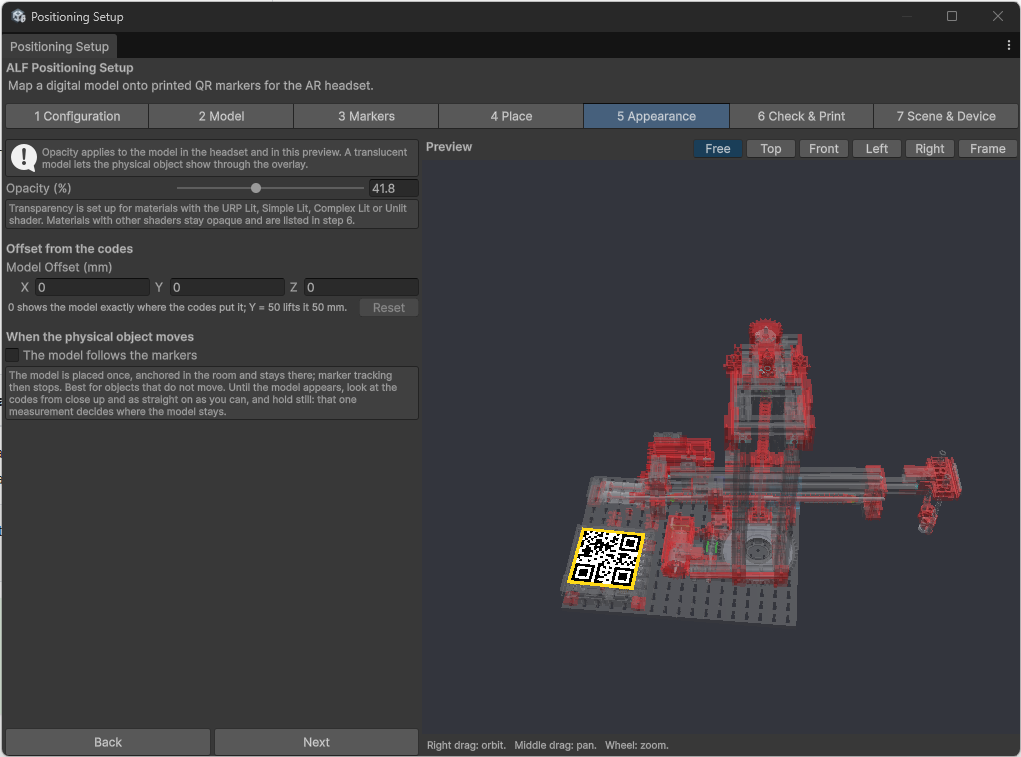
Make the model see-through
Set Opacity (%): 100 is solid, lower values let the real object show through. Around 50 is a good start for an overlay on a real machine.
The preview shows the result straight away.
Shift the model a little
If the model sits slightly off the real object, use Model Offset (mm) to shift it. The codes stay where they are; only the model moves.
- In the Front view, X points right, Y up and Z away from you.
0shows the model exactly where the codes put it. Y = 50 lifts it 50 mm.- Reset sets it back to 0.
Does the real object move?
| The real object… | Setting | What happens |
|---|---|---|
| Stays in place, for example a machine on the floor | The model follows the markers off | The model is placed once and stays there. The headset stops looking for codes, which saves battery. |
| Is picked up, turned or pushed around | The model follows the markers on | The model moves with the object while a code is in view, and stays at its last place otherwise. |
For objects that stay in place
When the lesson starts, look at the codes from close up, as straight on as you can, and hold still until the model appears. That one look decides where the model stays.
Good to know
- Following costs battery and speed, and fast movements trail slightly behind. Use it only for objects that really move.
- Some materials can't be made see-through. If parts of the model stay solid, step 6 lists them. Ask whoever prepared the model.