Add the QR codes
Goal: create the QR codes you'll print and stick on the real object.
Steps
-
Open step 3 Markers.
-
Add codes in one of two ways:
- Add Standard Set: adds eight ready-made codes, ALF-01 to ALF-08, each 120 mm wide. The easiest choice.
- Add Marker: adds one code at a time.
-
Remove the codes you don't need with Remove. Two to four codes on one flat face are a good start.
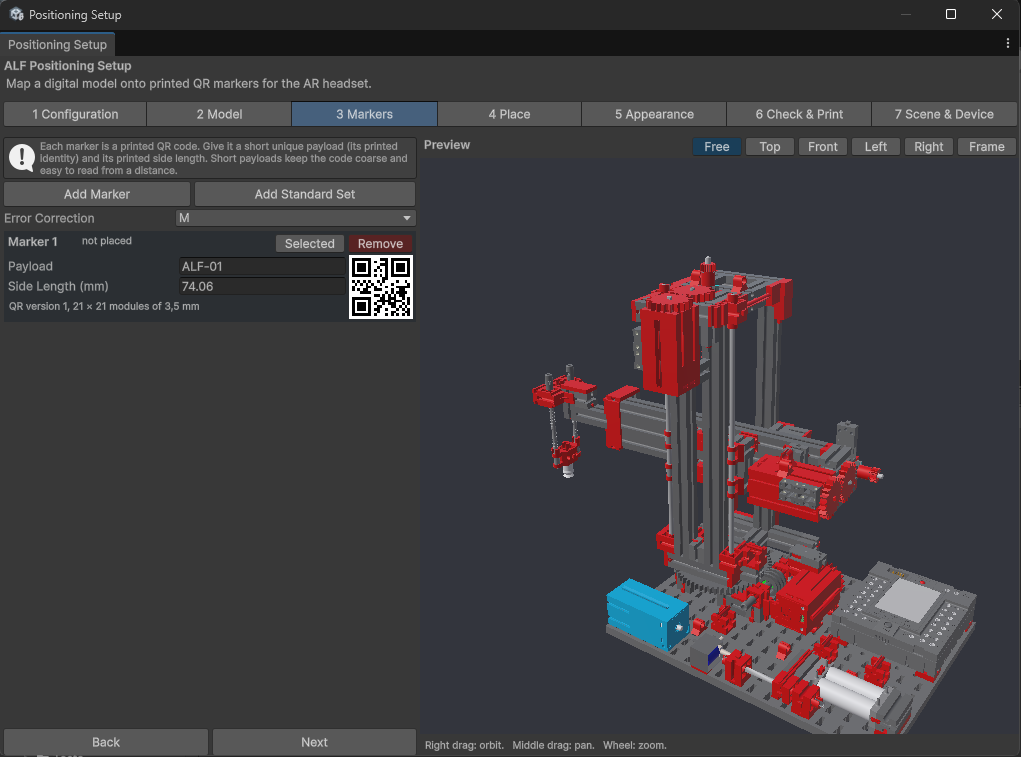
-
Press Next.
Settings for each code
| Field | What it means |
|---|---|
| Payload | The text inside the code, its "name". Every code needs a different one. Keep it short. |
| Side Length (mm) | How big the printed code is, without its white border. 100 to 150 mm works best. |
Under each code you can see how the code is built, for example QR version 1, 21 × 21 modules.
Error Correction applies to all codes: how much of a code can be damaged and still be read. M is the usual choice.
Good to know
- Bigger codes are found from further away. Small codes, down to 15 mm, are allowed but have to be looked at from close up. For example, 80 mm codes were read at about 50 cm.
- Short payloads make simpler codes that are easier to read from a distance.
- More codes give a steadier result, as long as they all fit on one flat face.