Add the model
Goal: add the 3D model of the real object, and make sure it has the right size.
Steps
-
Open step 2 Model.
-
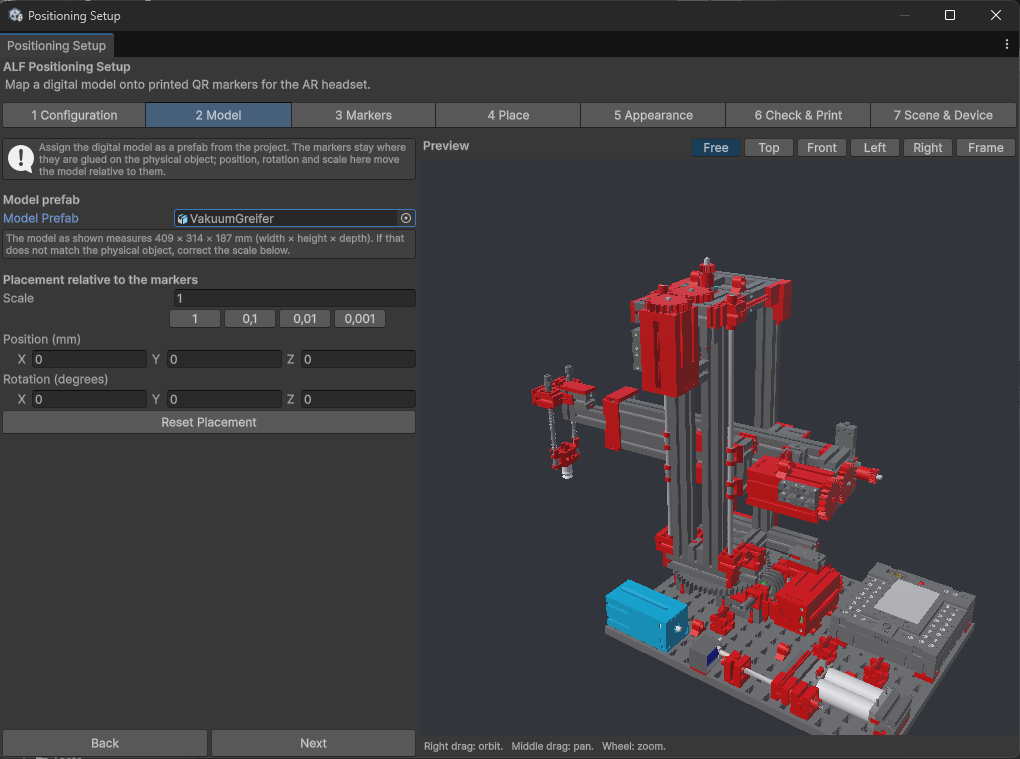
Drag the model from the Project window into Model Prefab. It appears in the preview.
-
Read the size the tool reports: The model as shown measures … × … × … mm (width × height × depth).
-
Measure the real object. If the sizes don't match, fix the Scale:
The model was made in… Scale Millimetres (sizes 1000× too big) 0.001Centimetres (sizes 100× too big) 0.01Metres (sizes correct) 1The buttons next to Scale set these values for you. Check the reported size again afterwards.
-
Press Next.
Position and rotation
Position (mm) and Rotation (degrees) move the model relative to the QR codes. You usually don't need them now: leave them at zero and place the codes in step 4. Reset Placement sets them back.
Good to know
- Use the model from the Project window, not from the Hierarchy. Objects in the scene aren't accepted here.
- The size must be right. If the model is too big or too small, it can't line up with the real object, however carefully the codes are placed.