Positioning Setup
Menu: ALF > Positioning Setup
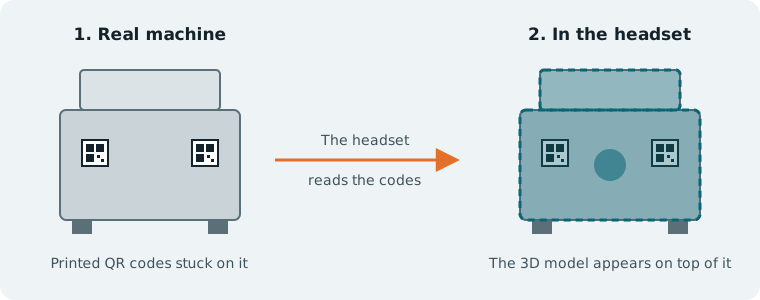
For AR lessons only. Lines up your 3D model with a real object in the room, for example a digital overlay on a real machine. You stick printed QR codes on the object (or lay them under it). The headset finds the codes and shows the model exactly in the right place.
Quick start
- Make an AR lesson scene with Scene Generation.
- Open ALF > Positioning Setup and work through the seven steps:
- Configuration: create a configuration.
- Model: add the 3D model and check its size.
- Markers: add the QR codes.
- Place: click where each code goes on the model.
- Appearance: set transparency, and whether the model follows the object.
- Check & Print: print the codes at 100 % and stick them on the real object.
- Scene & Device: set up the scene, then test on the headset.
- Press Finish.