Create a lab
Goal: add the experiment to your scene, with the environments and objects you want.
Steps
-
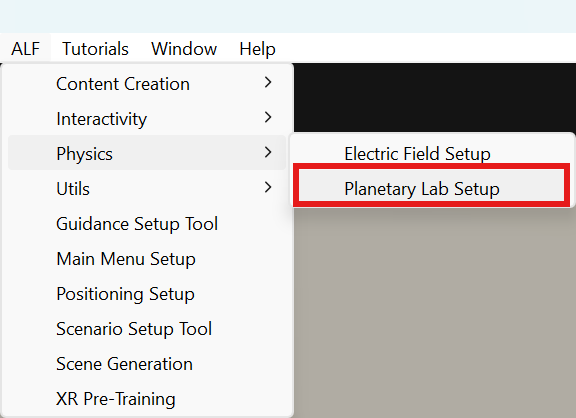
Open your lesson scene, then ALF > Physics > Planetary Lab Setup.
-
In step 1 System, press Create a lab in the active scene. This adds the lab, its controls and its graphs. The rest of your scene stays as it is.
-
Still in step 1 System, choose:
- Initial environment: where the experiment starts, for example Earth;
- Start in vacuum: tick to start without air;
- Selectable presets: the environments learners can switch between.
-
In step 2 Bodies, set the Left body and the Right body: for each, its profile (for example feather or metal block), its shape (sphere or box) and its size.
The size sets how big the object looks and where it touches the ground. Mass and air resistance come from the profile. Keep the two consistent: a big object with the profile of a small one gives odd results.
-
In step 3 Placement, set:
- Lab world position (m) and Lab yaw (degrees): where the lab stands and which way it faces;
- Bottom release height (m): how high above the ground the objects start;
- Optional external ground: a floor of your own for the objects to land on, if you don't want the lab's platform.
Preview placement shows the lab in a separate preview.
-
Continue with Set what learners can change and measure.
-
In step 7 Save, press Apply lab settings, then save the scene with Ctrl+S.
Good to know
- Keep the lab upright and at its normal size. Don't tilt or scale it.
- Moved the lab by hand? Press Apply lab settings again, so the starting positions are updated.
- Find this lab in step 1 selects it in the scene.
- The tool doesn't work in Play mode. Stop Play mode first.