Update or remove a palette
Change a palette that's already in the scene
- Open ALF > Interactivity > Part Palette.
- Make your changes in steps 2, 3 or 4.
- In step 5 Scene, press Update.
- Save the scene with Ctrl+S.
The board in the scene is rebuilt from the configuration the next time you press Play.
While the scene is playing, right-click the Part Palette component in the Inspector (or use its ⋮ menu) and choose Rebuild Palette.
Use the same palette in another scene
The palette's contents are saved in its configuration asset, not in the scene. In the other scene, open the tool, choose the same asset in step 1, and press Add to Scene in step 5.
Changes to the asset then appear in every scene that uses it.
Remove a palette from the scene
In step 5 Scene, press Remove, then save the scene.
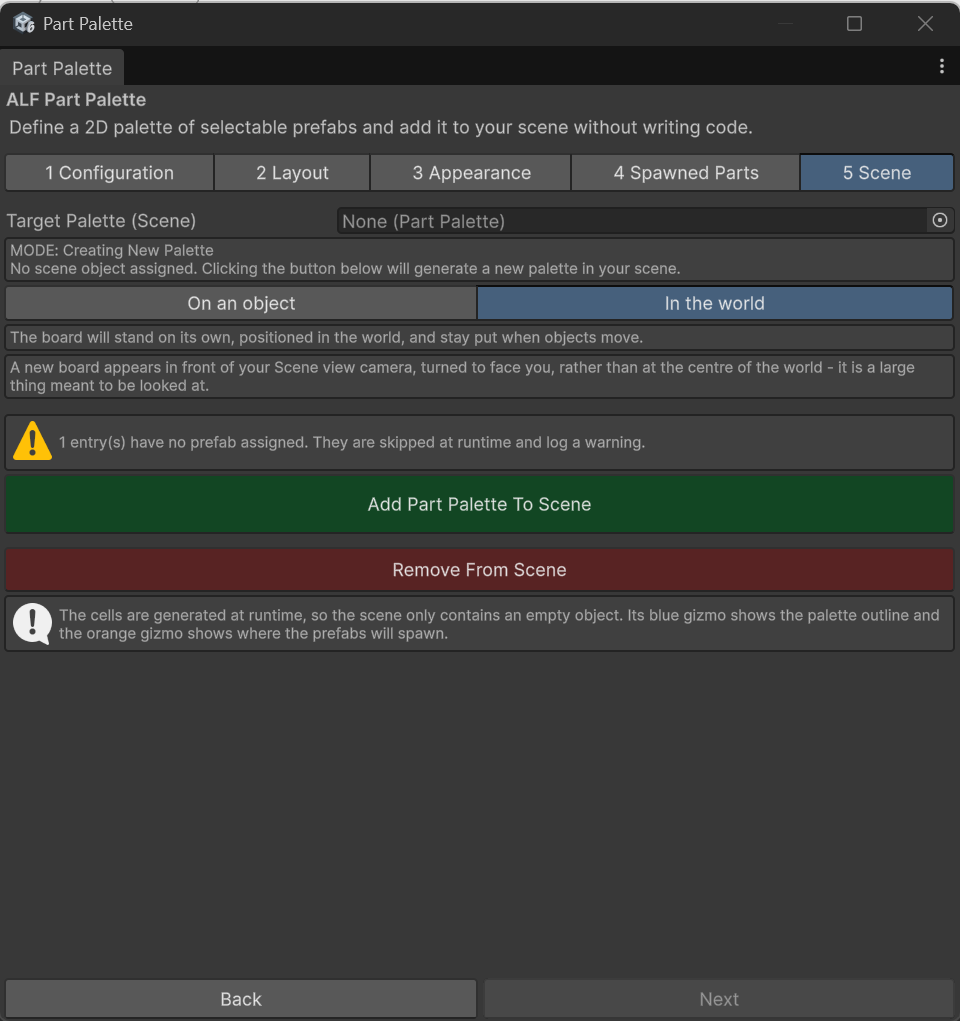
This removes the board from the scene. The configuration asset stays in your project, so you can add the board again later.
More than one palette in a scene
You can have several. However, the window connects to the first one it finds in the scene. If you're editing the wrong board, check which palette step 5 shows.