Place the board
Goal: hang the board in the right place, facing the learners, either on its own or attached to an object such as a wall or a workbench.
Steps
-
Open step 5 Scene.
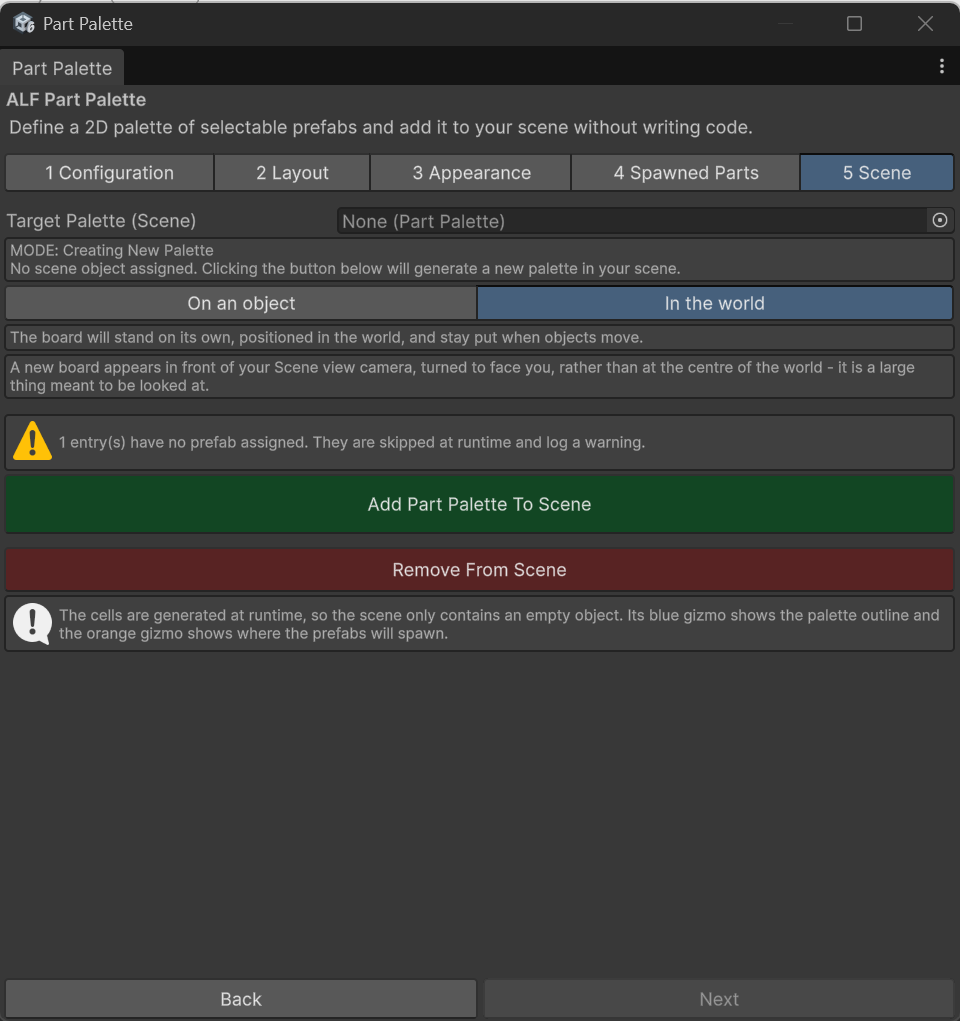
-
Choose where it sits:
- In the world: the board stays where you put it. The position is in metres from the centre of the world.
- On an object: drag the object into the Attached to field. The board then moves with that object, and its position is measured from it.
-
Move the board:
- Type coordinates, or
- Place visually, which opens a preview so you can move it by eye.
-
Make sure the front faces the learners. The front is the side the board's blue Z arrow points to.
-
Save the scene with Ctrl+S.
Seeing the board while you move it
The cells normally only exist while the lesson is running. While the placement preview is open, the board is temporarily built so you can see what you're placing. It's removed again automatically when you close the preview or the window, save the scene, or press Play, so it never gets saved into the scene by accident.
Good to know
- Attaching keeps the board where it is. Choosing an object in Attached to doesn't make the board jump; only the numbers change, to be measured from the new object.
- What you can't attach to: the board itself, anything inside the board, or a prefab from the Project window. Use an object from the Hierarchy.
- A new board appears in front of you, facing the Scene view camera, so you don't have to look for it.