Fill the columns with parts
Goal: add columns to the palette, put parts in them, and arrange them in the right order.
How the layout step works
Step 2 Layout shows one column at a time:
- On the left: a list of all columns. Each row shows the column's label, how many parts it has, and how many of them still have no prefab.
- On the right: the parts of the column you selected, at full size.
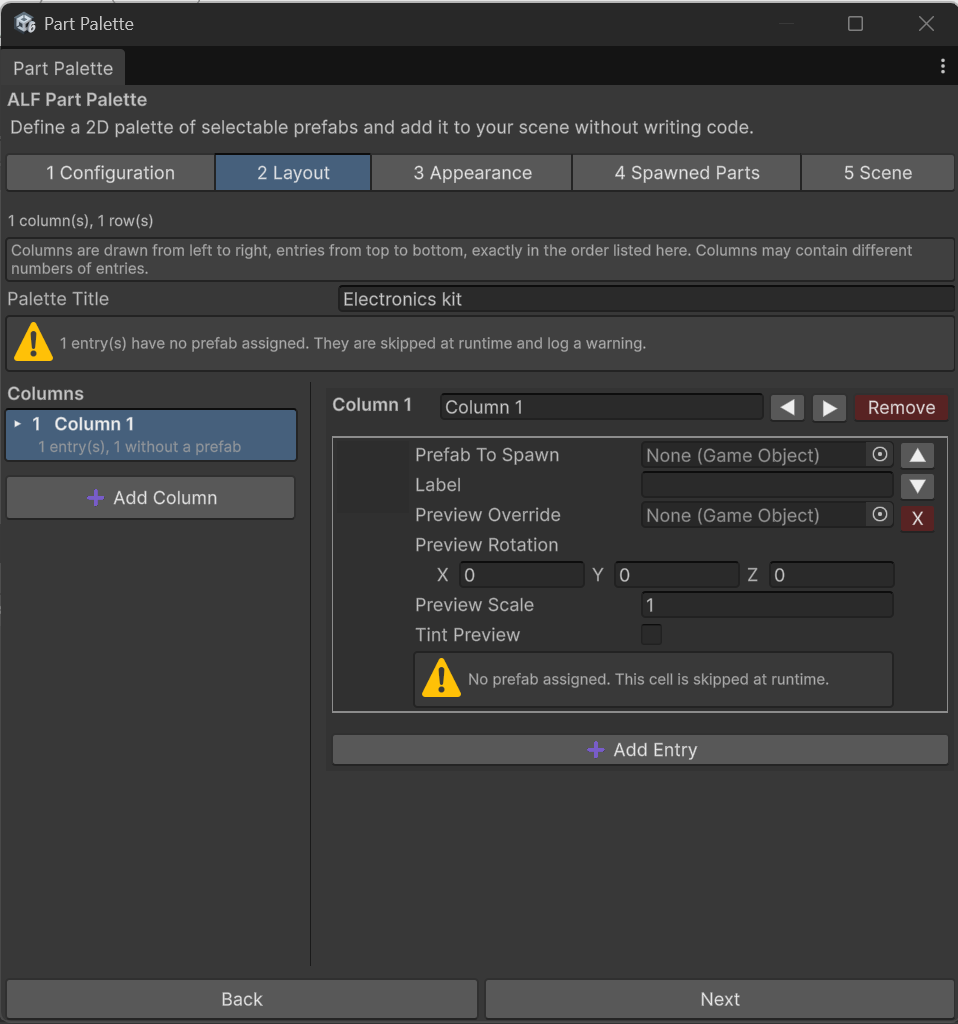
Click a column in the list to edit its parts.
Add a column
- Open step 2 Layout.
- Add a column, and give it a label, for example
Resistors.
Add parts to a column
- Select the column in the list.
- Add an entry for each part, one row per variant.
- For each entry, drag the part's prefab from the Project window into its prefab field.
The board shows a small 3D copy of each prefab in its cell.
Change the order of columns
Select a column, then use ◀ and ▶ to move it left or right. The selection moves with it.
Remove a column
Select it and remove it. The column that takes its place is selected next.
Good to know
- Keep an eye on missing prefabs. A column whose list row shows missing prefabs has cells that won't spawn anything.
- The miniatures are just pictures. They're copies of the part's shape only, so they can't fall, collide, or do anything a real part does.
- Animated characters and other skinned models are shown in their default pose.