Create a parts palette
Goal: build a board of parts and put it in your scene, from start to finish.
Steps
-
Open ALF > Interactivity > Part Palette.
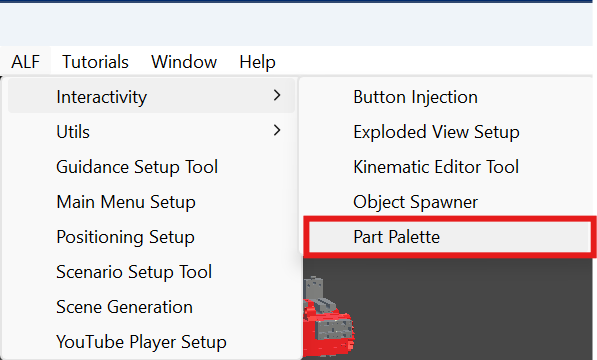
-
Step 1 Configuration: choose the configuration asset for this palette. Step 1 explains how to use the tool. To reuse a palette from another scene, choose its existing asset.
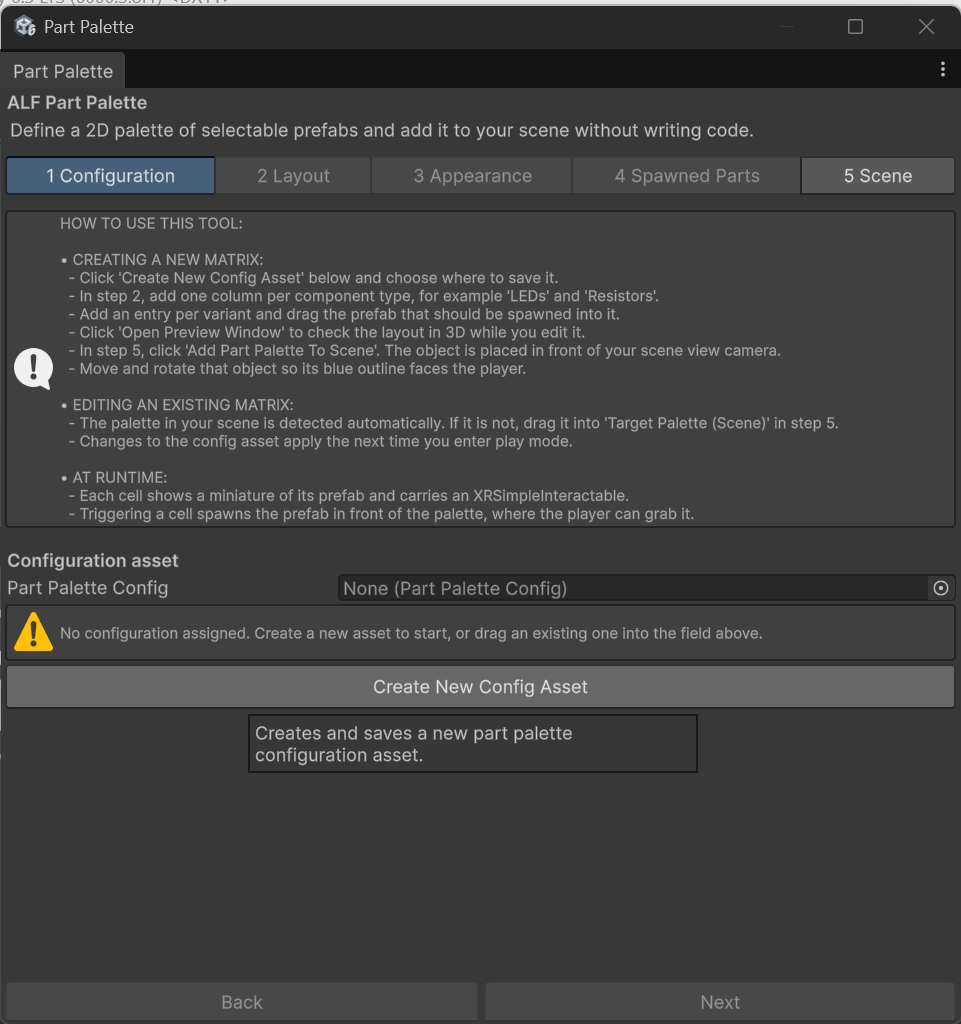
-
Step 2 Layout:
- Type a title for the palette, for example
Electronics kit. - Add a column for each kind of part, and add the parts to each column. See Fill the columns with parts.
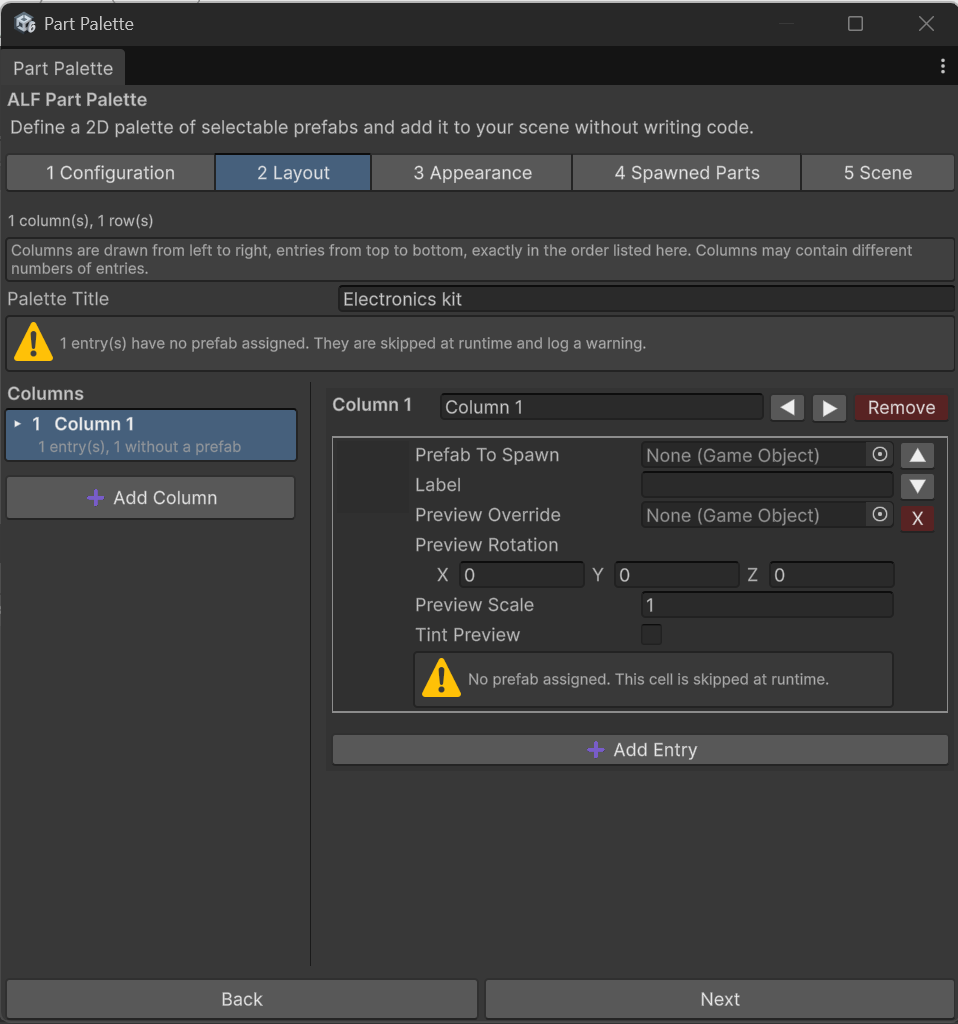
- Type a title for the palette, for example
-
Step 3 Appearance: adjust the look if you like. The defaults work well. See Change how the board looks.
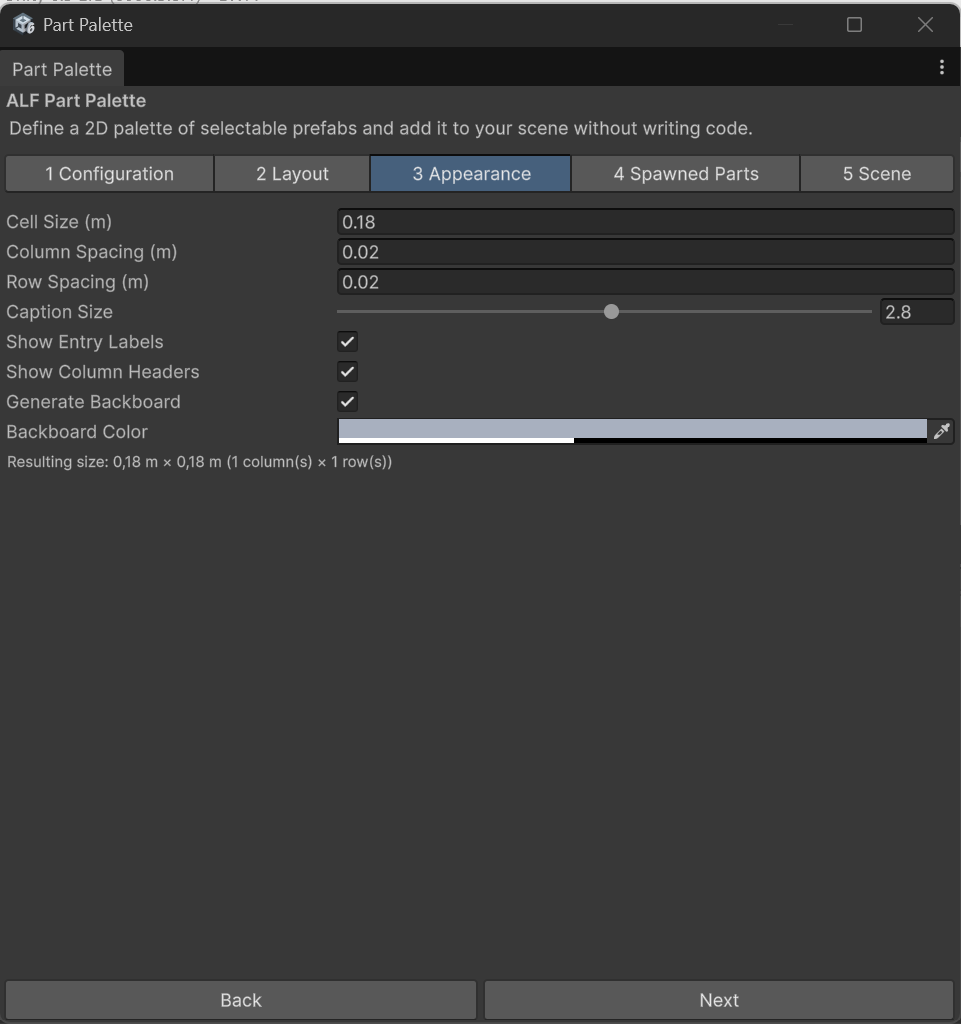
-
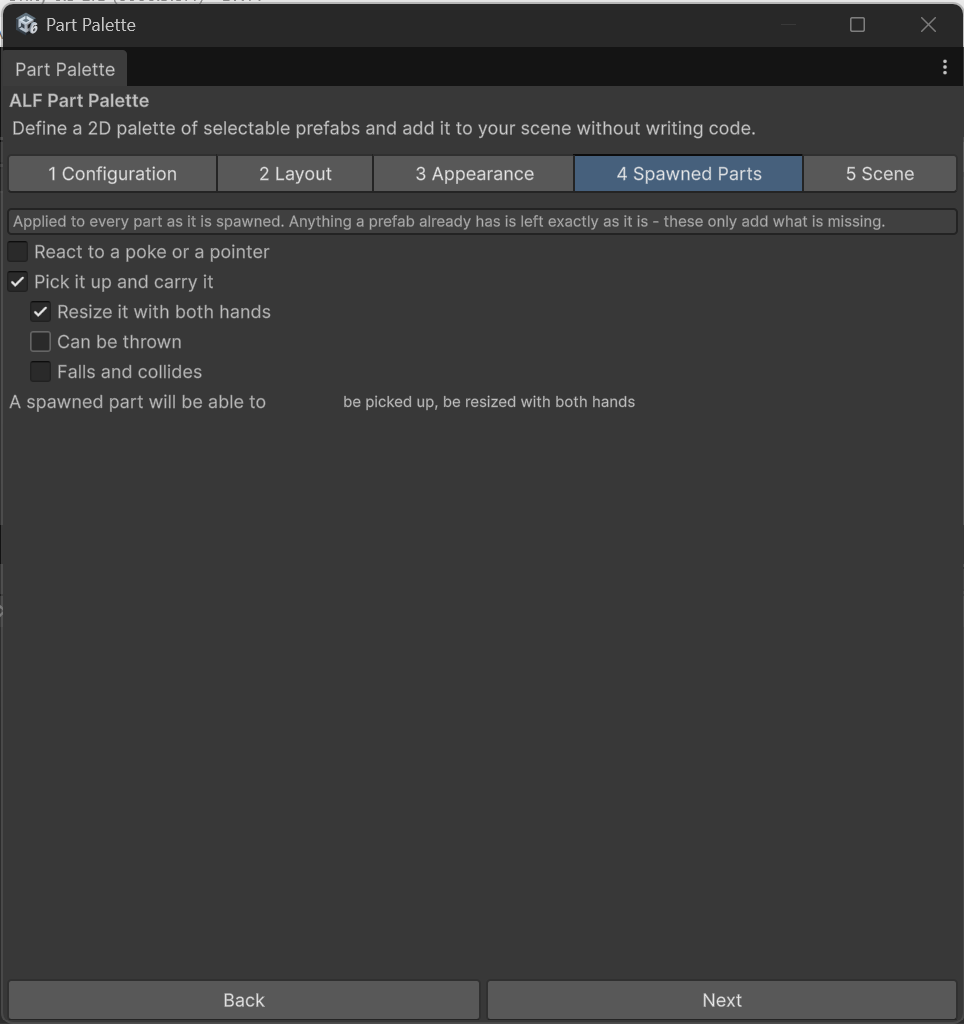
Step 4 Spawned Parts: choose what learners can do with a part once it appears. The default lets them grab it, and resize it with two hands. See Choose what learners can do with a part.
-
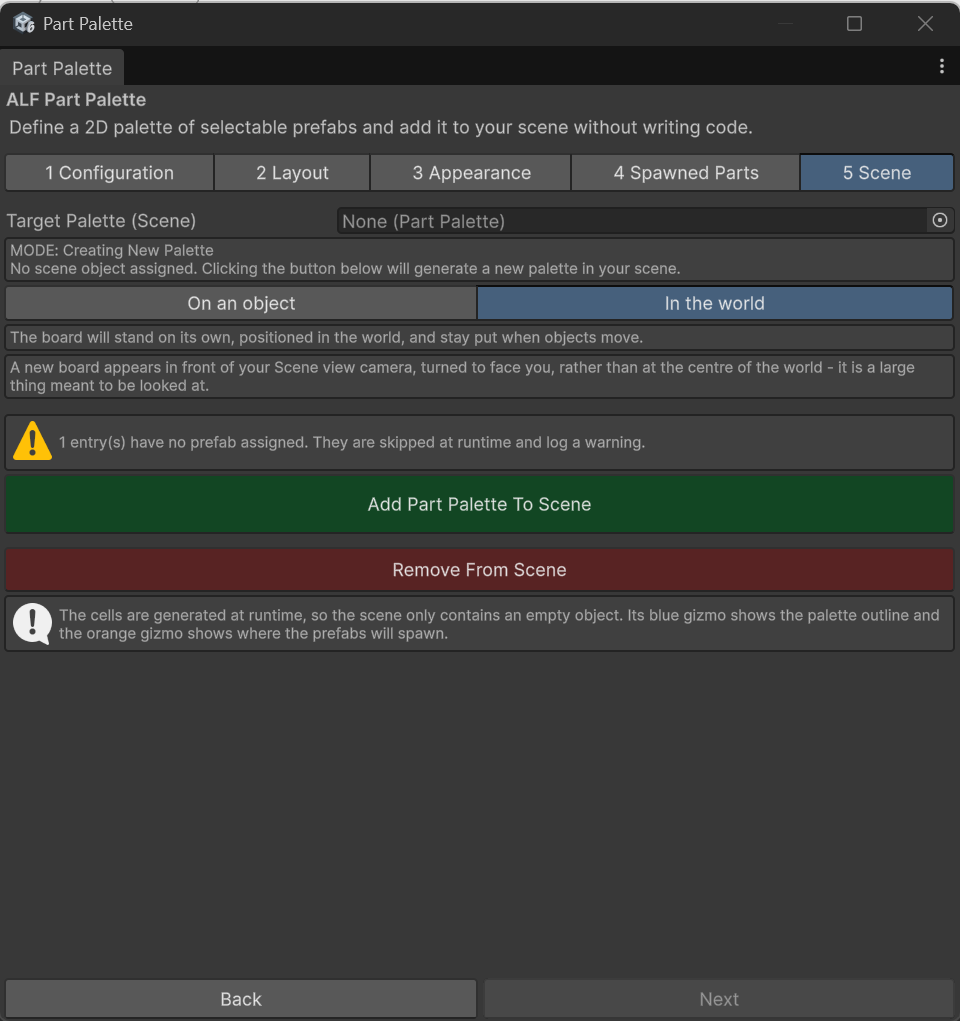
Step 5 Scene: press Add to Scene. The board appears in front of the Scene view camera, facing you.
-
Move the board to where it should hang. See Place the board.
-
Save the scene with Ctrl+S.
Check it
- Before playing: press Open Preview Window in step 1 to look at the board in 3D. You can orbit around it.
- In Play mode: the board is built, and poking a cell makes the real part appear in front of it.
Good to know
- Every cell needs a prefab. Step 2 shows how many parts in each column are still missing one, and step 5 repeats the warning next to Add to Scene.
- Changes you make later appear the next time you press Play. See Update or remove a palette.