Change how the board looks
Goal: adjust the size of the cells, the space between them, the captions and the backboard.
Steps
-
Open step 3 Appearance.
-
Change the settings:
Setting What it changes Cell size How big each cell, and its miniature, is. Sizes are in metres. Spacing The gap between cells. Captions The text shown with the cells. Backboard The panel behind the cells. By default it's light grey and partly see-through (40% opaque). 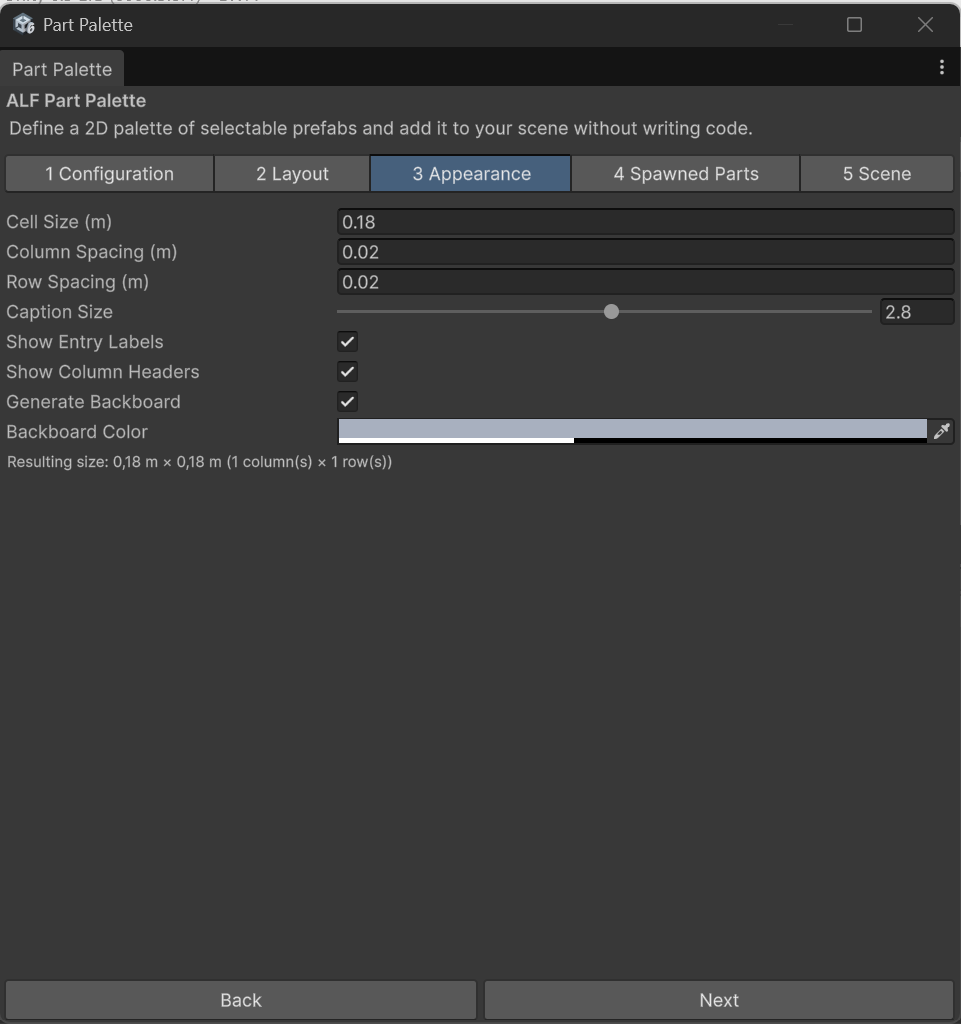
-
Check the result with Open Preview Window in step 1.
-
If the board is already in the scene, the changes appear the next time you press Play.
Good to know
- Bigger cells are easier to poke. Each cell reacts across its whole area, not just where the miniature is, so learners don't have to aim precisely.
- Miniatures grow a little when a learner's hand or ray hovers over them, to show which cell will be picked.
- Be careful when pasting values into size fields. Very small values are corrected, but invalid values, such as text pasted by mistake, are not. If the board looks broken, check the sizes in step 3.