Put an object in the scene
Goal: add a model to your lesson, either standing in the room or sitting on another object.
Steps
-
Open ALF > Interactivity > Object Spawner.
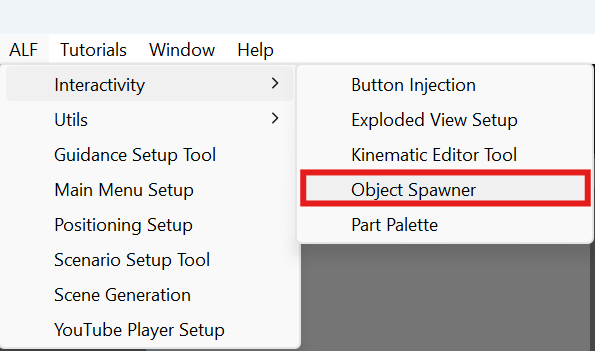
-
Under the list on the left, press + Add a new object. The steps are now headed New object — not placed yet. In an empty scene, the window starts this way.
-
In step 1 Object:
- Drag the model from the Project window into Prefab or model.
- Choose where it goes:
- In the world: it stands on its own and stays put when other things move.
- On an object: drag that object from the Hierarchy into Object. The model then moves with it.
- Type a Name, or leave it empty to name it after the model.
- Press Place it in the world or Place it on this object.
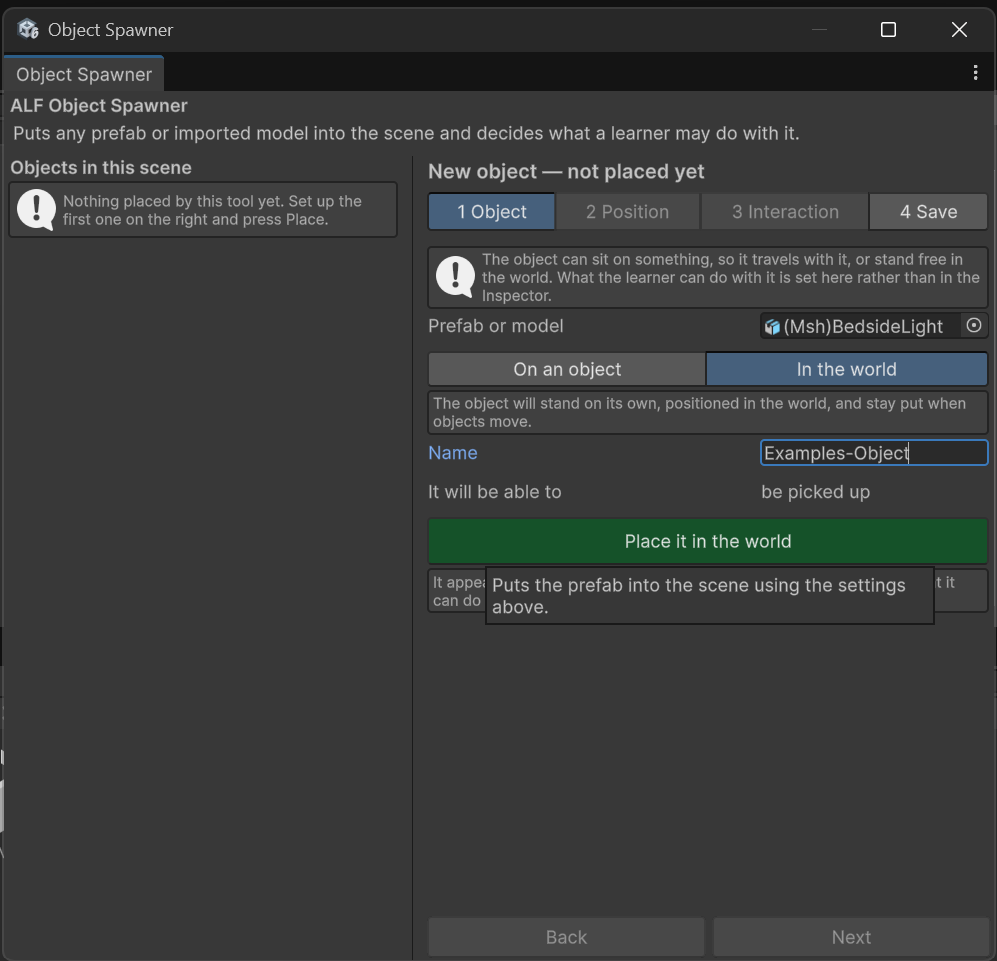
-
The object appears at the centre of its space (the centre of the world, or of the object it sits on) and is selected, with step 2 Position open. Move it into place. See Move an object.
-
In step 3 Interaction, choose what learners can do with it. See Choose what learners can do with an object.
-
In step 4 Save, press Save the scene.
Result
The object is in the scene and listed on the left.
Good to know
- The object may be hidden at first, for example inside the object it sits on, or far from your room. Move it in step 2, or press Find next to it in the list.
- Names are kept unique. If the name is already in use, a number is added.
- Interaction settings are copied from the object selected in the list, so several objects can be set up alike. You can change them in step 3.
- The tool tells you what a model already has. If a model can already be picked up or poked, step 1 says so, and that setup is kept.