Move an object
Goal: put an object exactly where it should be, or attach it to another object.
Steps
-
Click the object in the list on the left.
-
Open step 2 Position.
-
Under Where it sits, move it:
- Type the position in metres. The field's label tells you what it's measured from:
World position (m): from the centre of the world;Position on '…' (m): from the object it sits on.
- Turn it with the rotation field.
- Place it visually: press Place '…' visually to open a small preview window and move it by eye. The numbers follow as you drag.
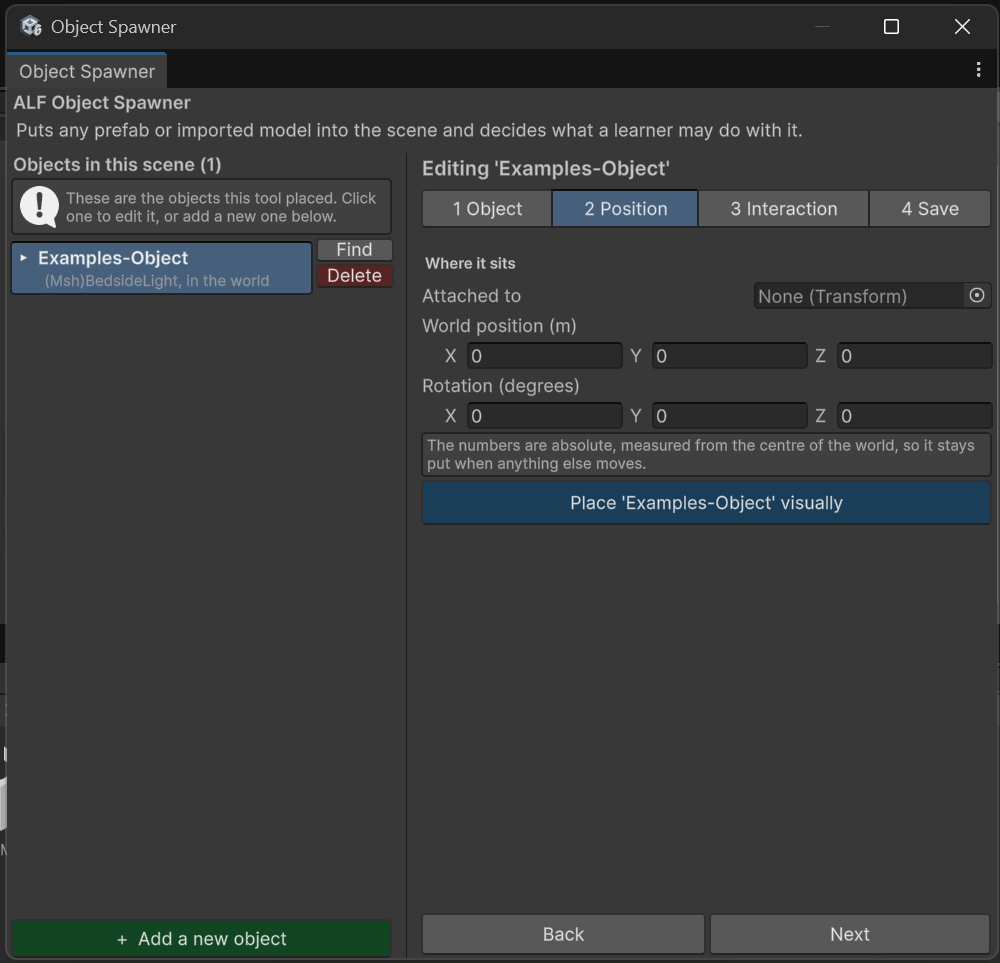
- Type the position in metres. The field's label tells you what it's measured from:
-
Save the scene in step 4 Save.
Attach it to another object, or free it
Use the Attached to field in step 2:
- To attach it: drag the object it should sit on from the Hierarchy into Attached to. It then moves with that object.
- To free it: clear Attached to. It then stands on its own in the world.
The object stays where it is when you change this. Only the numbers change, because they're now measured from somewhere else.
Good to know
- You can't attach an object to itself, or to something inside it.
- Drag from the Hierarchy, not the Project window. The Hierarchy holds the objects in your scene.