Edit, rename or remove an object
Find an object again
Every object this tool placed is in the list on the left, with its name and where it sits.
- Click a row to edit that object.
- Press Find next to a row to see where it is in the scene.
While an object is selected, every change you make applies to it straight away.
Rename an object
- Click the object in the list.
- In step 1 Object, change the Name. It's renamed as you type.
Check an object's setup
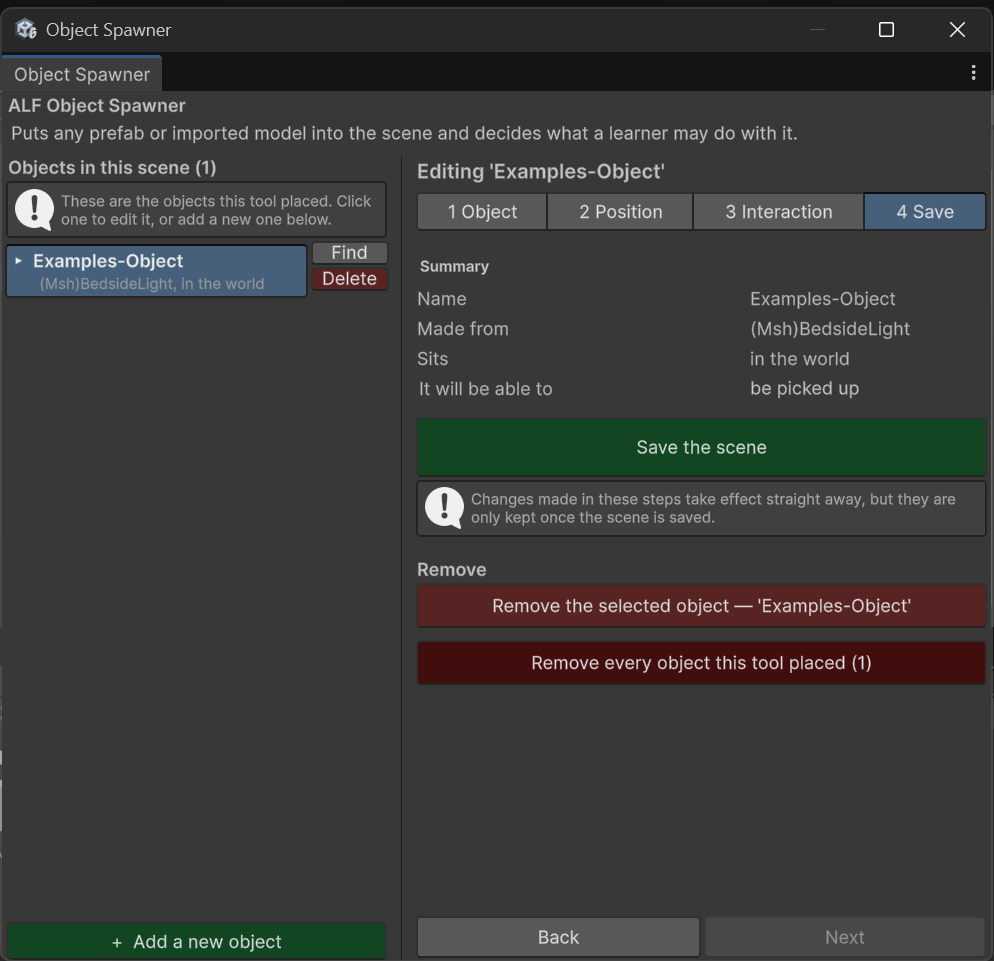
Step 4 Save shows a Summary of the selected object: its name, which model it was made from, where it sits, and what learners can do with it.
Remove objects
| To remove… | Do this |
|---|---|
| One object | Press Delete next to it in the list. |
| The object you're editing | In step 4 Save, press Remove the selected object. The button shows the object's name. |
| Every object this tool placed | In step 4 Save, press Remove every object this tool placed. You'll be asked to confirm. |
Objects placed by other ALF tools are never removed here. The models in your Project window are not deleted either.
After removing, save the scene in step 4 Save.