Choose what learners can do with an object
Goal: decide whether learners can poke an object, pick it up, resize it or throw it, and whether it falls.
Steps
-
Click the object in the list on the left.
-
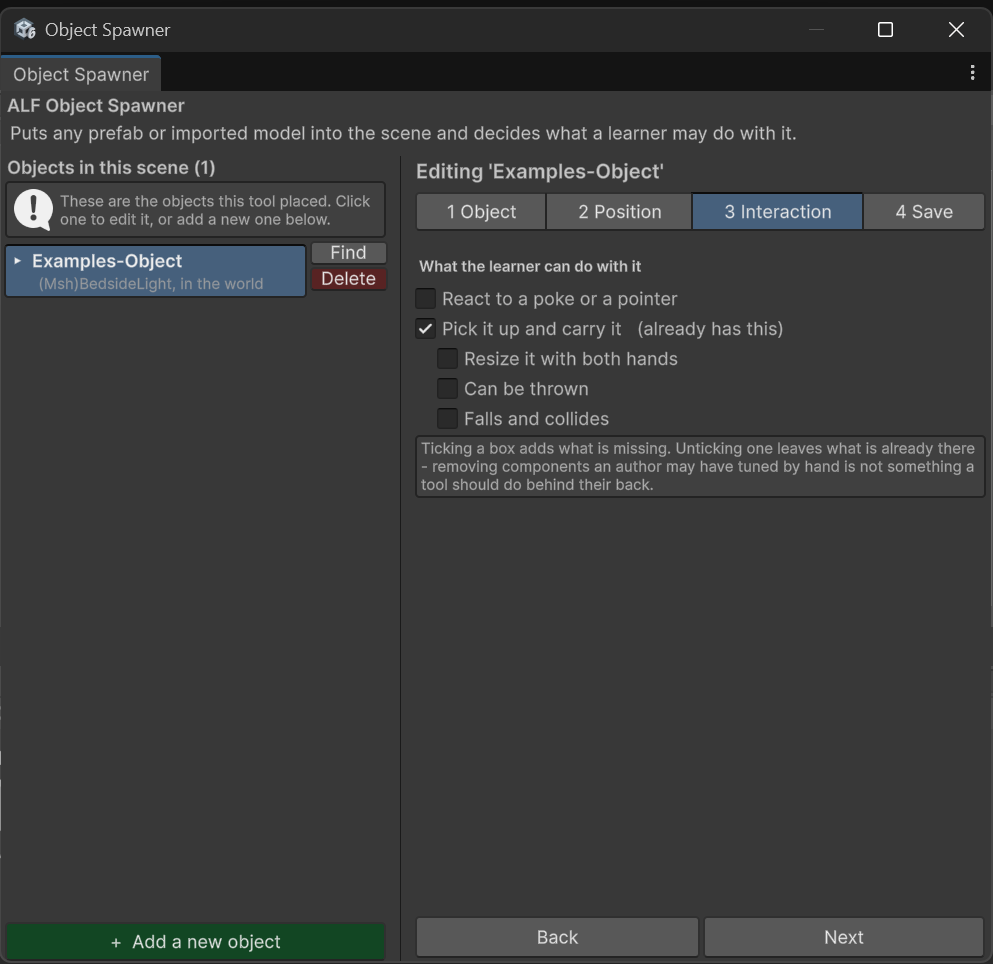
Open step 3 Interaction.
-
Under What the learner can do with it, tick the options you want:
| Option | Learners can… |
|---|---|
| React to a poke or a pointer | Touch it or point at it. Use this for objects that act like a button. |
| Pick it up and carry it | Grab it and move it around. |
| Resize it with both hands | Make it bigger or smaller by holding it with both hands and pulling apart. |
| Can be thrown | Throw it: when they let go, it keeps the speed of their hand. |
| Falls and collides | When switched on, it falls to the ground and bumps into things. When off, it floats where it's let go. |
The last three options are only available while Pick it up and carry it is ticked.
- Save the scene in step 4 Save.
Which options to choose?
| Object | Suggested options |
|---|---|
| A part to look at closely | Pick it up and carry it, Resize it with both hands |
| A tool to put down on a table | Pick it up and carry it, Falls and collides |
| Something that acts like a switch | React to a poke or a pointer |
| Decoration | Nothing ticked |
Good to know
-
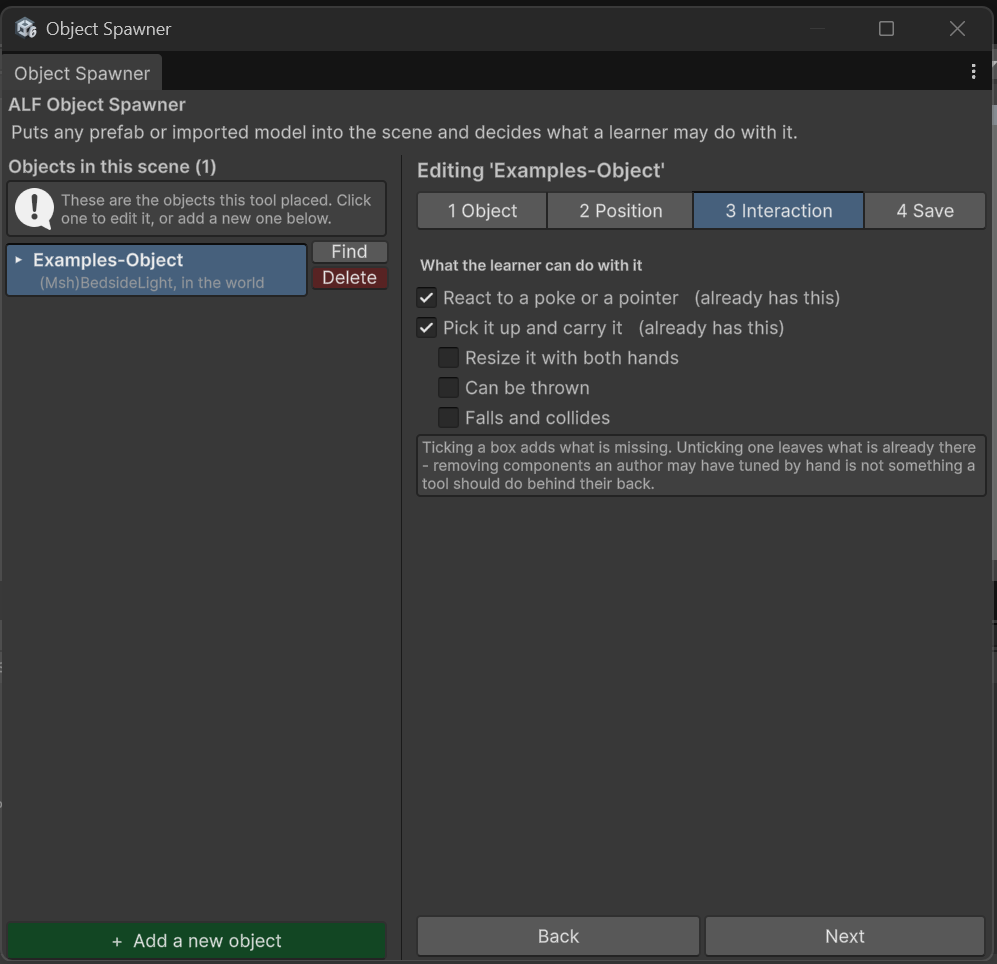
"(already has this)" next to an option means the model already comes with that ability. It's kept as it is.
-
Unticking doesn't remove anything. It only stops the tool adding what's missing. Resize it with both hands is the exception: unticking it really does switch resizing off.
-
Poking and picking up together is allowed, but you'll see a warning. When a learner reaches for the object, only one of the two reacts.
-
Throwing and falling: without Falls and collides, a thrown object flies off without coming down.