Record a demonstration
Goal: record your hand movements and voice while you operate a machine.
Set up the scene
-
Open ALF > Content Creation > Motion > Demonstration Recorder.
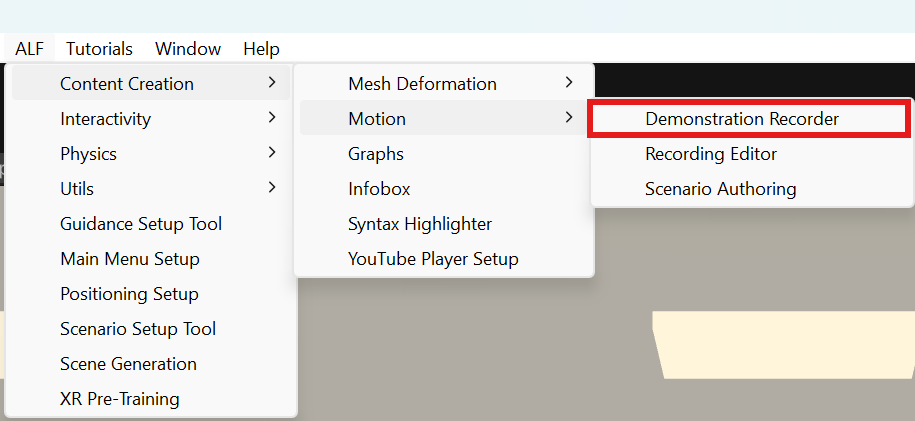
-
Under Step 1: Choose Your Demonstration Target, choose the Demonstration Target Mode:
- Virtual Machine: drag the machine from the Hierarchy into Virtual Machine Object. Tick Enable Passthrough if you want to see your room around it.
- Physical Machine: drag the object that marks the real machine's position into Physical Anchor Transform.
-
Under Step 2: Inject Your Scene Recording Rig, press Inject Recording Rig into Scene.
This adds the hand-tracking setup and a recording menu on your wrist. It replaces any other player setup in the scene, for example one from Scene Generation, so there's only one.
-
Under Step 3, open Verify Headset Settings Before Recording and go through the checklist.
Record (with Quest Link)
- Connect the Quest 3 to the computer with a USB-C cable, or use Air Link.
- In the headset, open Quick Settings and select Quest Link.
- Under Step 4: Record Your Live Demonstration, type a Recording Clip Name, for example
Start the pump. Tick Record voiceover audio with microphone to record your voice. - Press Play in Unity.
- Put on the headset. Look at your free wrist: the recording menu appears there.
- Poke Start Recording. After a 3-second countdown, recording starts.
- Operate the machine naturally and explain each step out loud.
- Poke Stop Recording. The recording is saved, and the menu shows how well your hands were tracked.
You can also start and stop the recording from the tool window with ● Start Recording Session and ■ Stop Recording.
Result
The .json and .wav files are in Assets/Use Cases/Recordings. Open Project Recordings Folder under Step 5 shows them.
Next: Create the playback for learners. Proceed to Scenario Authoring → takes you there with the same settings.
Tips for a good recording
- Keep your hands in front of you, where the headset cameras can see them. Looking away from your hands interrupts tracking.
- Move a little slower than usual. Learners need to follow.
- Do one task per recording. Short recordings are easier to watch and repeat.
- Check the tracking result on your wrist after stopping. If it's low, record again.
Good to know
- Mark a moment by hand. While recording, type a Marker Name in the window and press Trigger Action Marker, for example when the machine should react to something it can't detect itself.
- Remove the setup again with Remove Rig from Scene. Re-link Anchor & Menu to Rig refreshes it after you change the machine.
- Setting up the scene doesn't work in Play mode. Stop Play mode to inject or remove the rig.