Prepare a model
Goal: turn, resize and set down a model, and save it as a new prefab that's ready to place.
Steps
-
Open ALF > Model Adjuster.
-
In step 1 Model, choose the model in Model asset, or drag it in from the Project window. Press Load model into preview.
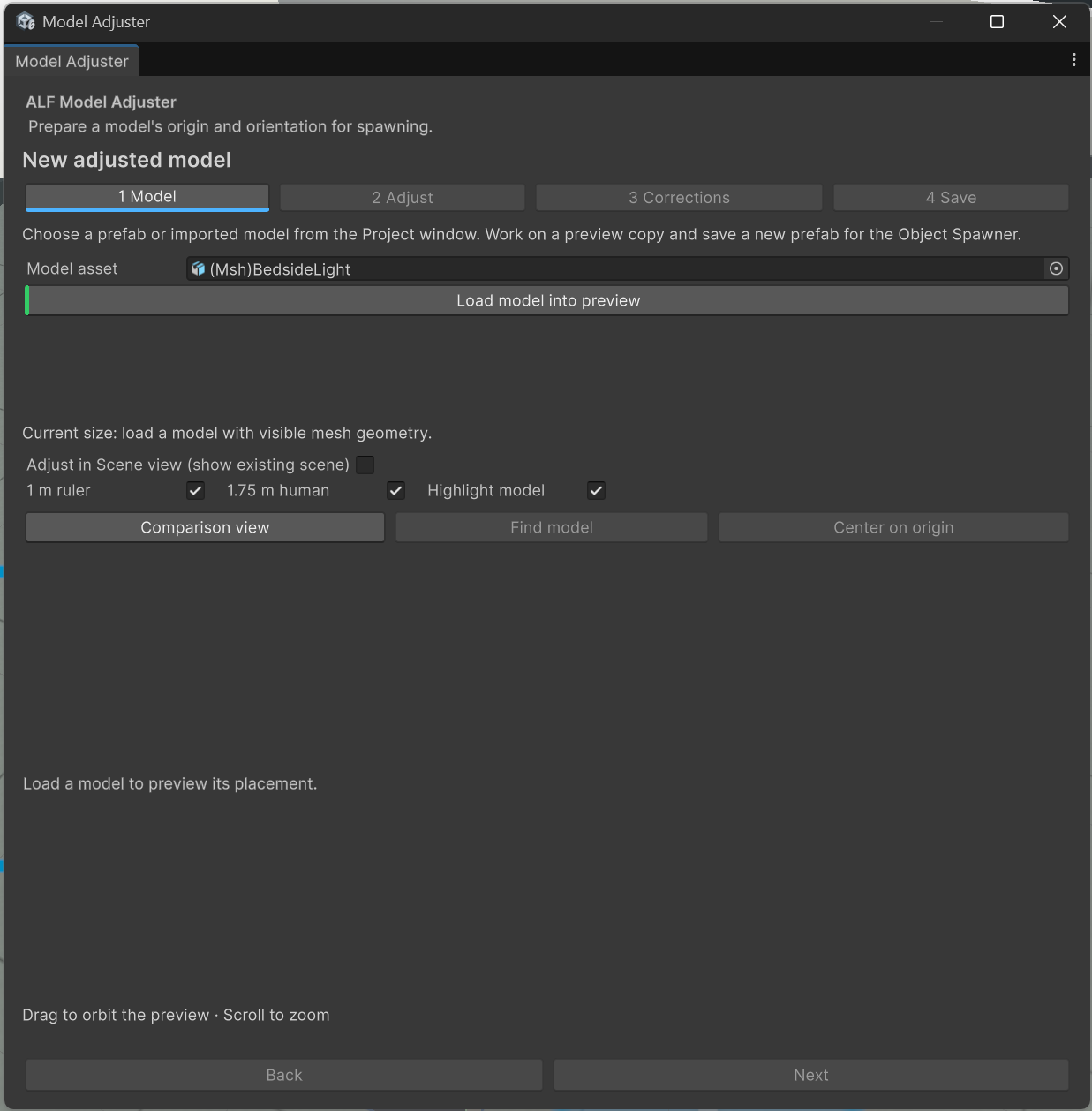
The model appears on the plate at its original size and orientation, with the bottom of it centred on the origin.
-
In step 2 Adjust, change these until the model looks right:
Field What it does Position (metres) Moves the model. The origin stays where it is. Rotation (degrees) Turns the model. Make sure it stands upright and faces forward, along the blue arrow. Scale multiplier Resizes the model compared to the original. 2 makes it twice as big, 0.5 half as big. Below the fields, Current size (metres) shows how big the model is now. Compare it with the real object. The 1 m ruler and 1.75 m human help too. See Use the preview.
Reset adjustments puts everything back to the start.
-
In step 3 Corrections, tick the corrections you want:
- Snap rotation to 90° rounds each rotation to the nearest quarter turn, for a model that's almost but not quite straight.
- Snap to ground sets the lowest point of the model exactly on the floor.
Press Apply selected corrections. Rotation is corrected first, then the model is set on the ground.
-
Look at the preview. When it's right, press I like this position, orientation and size.
-
In step 4 Save, choose:
- Keep source link: when ticked, the new prefab stays linked to the original, so later changes to the original's materials or parts carry over. Untick it for a fully separate copy.
- Open Object Spawner with saved prefab: ticked by default. The Object Spawner opens with your new prefab chosen, ready to place.
-
Press Save adjusted prefab…, choose a folder and a name, and save.
Result
A new prefab is saved in the project, with your position, rotation and size built in. The original model is unchanged. Find saved prefab in Project shows you where it is.
Good to know
- Any change after confirming means you have to press I like this position, orientation and size again before saving.
- Resizing after Snap to ground can lift the model off the floor or push it into it. Apply Snap to ground again afterwards.
- Existing prefabs can't be overwritten. Each save makes a new file.
- Undo works for moving, turning, resizing and snapping, with Ctrl+Z.
- Save before closing the window. The preview is thrown away when you close it or enter Play mode.