Add a bending lab
Goal: put a bending lab into your scene and set it up.
Steps
-
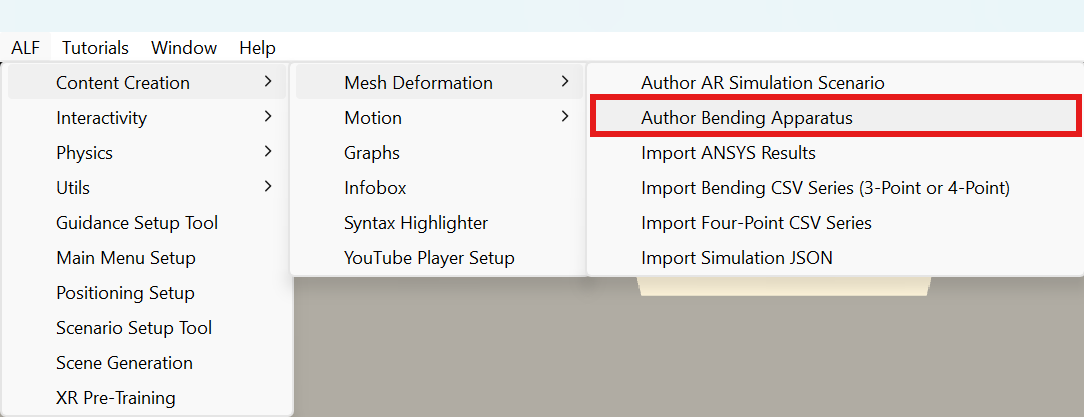
Open your lesson scene, then ALF > Content Creation > Mesh Deformation > Author Bending Apparatus.
-
In step 1 Apparatus, press Add apparatus to active scene. This adds the specimen, its supports, default materials and controls.
-
Still in step 1 Apparatus, set up the test:
Setting What it is Materials The materials learners can compare, for example steel, aluminium and a polymer. Experiment Three-point or four-point bending. Span, Height, Width (metres) The specimen's dimensions and the distance between the supports. Load (newtons) The force pressing down. Exaggeration How much the bending is enlarged, to make it visible. Stress range The range of the colour scale. 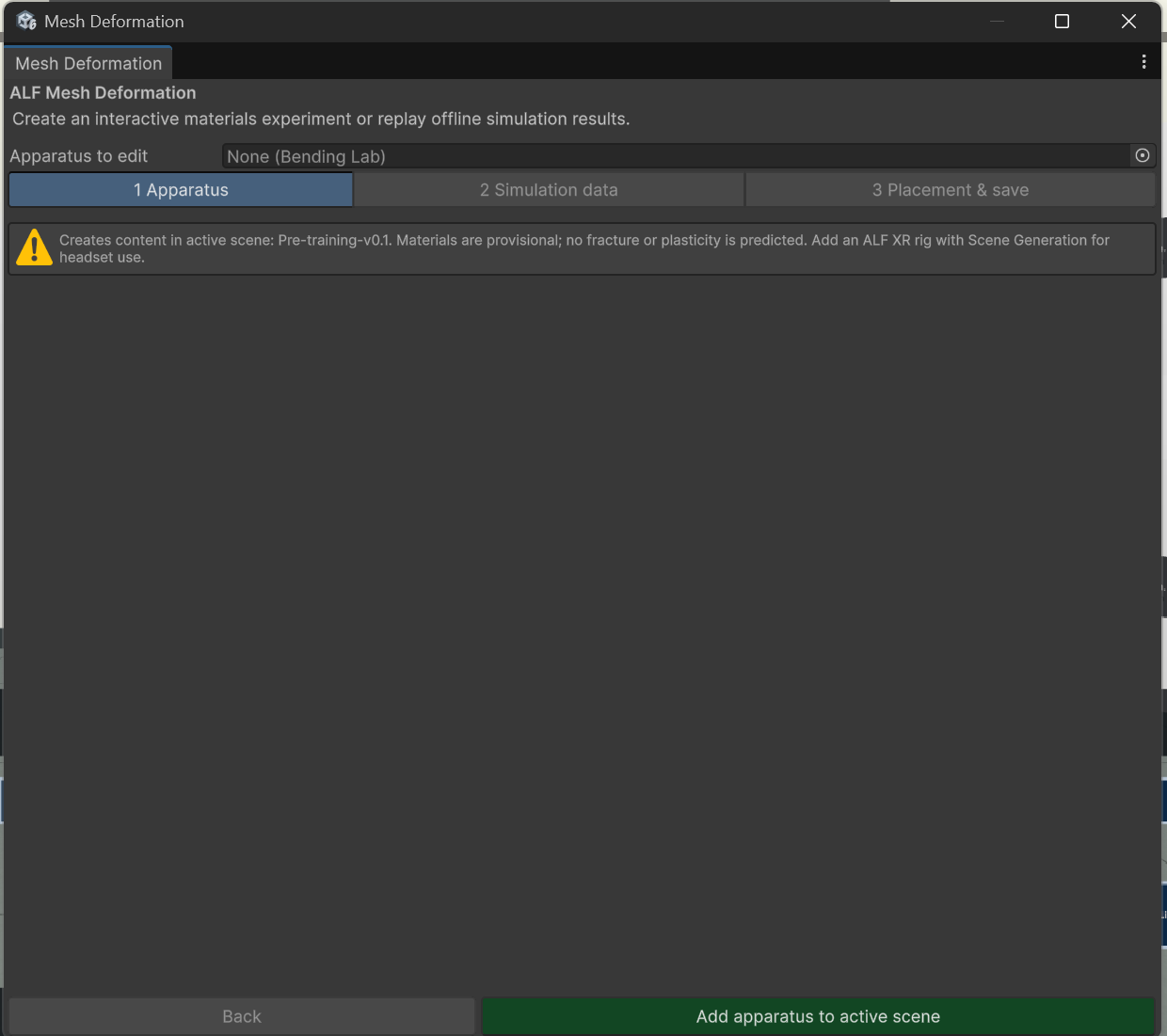
-
Optional: in step 2 Simulation data, add measured or simulated data. See Import measured data and Import simulation results. Without data, the lab calculates the bending itself.
-
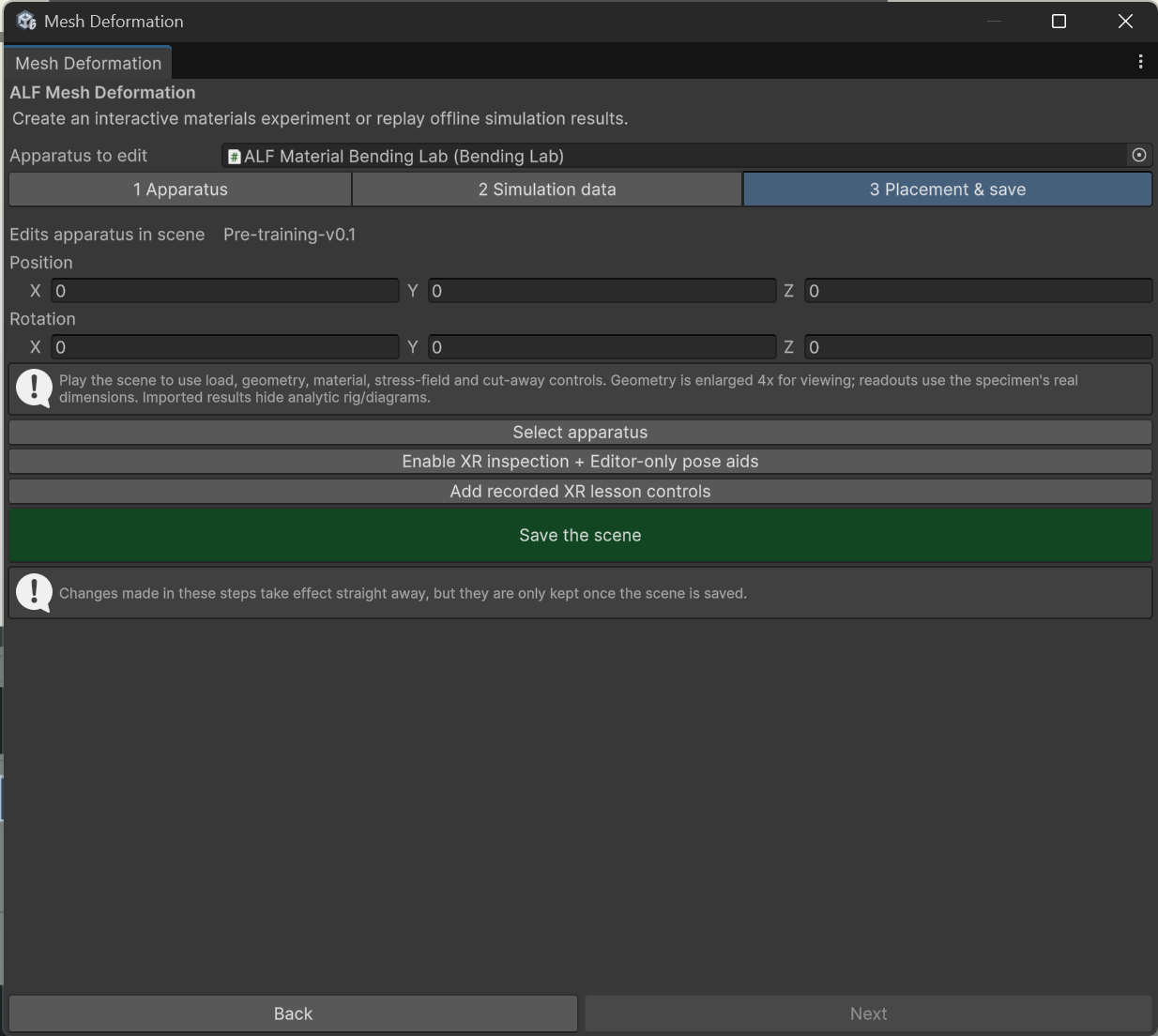
In step 3 Placement & save:
- Set the Position and Rotation of the lab.
- For the headset, press Enable XR inspection + Editor-only pose aids, so learners can grab and turn the specimen.
- With recorded data, press Add recorded XR lesson controls to add the control panel and a six-step lesson.
- Save the scene.
-
Press Play to try the controls.
Good to know
- To edit an existing lab, open the window and choose it under Apparatus to edit.
- Connect your own buttons. The lab's actions (load, views, materials, playback) can be connected to buttons from Button Injection.
- New materials are created in the Project window with Create > ALF > Mesh Deformation > Material. Ask the tech team for the right values.
- Imported data replaces the calculation. With a recording assigned, the calculated diagrams are hidden.
- The lesson's texts are written again each time you add the lesson controls. If you translated them with Text Import & Export, import again afterwards.
- The tool doesn't work in Play mode. Stop Play mode first.