Create the main menu
Goal: make the start scene of your app, with a button for every lesson.
Steps
-
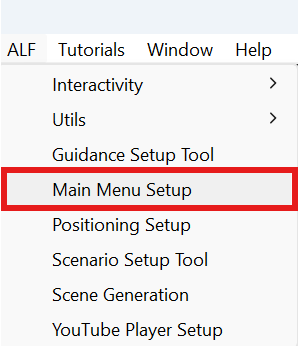
Open ALF > Main Menu Setup.
-
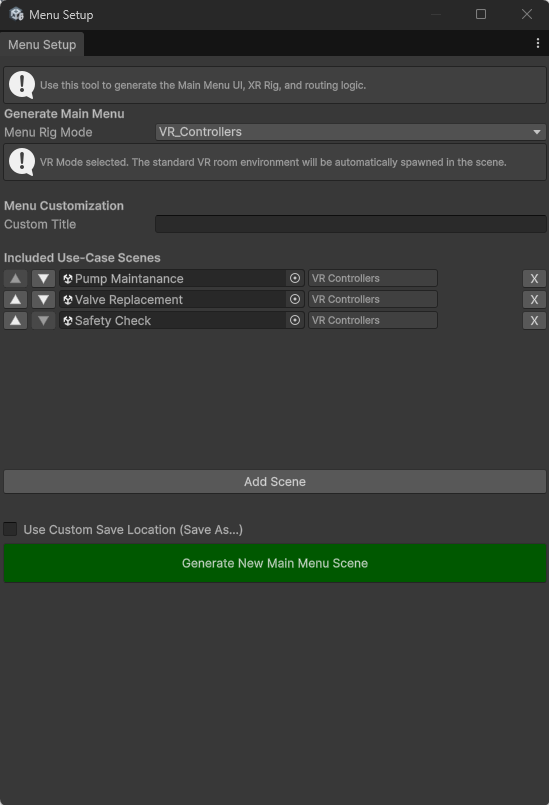
Choose the Menu Rig Mode: the player setup for the menu itself.
The player setup (in Unity often called the XR rig) is everything in a scene that turns the headset into the learner's eyes and hands:
- the camera that moves with the learner's head, so they can look around;
- the controllers or the learner's tracked hands, with the rays and fingertips they point, press and grab with;
- for AR, the passthrough that shows the real room through the headset's cameras;
- for some setups, a way to move around the room.
Without a player setup, the headset shows nothing and learners can't press the menu's buttons. You choose from the same five setups as in Scene Generation:
Menu Rig Mode Learners use the menu… VR Controllers in a virtual room, pointing with the controllers VR Hands in a virtual room, pointing and pinching with their hands VR Hand Locomotion in a virtual room, with their hands, and can move around AR Controllers in the real room, pointing with the controllers AR Hands in the real room, pointing and pinching with their hands In the list, the names are shown with underscores, for example
VR_Controllers.Pick the setup learners will use when the app starts. It only affects the menu: each lesson opens with its own setup. See VR or AR for the menu.
-
Under Menu Customization, type a Custom Title, for example
Maintenance training. -
Under Included Use-Case Scenes, add your lessons:
- Press Add Scene. An empty row appears.
- Drag the lesson's scene file from the Project window into the row.
- Check the box next to it. It shows the lesson's player setup, for example VR Controllers.
- Repeat for each lesson.
-
Put the lessons in the order they should appear, with ▲ and ▼. To take one out, press X.
-
Optional: tick Use Custom Save Location (Save As...) to choose where the menu scene is saved.
-
Press Generate New Main Menu Scene.
Result
- A new scene called
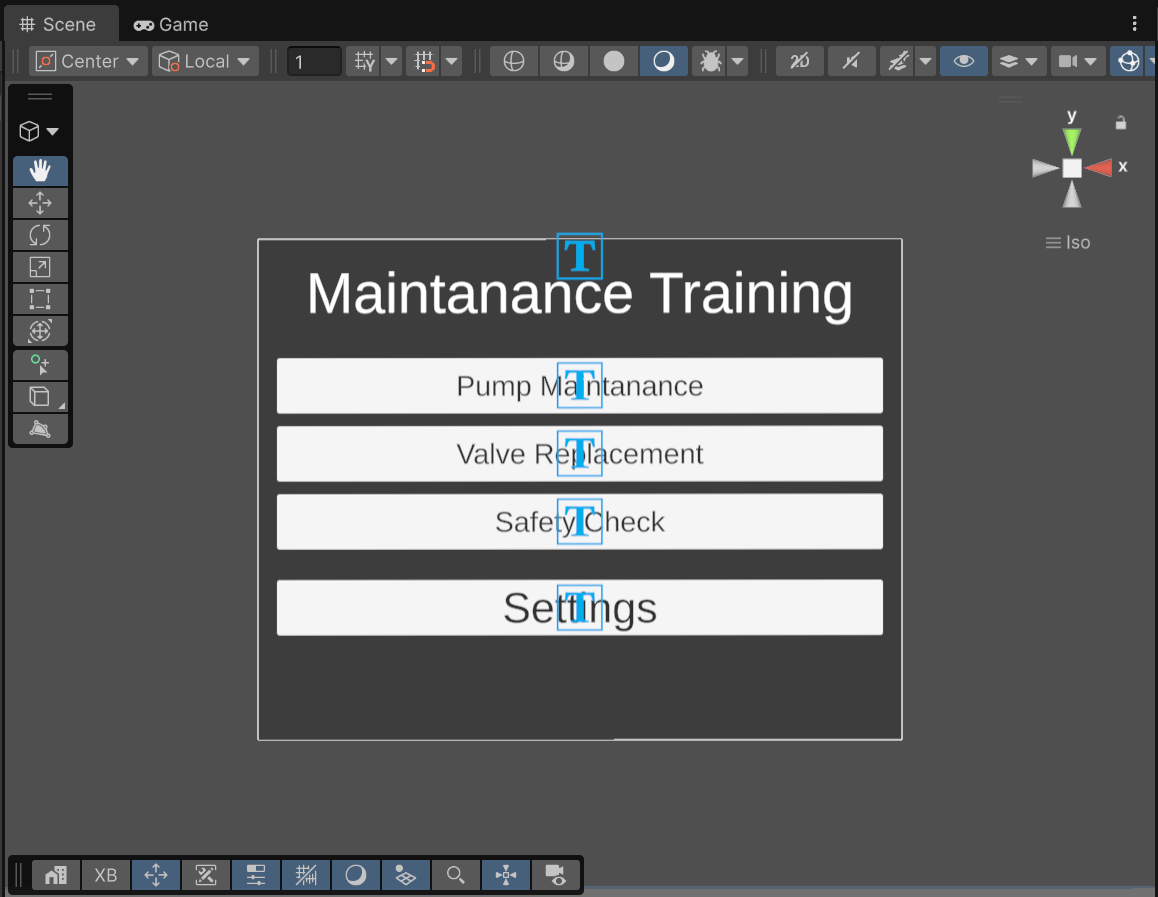
Main Menuis saved inAssets/ALF-Generated/Scenes, or where you chose. - It contains the menu panel with your title and one button per lesson, the player setup and, for VR, a room.
- The menu and all its lessons are added to the app's list of scenes (the Build Settings), so they're included when the app is built.
Good to know
- A red box next to a lesson means the tool couldn't find a player setup in that scene (No Player Detected). Give the lesson one with Scene Generation first.
- Lessons appear in the list order. The first row is the top button.