How the start menu works
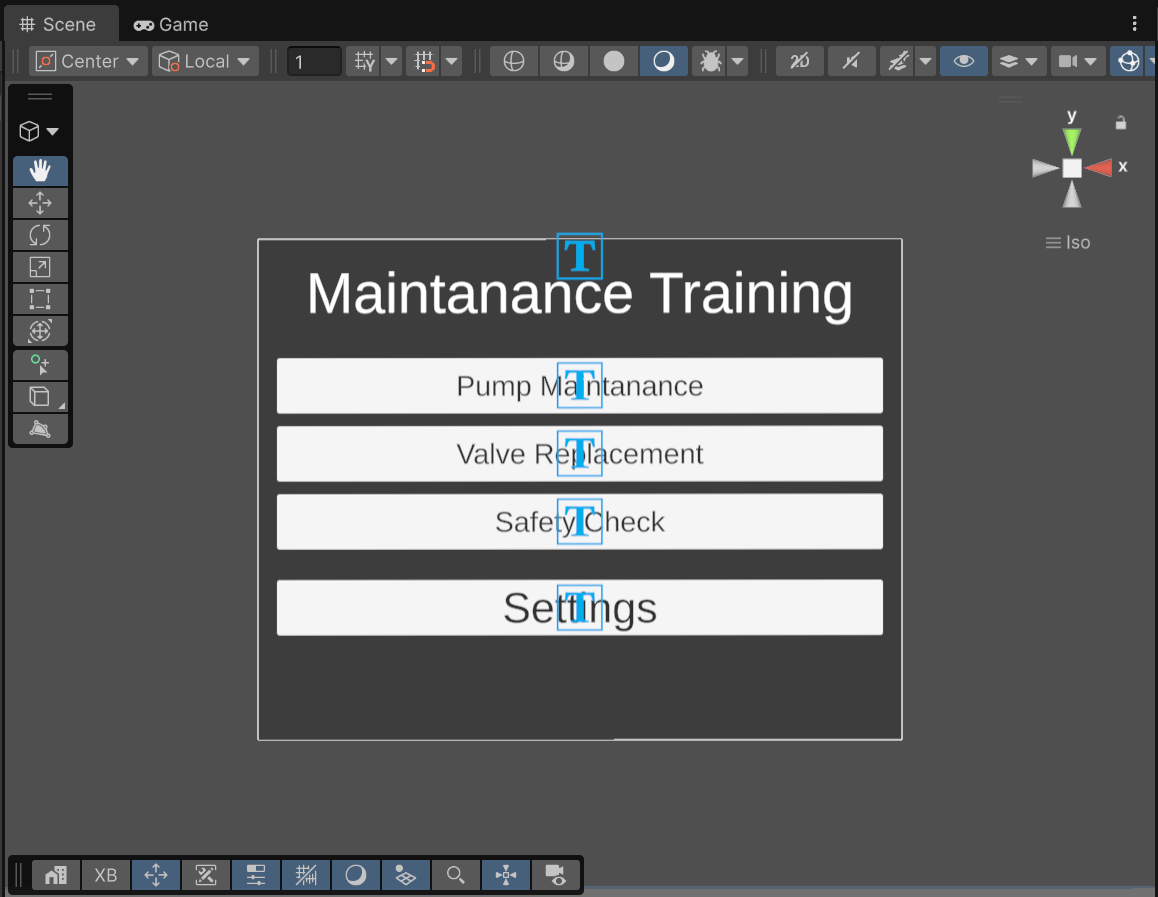
The main menu is the first thing learners see when they start the app. It's a scene of its own, with a panel listing your lessons:
New to Unity? The basic terms (Scene, Hierarchy, Project window, Play mode) are explained in Before you start.
What you need first
- Your lesson scenes, made with Scene Generation. The menu reads each lesson's player setup (VR or AR, controllers or hands) from the scene, so that the lesson opens correctly.
- Good scene names. The text on each button is the lesson's scene file name. A scene called
Pump maintenancegets a button that says Pump maintenance.
Rename a lesson's button
To change a button's text, rename the scene file in the Project window, then update the main menu.
VR or AR for the menu
The menu has its own player setup, chosen in Menu Rig Mode:
- VR: the menu stands in a standard VR room, which is added for you.
- AR: the menu floats in the real room, seen through the headset's cameras.
Each lesson still opens with its own setup, so a VR menu can open an AR lesson and the other way round.
Opening the tool
In Unity's top menu, choose ALF > Main Menu Setup.
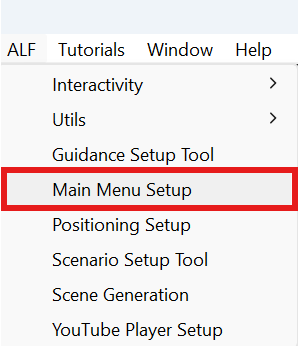
- If the open scene is not a main menu, the tool sets up a new one, and its heading says Generate Main Menu.
- If the open scene is already a main menu, the tool shows Active Main Menu detected! and lets you change it. The heading says Update Main Menu.