Make a graph from a CSV file
Goal: turn a table of values into a graph in the scene.
Steps
-
Open ALF > Content Creation > Graphs.
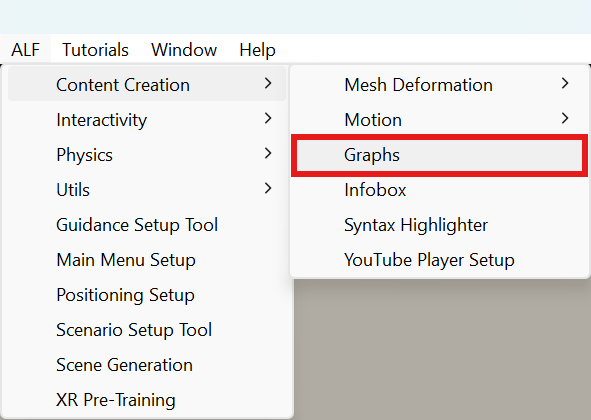
-
In step 1 Data, make sure CSV file is selected.
-
Press Choose a file… and pick the file, or drag it into the window from your file explorer or the Project window. The file can be anywhere on your computer.
-
Check the Preview: the column names at the top, the values below, and the numbers read correctly.
-
Check the Name. It's used for the data in the project and as the graph's title.
-
Press Import and add the graph to the scene.
The graph appears in front of the Scene view camera, with settings chosen from your data. Change them in the next steps:
Finally, press Save the scene in step 5 Save.
If the preview looks wrong
Open Change how the file is read… and correct what the tool guessed:
| Setting | When to change it |
|---|---|
| Separator | All values end up in one column, or a column is split in two. |
| Number format | Numbers are wrong by a factor of 1000, or decimals are missing. Choose German (1.234,5) or International (1,234.5). |
| Encoding | Letters such as ä, ö, ü or ° look wrong. |
| Column names | The column names are wrong. Choose the row they're in, or No row with names. |
| First data row / Last data row | Title or note rows are read as data, or rows are missing. |
Notes in step 1 tell you what the tool noticed, for example rows it left out or cells written in the other number format.
Good to know
- Fix the file in your spreadsheet program if it's easier. When you come back to the tool, a changed file is read again automatically.
- Files up to 10 MB can be read.
- Several graphs can use the same data. Choose Data in the project to reuse a table you've imported before.