Make a model come apart
Goal: set up a model so it pulls apart into an exploded view and goes back together.
Steps
-
Open ALF > Interactivity > Exploded View Setup.
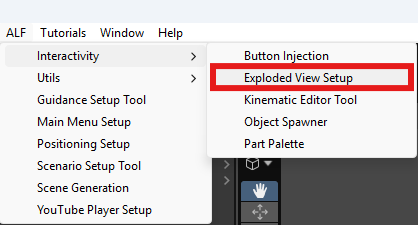
-
If the steps are headed
Editing '…', press + Add a new exploded view under the list first. -
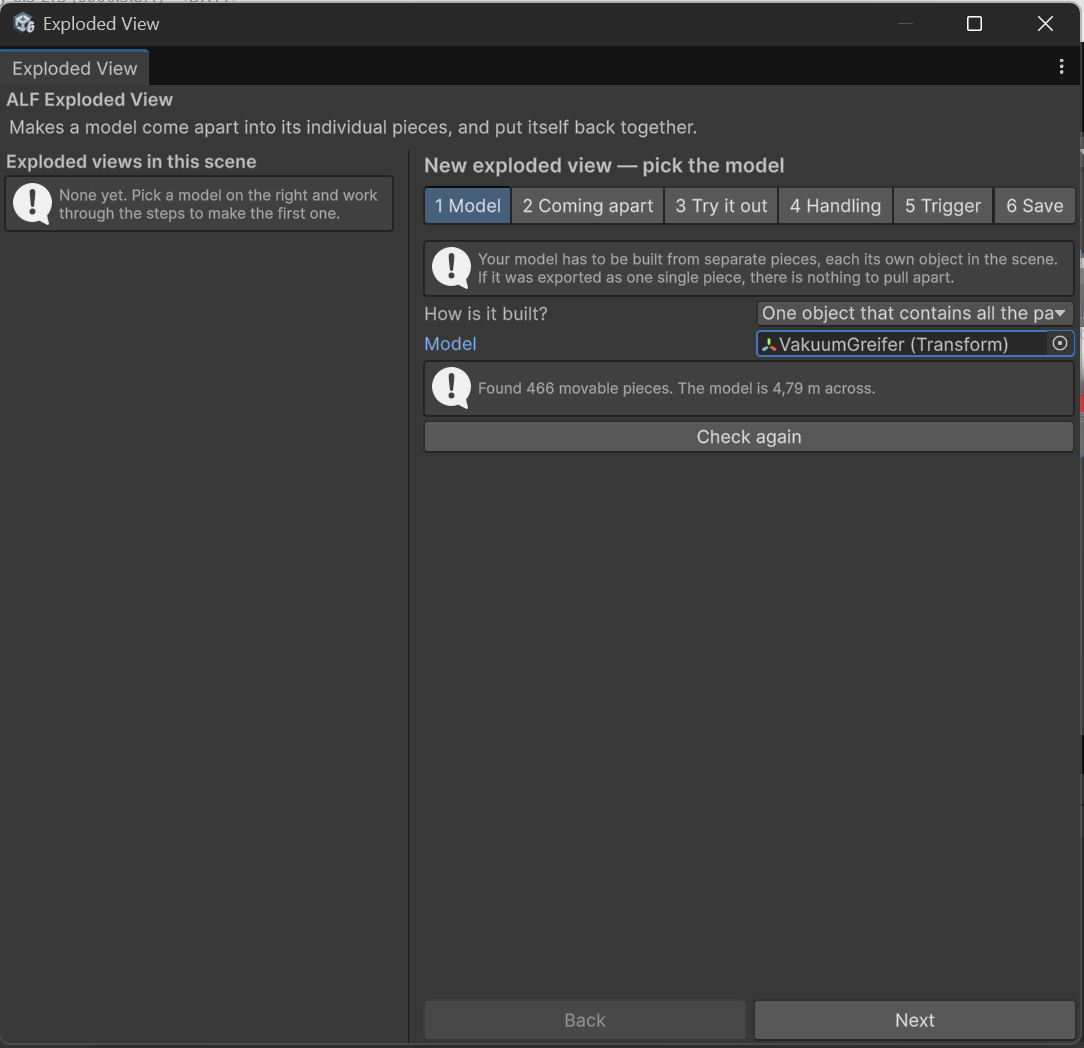
Step 1 Model: drag your model from the Hierarchy into the model field. The window reports how many pieces it found, how big the model is, and anything that may cause problems. Read these messages before going on.
-
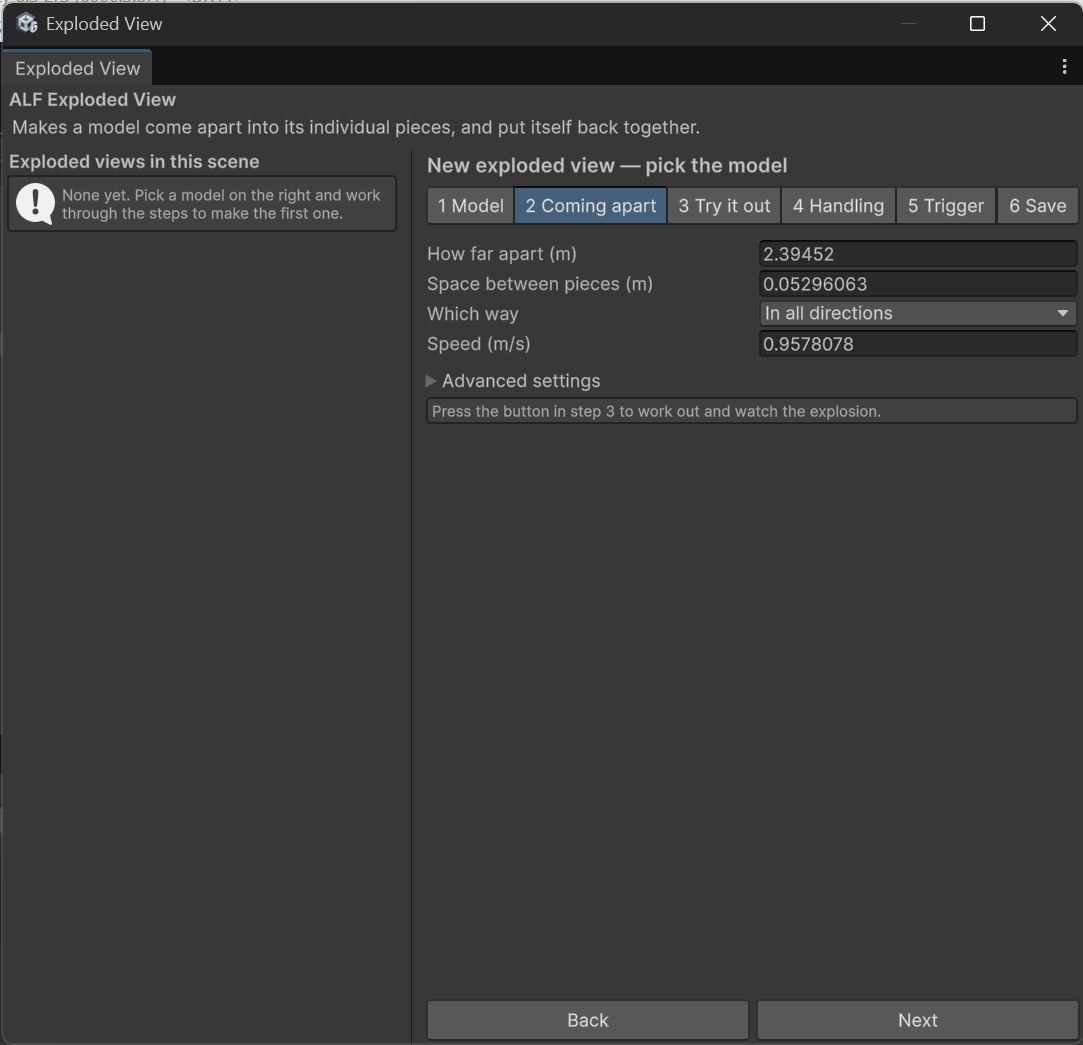
Step 2 Coming apart: the distances are already filled in, worked out from the size of your model. Leave them for now. You can adjust them later.
-
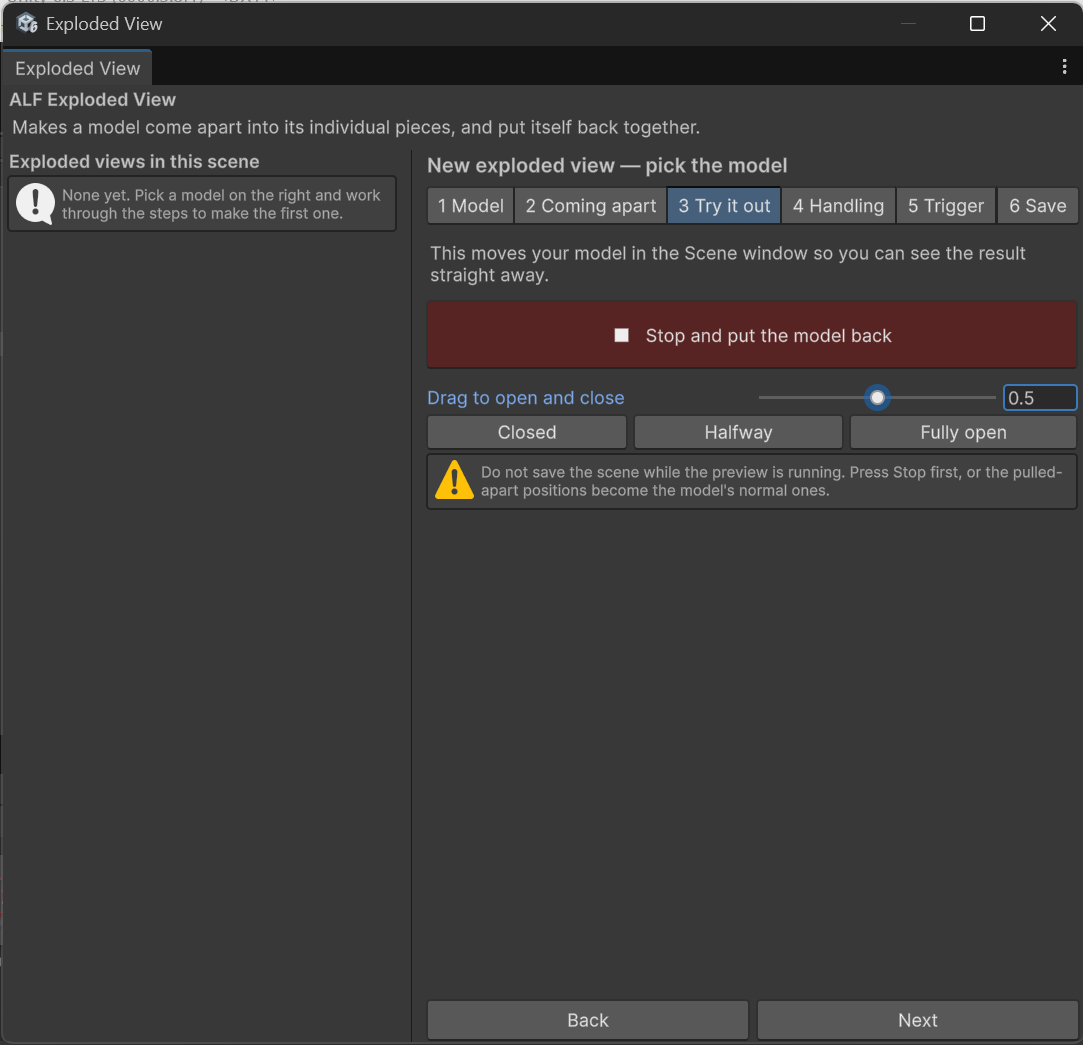
Step 3 Try it out: press the large button. The real pieces move apart in the Scene view so you can see the result. Stopping the preview puts them back.
-
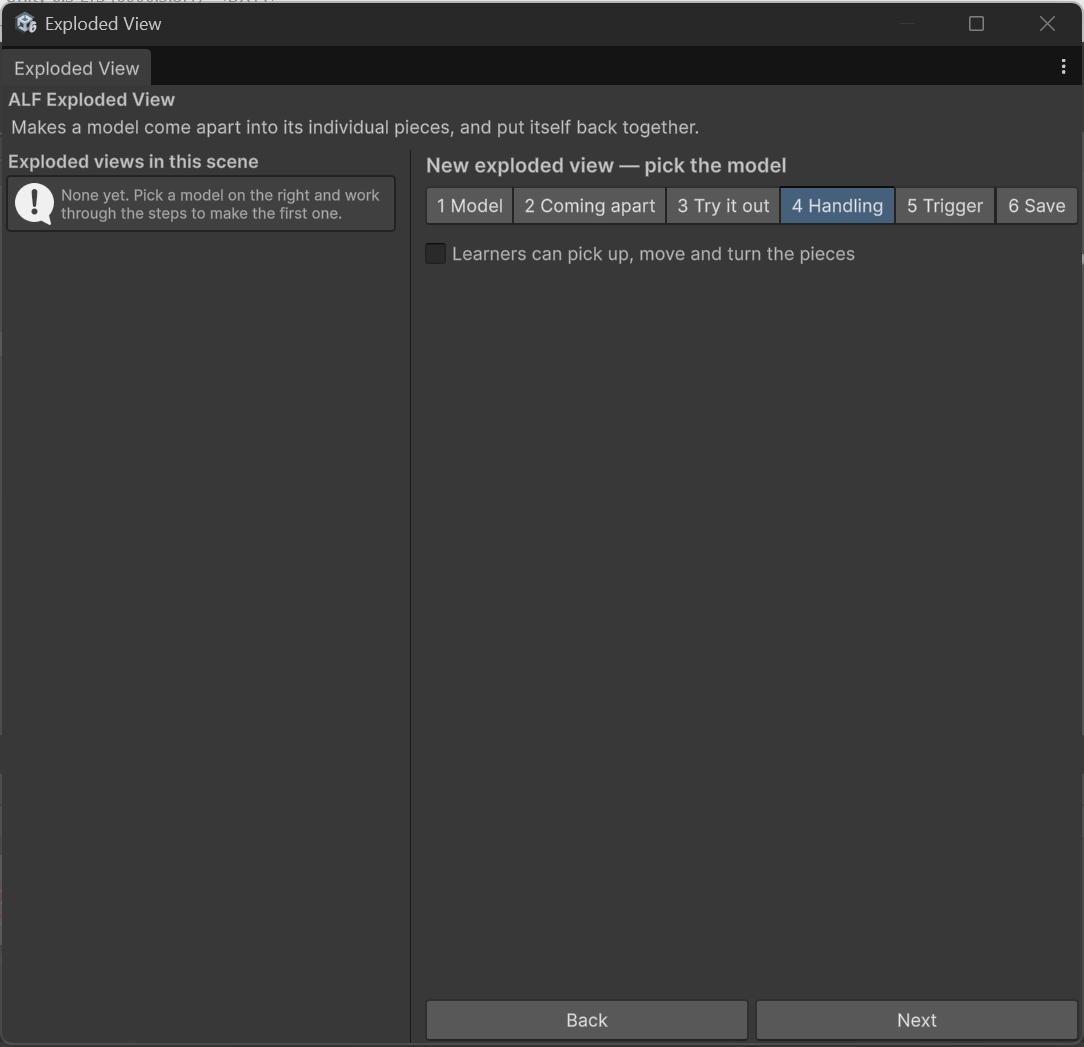
Step 4 Handling: decide whether learners can pick up the pieces. See Let learners pick up the pieces.
-
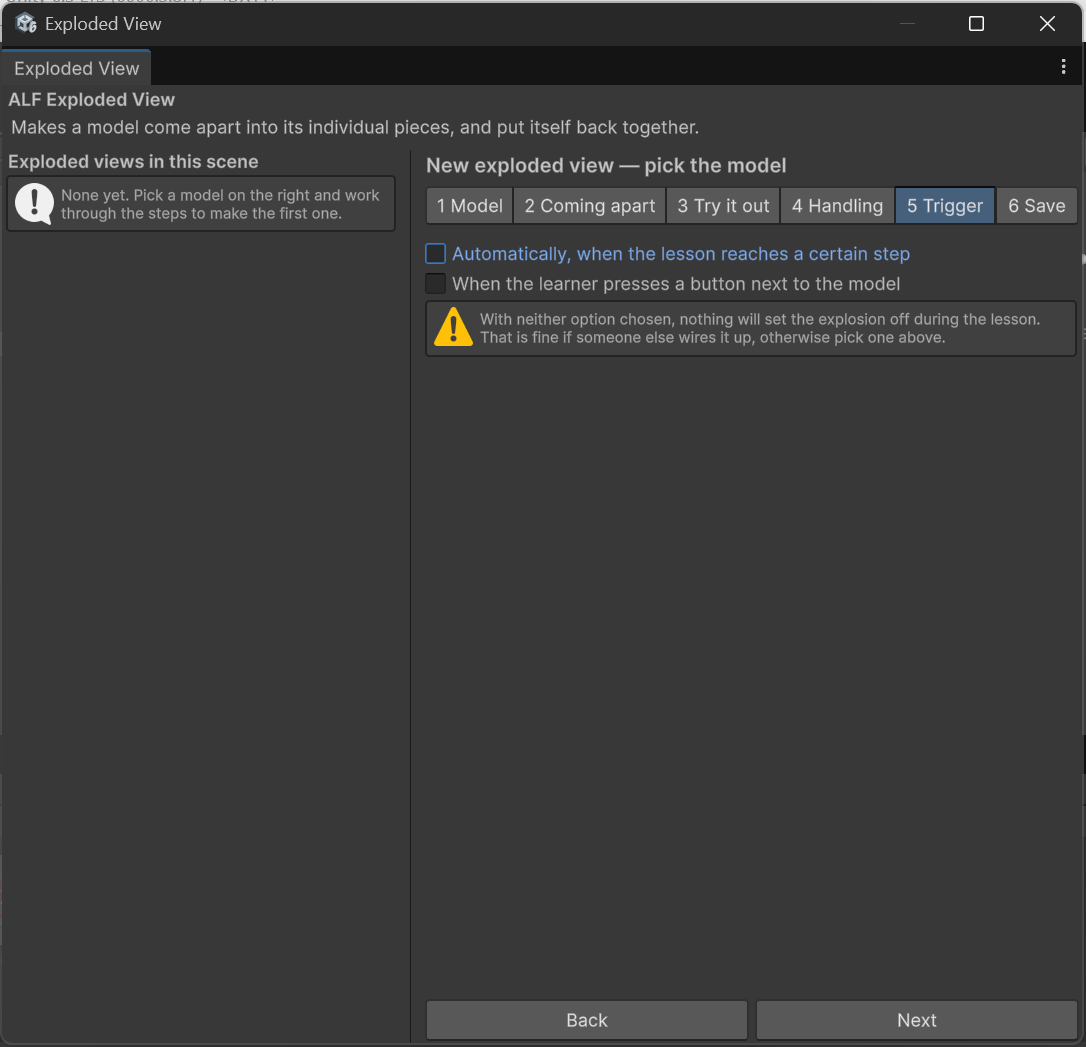
Step 5 Trigger: choose what opens the model. See Open the model at a lesson step or Add a button that opens the model.
-
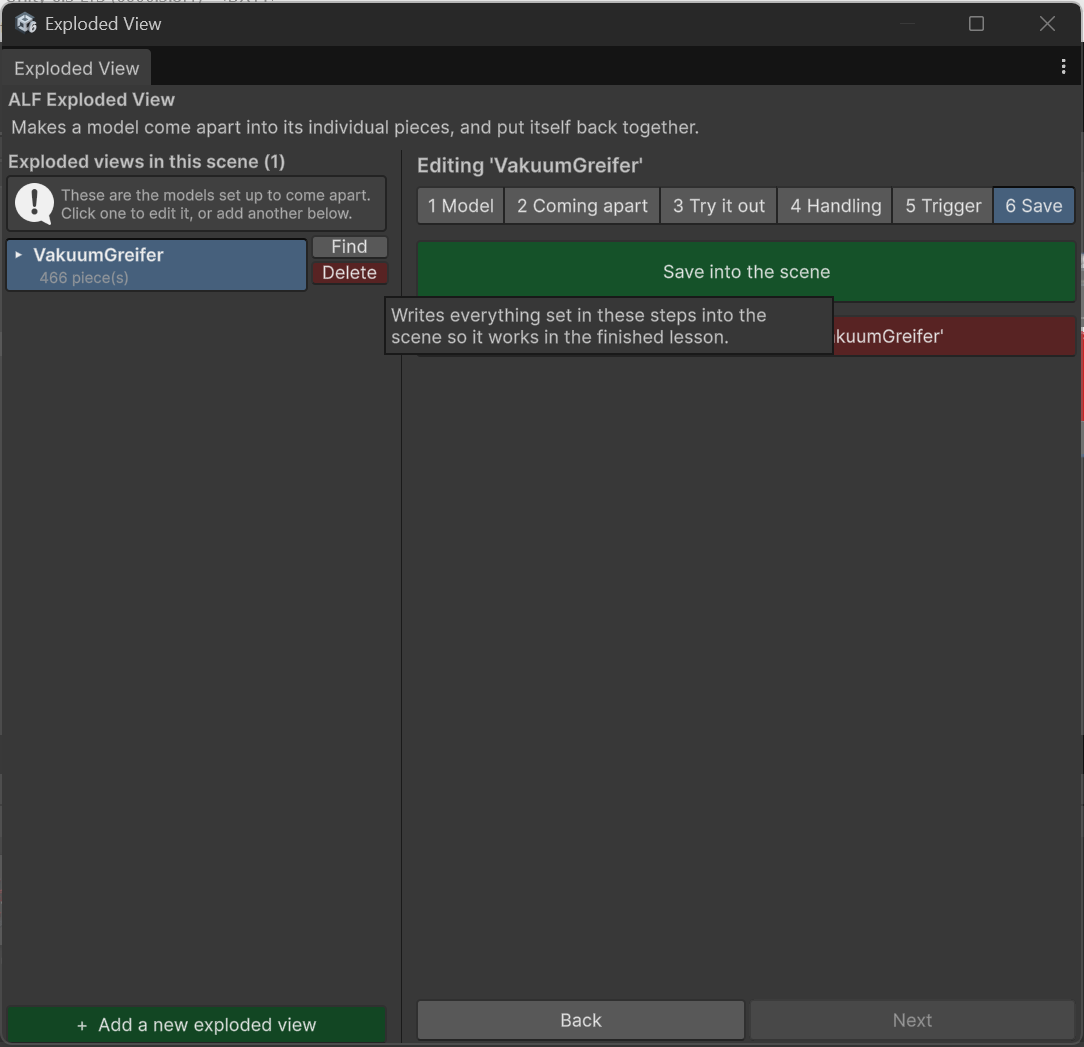
Step 6 Save: press Save into the scene, then save the scene itself with Ctrl+S.
Result
The model is listed on the left with its number of pieces. In the lesson, it opens and closes on the trigger you chose.
Good to know
- Only the pieces move. Grouping objects inside the model stay where they are. The tool moves the smallest pieces, while still keeping parts that belong together (like a bolt with its nut and washer) together.
- The preview is always undone for you. Stopping the preview, closing the window, saving the scene or pressing Play all put the model back together first, so a pulled-apart model is never saved by accident.
- If you have several machines, give each one its own exploded view. See Explode only part of a machine.