Let learners pick up the pieces
Goal: let learners grab a piece of the open model, turn it over, and look at it closely.
Steps
-
Select the exploded view in the list on the left.
-
Open step 4 Handling and tick Learners can pick up, move and turn the pieces.
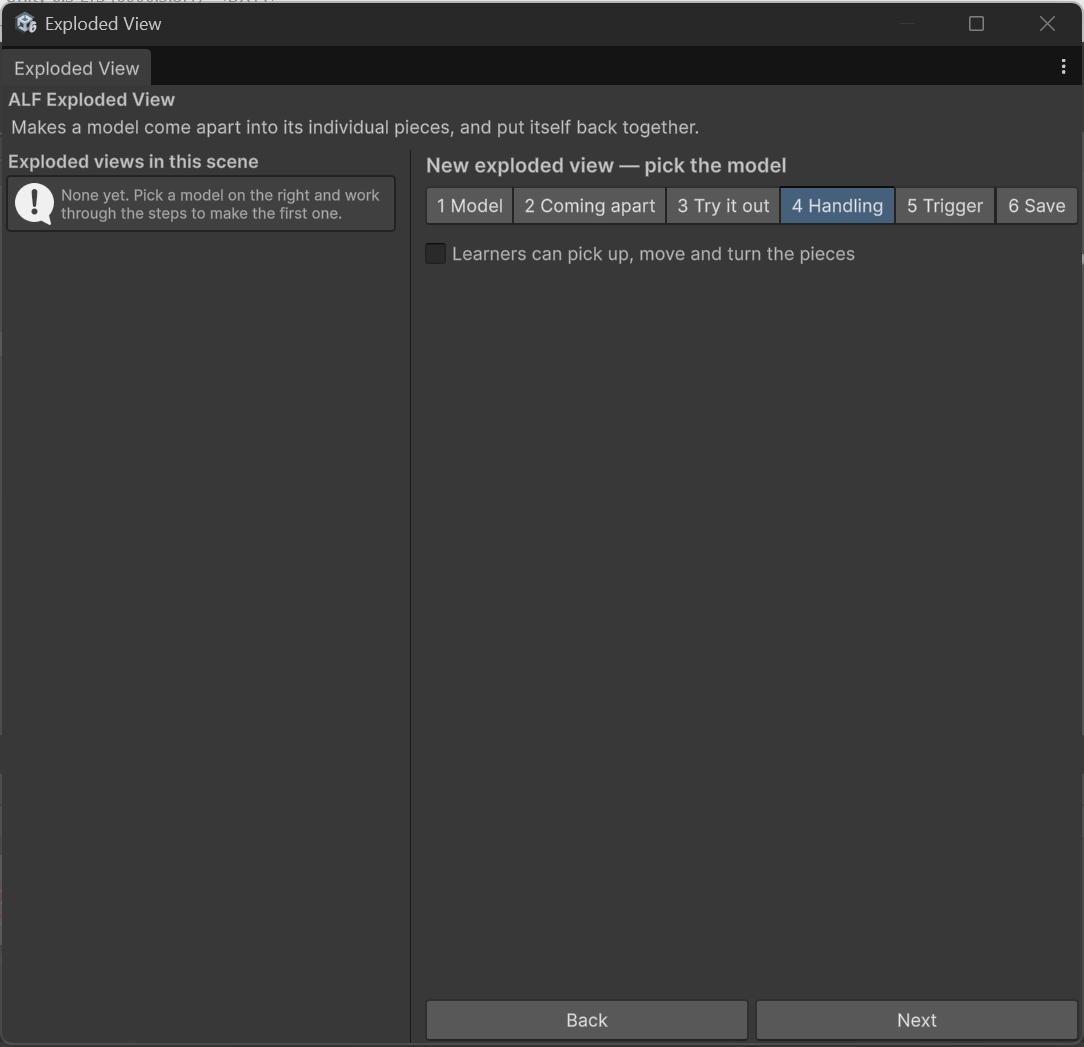
-
Choose the other options:
Option What it does Two hands can also resize a piece Learners can make a piece bigger or smaller by holding it with both hands and pulling apart. Pieces find their own way back A piece the learner lets go of returns to its place by itself. Untick it to leave pieces where the learner put them until the reset button is pressed. Wait before returning How many seconds a piece stays where it was dropped before going back. Journey back takes How many seconds the trip back takes. Zero makes it jump back instantly. -
In step 6 Save, press Save into the scene, then save the scene with Ctrl+S.
How it behaves for learners
- Pieces can only be picked up while the model is fully open, not while it's opening or closing.
- Pieces can't be thrown. Letting go of a piece leaves it where it is.
- The model waits for its pieces before closing. If a learner has moved pieces, they first fly back to their places, then the model closes.
- Turned and resized pieces are put right. When the model closes, every piece gets its original size and angle back.
Add a reset button
A reset button sends every piece back to its place immediately. It works at any time, even while the model is moving.
- In step 4 Handling, turn on the reset button.
- Save as usual.
The reset button stands 25 cm beside the open/close button. Both currently look the same, so consider adding a label nearby, for example with Button Injection.
Good to know
- Very small pieces: under Advanced settings, Smallest pickable piece stops tiny pieces such as washers from being grabbable. They still come apart with the rest.
- Large models in a headset: the window warns when more than 400 pieces are grabbable, which is a lot for a headset. Raise Smallest pickable piece to reduce the number.