Edit or remove an exploded view
Change an existing exploded view
-
Open ALF > Interactivity > Exploded View Setup.
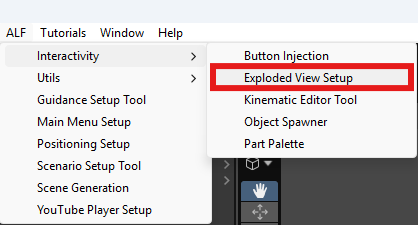
-
Click the model in the list on the left. The steps are headed
Editing '…'. -
Change what you need in steps 2 to 5.
-
In step 6 Save, press Save into the scene, then save the scene with Ctrl+S.
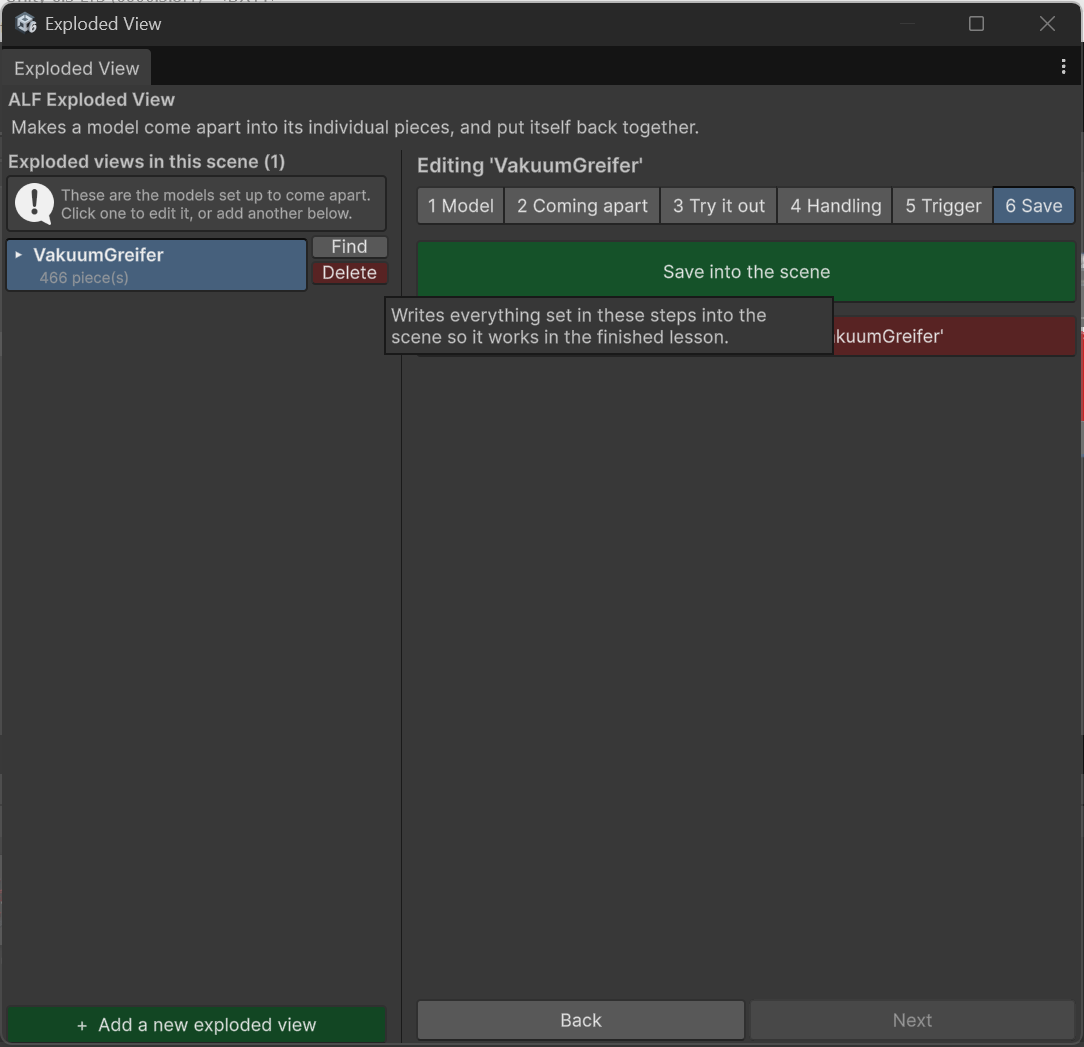
To see a model in the scene, press Find next to it in the list.
If you moved a piece of the model
The exploded view remembers where every piece belongs when it's assembled. That's recorded when you save.
If you move a piece in the scene afterwards, it would jump back to its old place the next time the model closes. The window warns you about this, including next to the save button in step 6, and tells you how far the pieces have moved.
To keep the new position: press Save into the scene again in step 6.
Remove an exploded view
| Where | What it does |
|---|---|
| Delete next to the model in the list | Removes that exploded view. |
| Remove in step 6 | Removes the exploded view you're editing. The button names the model it will act on. |
Removing puts every piece back in its place and deletes everything the tool added, including its buttons. The model itself is not deleted.
Save the scene with Ctrl+S afterwards.
If you deleted the model but not the exploded view
The window notices that the exploded view has nothing left to move and offers a Remove button in step 1.