Adjust how the model comes apart
Goal: change how far the pieces move, which way, and how fast.
Steps
-
Select the exploded view in the list on the left.
-
Open step 2 Coming apart and change the settings:
Setting What it changes How far apart How far the pieces spread out from the model. Space between pieces The smallest gap left between any two pieces when fully open. Direction Which way the pieces move, for example a half-sphere pointing up. Speed How fast the model opens and closes. 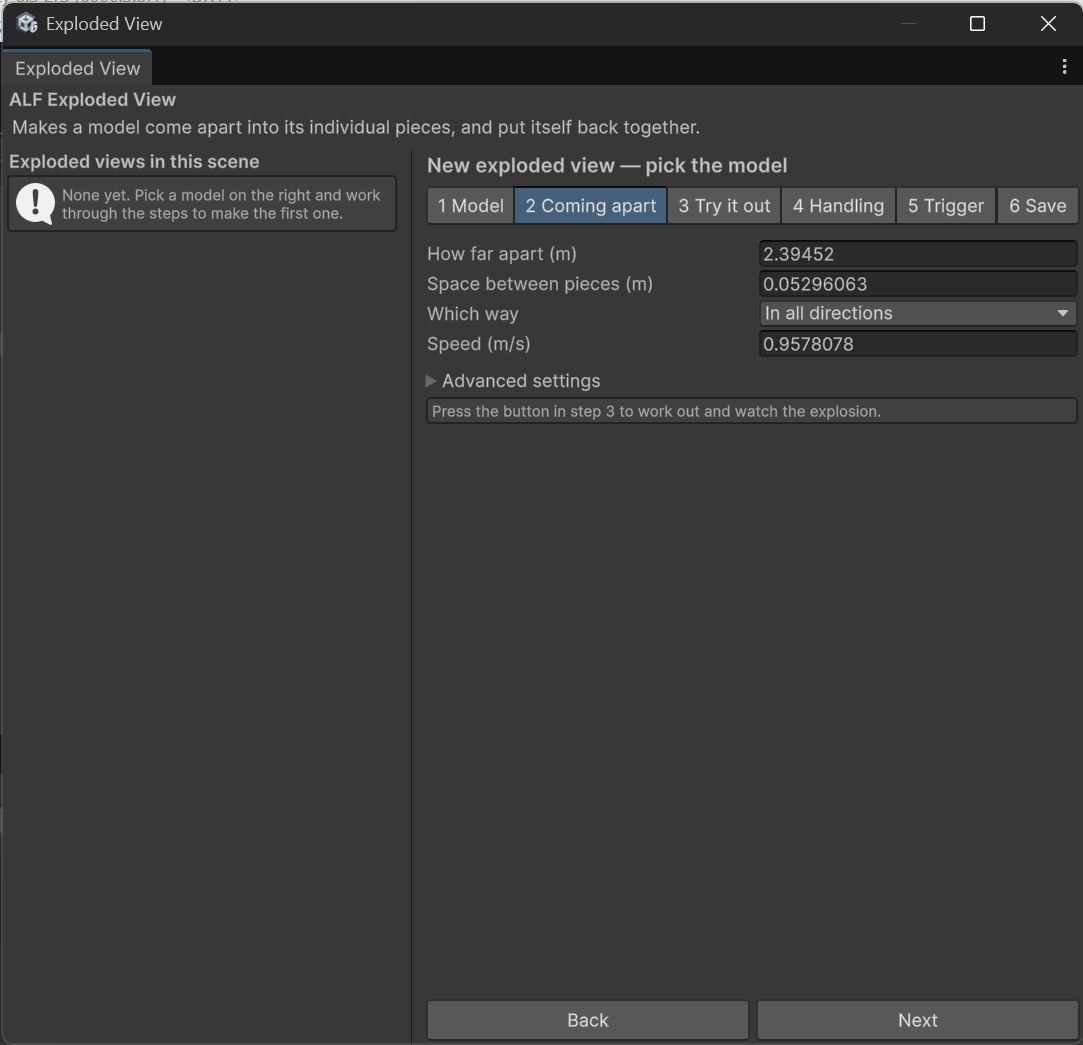
-
Open step 3 Try it out and press the large button to see the result.
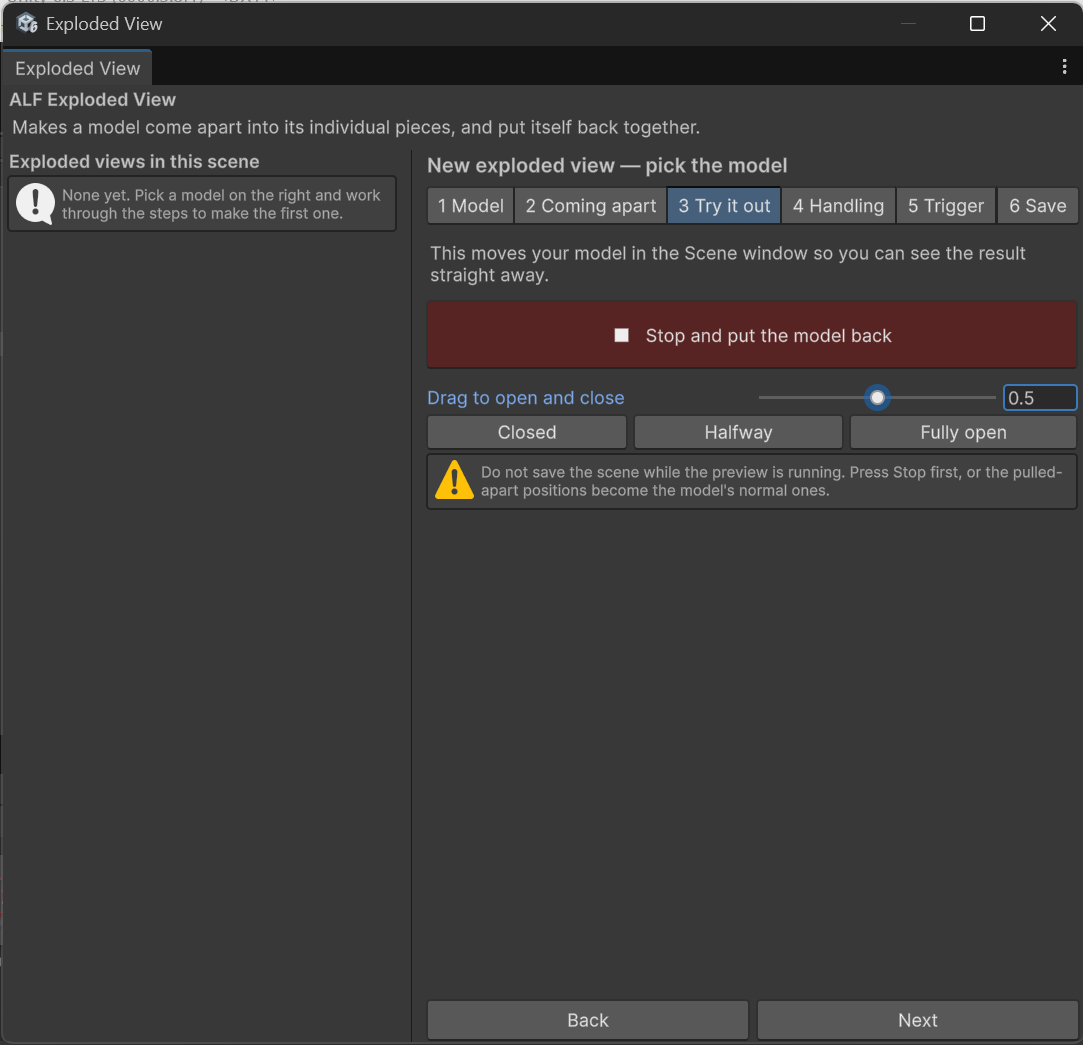
-
Repeat until you're happy, then Save into the scene in step 6 and save the scene with Ctrl+S.
How the model opens
- Outer pieces leave first, then the inner ones, so the model opens from the outside in, like a real disassembly.
- Pieces that belong together travel together first, then separate slightly. A bolt, washer and nut move out as one, then spread along the bolt.
- When fully open, no two pieces overlap. If any still do, step 3 tells you, along with the cause.
Tips
- A model inside something else, like an engine in a car: choose the half-sphere pointing up direction so pieces lift out instead of spreading into the surroundings. The tool doesn't know about the rest of the car, so pieces can otherwise end up inside it. You can also hide the surroundings during that lesson step.
- Pieces fly further than you set? That's normal for crowded models. Space between pieces is a guarantee, and the tool spreads the pieces further if that's the only way to keep the gap. The window warns you if they travel more than four times what you set. Reduce Space between pieces to make the explosion more compact.
- Don't set How far apart to zero. Nothing would move, so the window shows an error.