Create a lab
Goal: add the experiment to your scene, with the charges and the scan path you want.
Steps
-
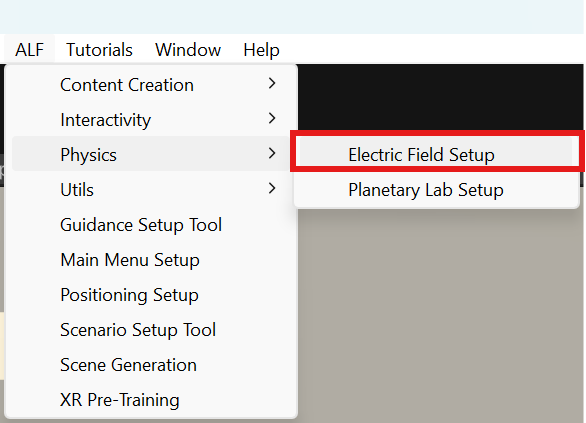
Open your lesson scene, then ALF > Physics > Electric Field Setup.
-
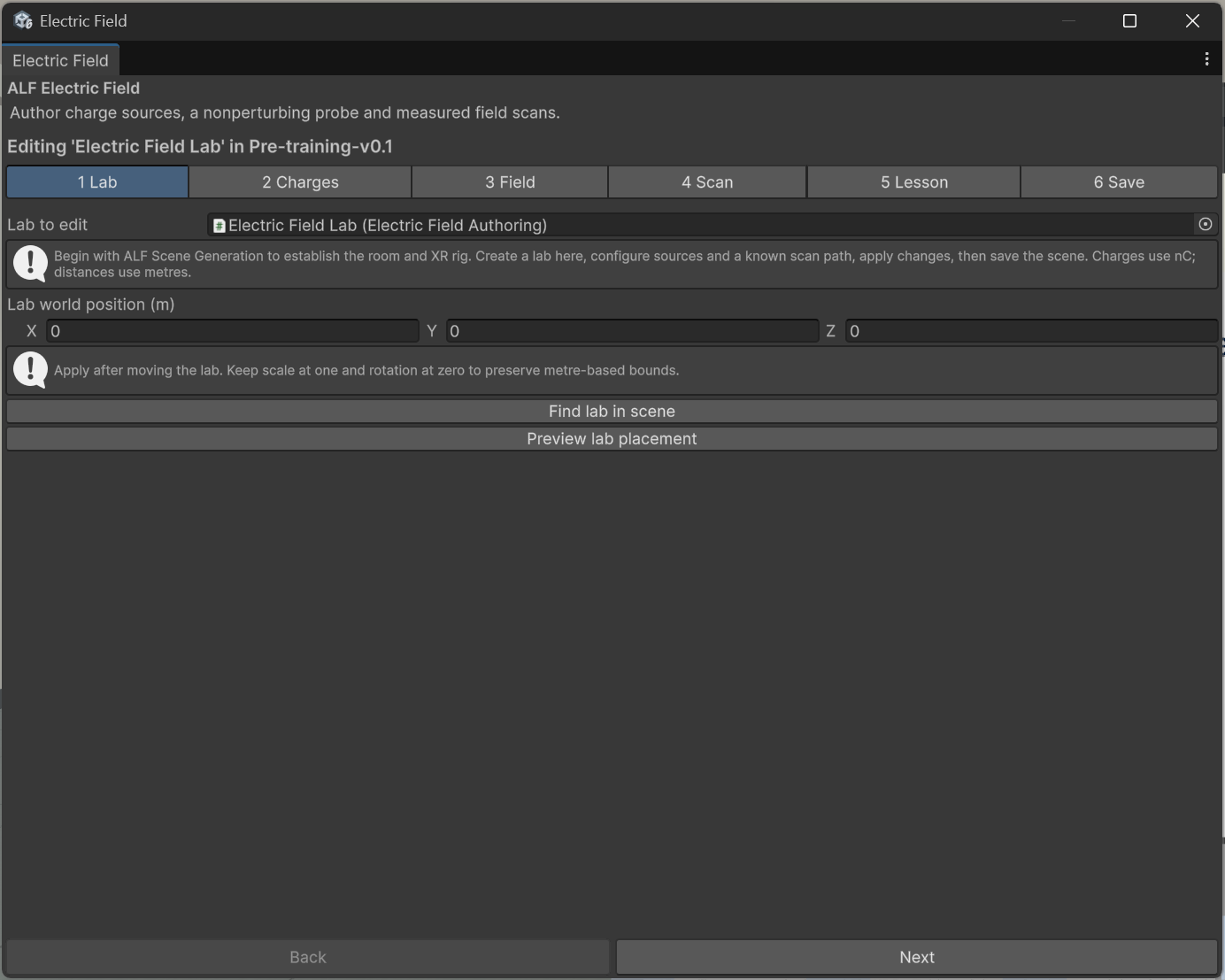
In step 1 Lab, press Create lab in active scene. This adds the lab, its controls and its graph. The rest of your scene stays as it is.
-
Still in step 1 Lab, set the Lab world position (m). Preview lab placement shows it in a separate preview.
-
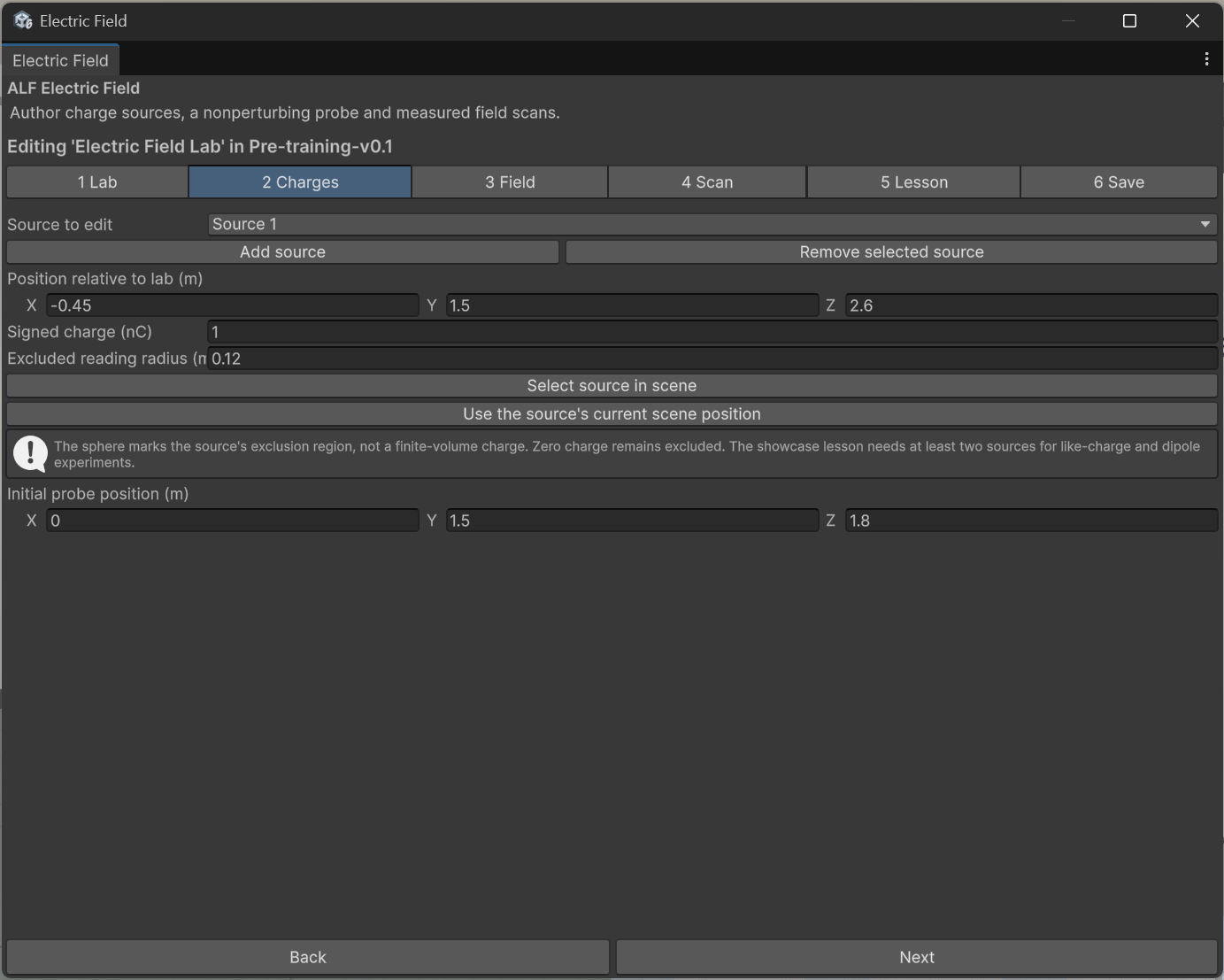
In step 2 Charges, set up the charges:
- Source to edit: pick a charge. Add source adds one (up to four), Remove selected source removes it.
- Position relative to lab (m): where the charge floats.
- Signed charge (nC): positive or negative, for example
5or-5. - Excluded reading radius (m): the small sphere around the charge where no reading is shown.
- Initial probe position (m): where the test probe starts.
Moved a charge in the Scene view? Use the source's current scene position copies its position into the window.
-
In step 3 Field, set where arrows and lines are drawn:
- Display center relative to lab (m) and Display size (m): the box around the charges.
- Samples per axis: how many arrows are drawn per direction.
- Maximum field lines: how many field lines.
More arrows and lines look denser, but cost performance in the headset. Keep the defaults unless you have a reason.
-
In step 4 Scan, set Scan start and Scan end relative to lab (m): the straight path the probe follows when learners press Start scan. Keep the path outside every charge's excluded sphere.
-
Optional: step 5 Lesson. See Add the guided lesson.
-
In step 6 Save, press Apply lab settings, then save the scene with Ctrl+S.
-
Press Play to try it.
Good to know
- Keep the lab upright and at its normal size. Don't tilt or scale it, so distances stay in real metres.
- Moved the lab? Press Apply lab settings again.
- Find lab in scene in step 1 selects it in the scene.
- A warning at the bottom of the window tells you if a setting doesn't fit. Apply lab settings stays greyed out until it's fixed.
- The guided lesson needs at least two charges, for its like-charge and dipole steps.
- The tool doesn't work in Play mode. Stop Play mode first.