Move and turn a button
Goal: put a button exactly where it should be, facing the right way.
Select the button
Click the button in the list on the left. You can also click it in the Hierarchy or Scene view. The heading above the steps changes to Editing '…'.
Then open step 2 Position.
Set the position
You have two ways, and you can mix them:
- Type coordinates in metres. The field's label tells you what they're measured from:
Position on 'Gripper'means relative to that object's centre;World positionmeans relative to the centre of the world.
- Place visually: opens a separate window where you can move the button by eye. The coordinates update to match.
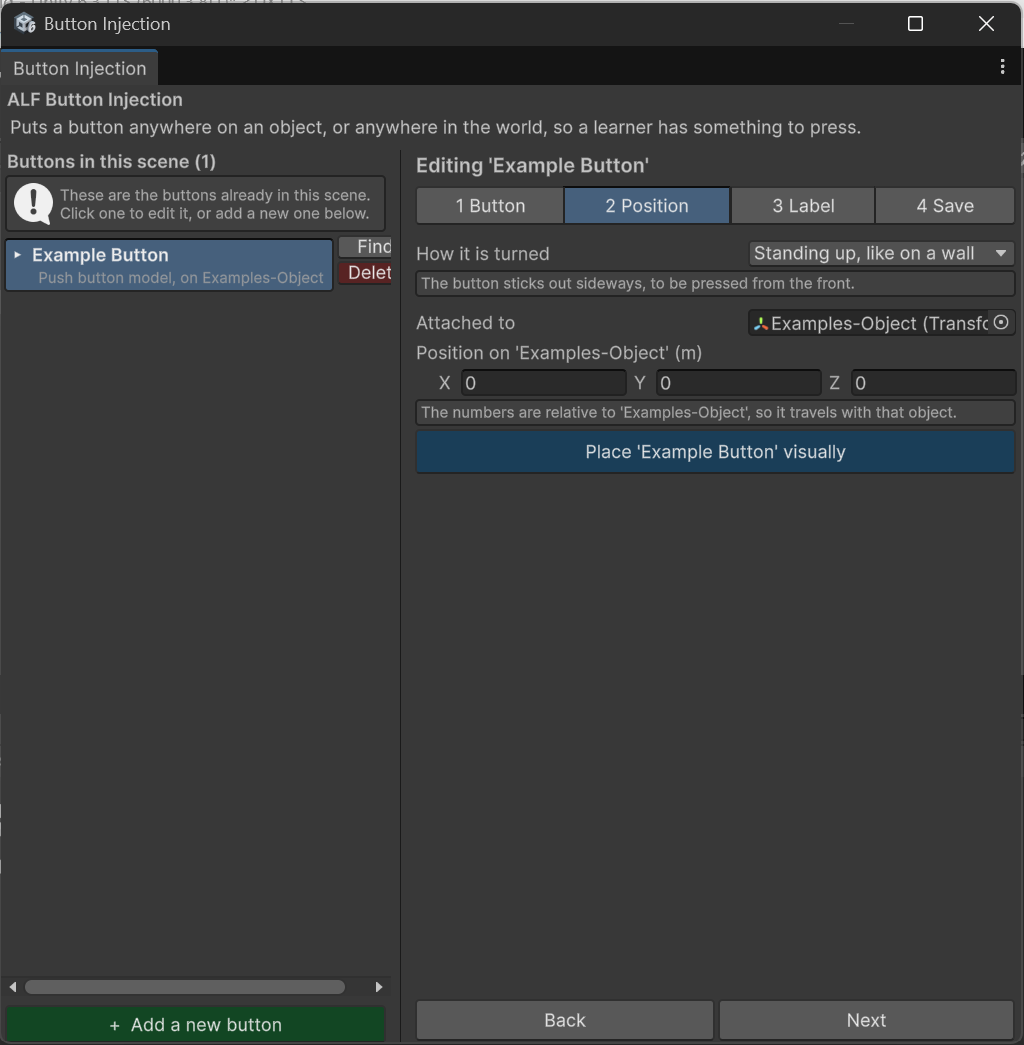
The button moves in the scene as you change the numbers.
Turn it to match its surface
Choose an orientation:
| Option | Use it for |
|---|---|
| Standing up | A surface you look at, like the front of a control panel. |
| Lying flat | A surface you reach down to, like a table top. |
| Manual | Any other angle. Type the rotation yourself. |
The window describes in plain words what the chosen option will do.
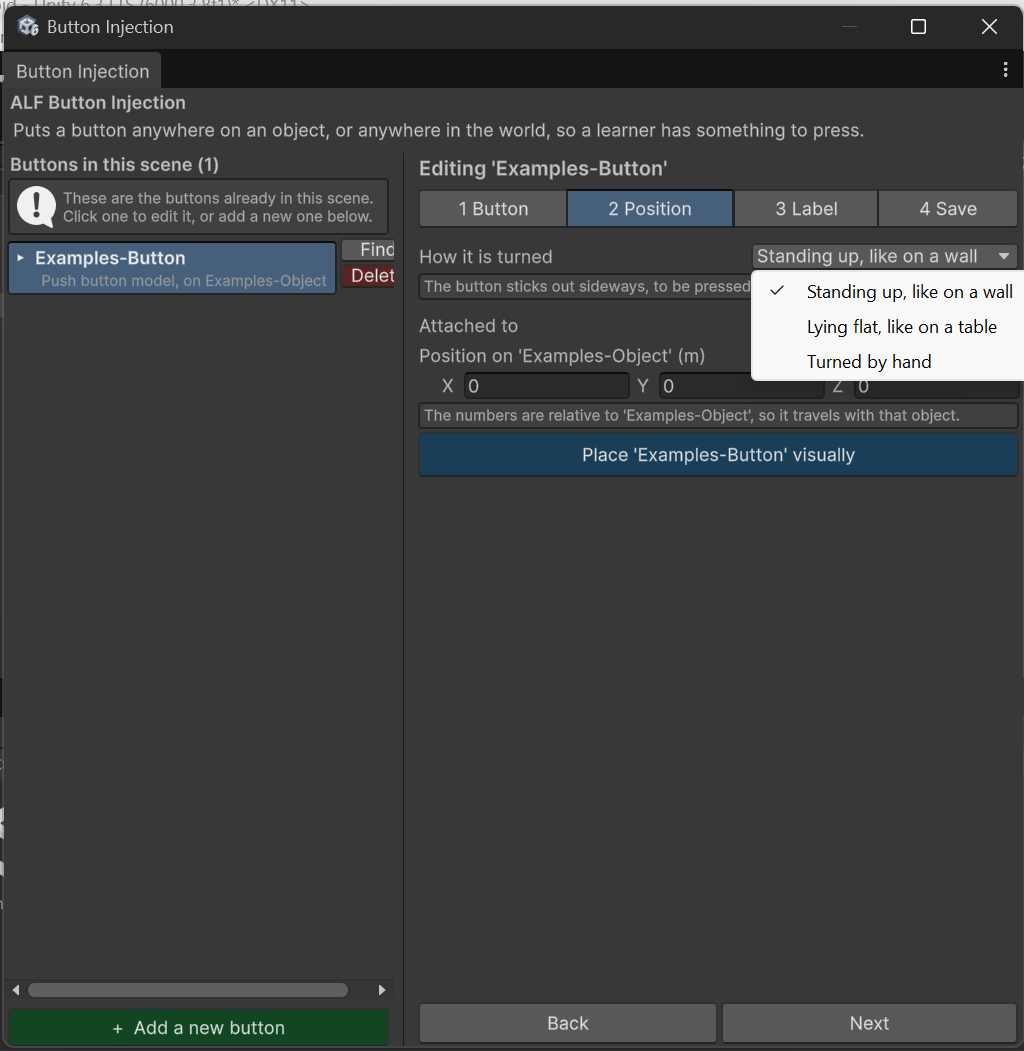
Rotation is relative to the object the button sits on, so a button on a tilted machine tilts with it.
Change the size
Flat buttons have a size setting in step 1 Button, in metres. Push button models keep the size of their 3D model.
Move a button to a different object
The window doesn't have a setting for this. Use the Hierarchy instead:
- To put it on another object: drag the button onto that object in the Hierarchy.
- To make it free-standing: drag it out to the top level of the Hierarchy, so it isn't inside any object.
The tool notices the change by itself, and the list updates.
The button keeps its old numbers, but they're now measured from somewhere else, so it will appear in a different place. Set its position again in step 2.
Good to know
- Numbers are kept within sensible limits. If a value snaps back after you type it, it was out of range. For example, a flat button can be between 5 mm and 2 m wide, and an offset can be at most 1000 m. This catches typos like a missing decimal point.
- Remember to Save the scene in step 4 when you're done.