Kinds of buttons
This page shows how to open Button Injection and what its window looks like.
New to Unity? The basic terms (Scene, Hierarchy, Play mode) are explained in Before you start.
Opening the tool
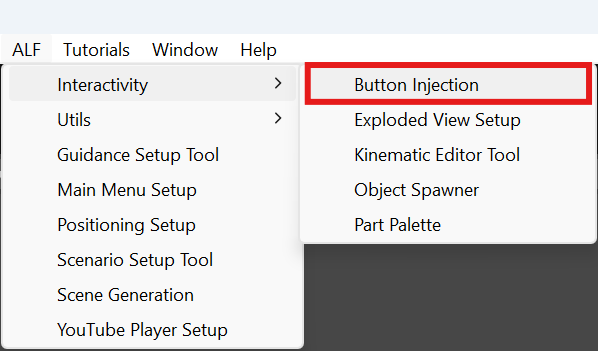
In Unity's top menu, choose ALF > Interactivity > Button Injection.
What the window looks like
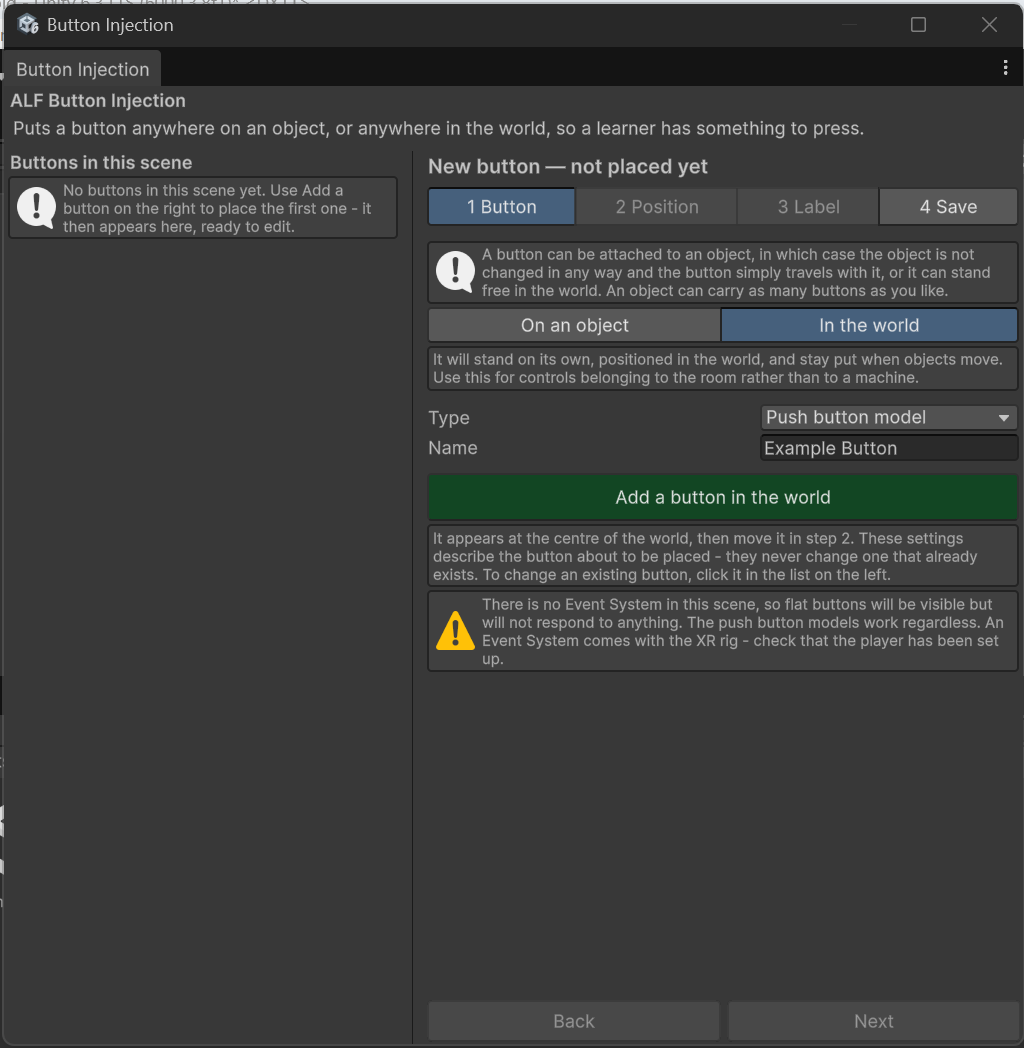
- On the left: every button already in the scene. Click one to change it.
- On the right: four steps, one at a time. Use the tabs or Back and Next to move between them.
- The heading above the steps always tells you what you're working on:
Editing '…'for an existing button, orNew button — not placed yetfor one you're about to add.
Changes to an existing button appear in the scene immediately. You don't need to press an "apply" button. You only need to save the scene at the end.
Don't set up buttons while the scene is playing
Anything you change in Play mode is lost when you stop. Stop Play mode first.
Which kind of button?
| If you want… | Choose |
|---|---|
| A simple flat button, like a key on a panel | Flat button |
| The same, with text above it | Flat button with a label |
| A 3D push button that moves when pressed | Push button model |
| The same, with text above it | Push button model with a label |
| A part of the machine itself that learners can press, without adding a separate button | Clickable part. See Make a part of a machine clickable. |
You can change the kind later, except to or from a clickable part. See Edit, rename or delete a button.