Put a button in the room
Goal: add a button that belongs to the room rather than to a machine, such as a reset button by the door or a start button on a plinth.
A free-standing button stays where you put it, even if machines in the scene move.
Steps
-
Open ALF > Interactivity > Button Injection.
-
Under the list on the left, press + Add a new button.
-
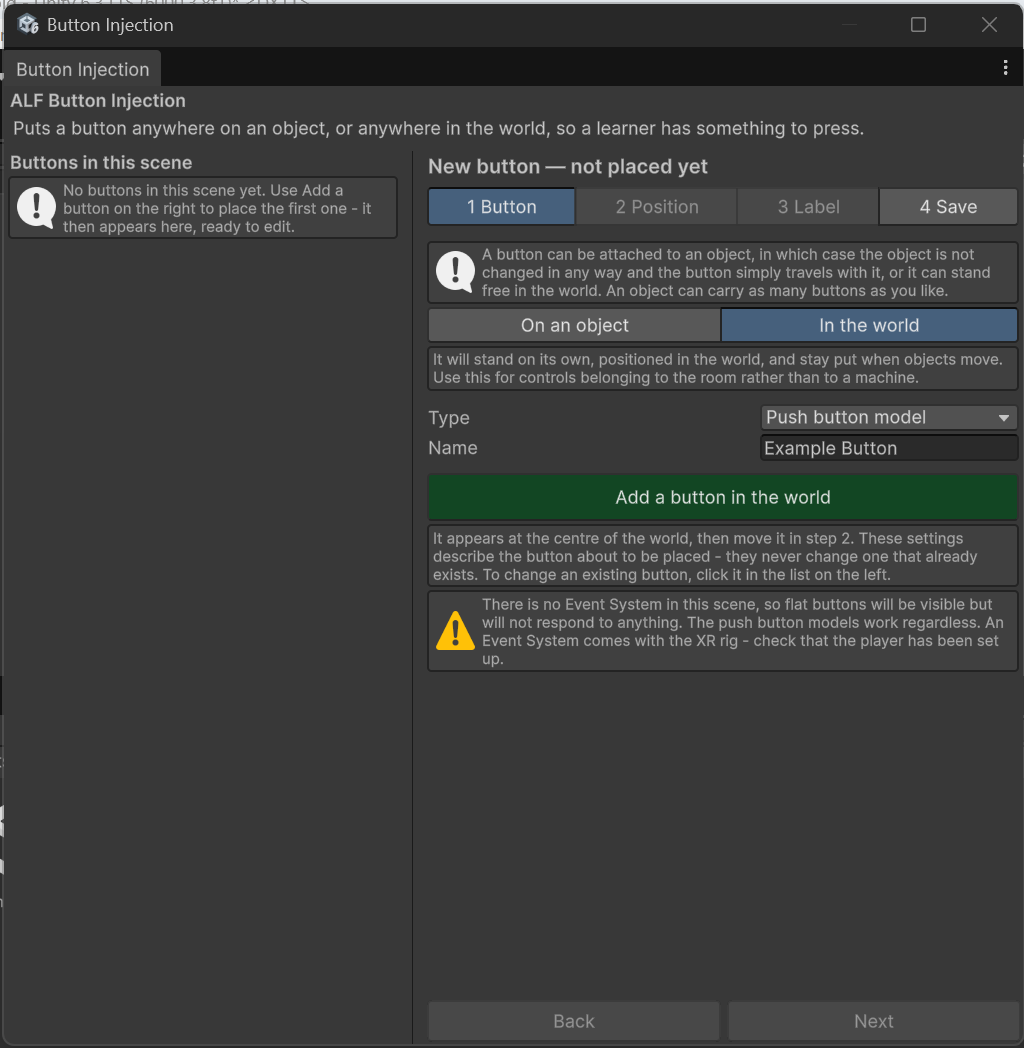
In step 1 Button:
- For where the button goes, choose In the world. This is already selected each time the tool opens.
- Choose the Type and type a Name.
- Press Add.
-
The new button appears at the centre of the world, the point (0, 0, 0), with step 2 Position open.
-
Move it to where it should be. See Move and turn a button. The coordinates are labelled World position and measured in metres from the centre of the world.
-
Go to step 4 Save and press Save the scene.
Result
The button is listed on the left as standing in the world.
Good to know
- The centre of the world may not be where your room is. If you can't see the new button, use Place visually in step 2 to bring it to you, or press Find next to it in the list.
- You can attach it to an object later by dragging it onto that object in the Hierarchy. See Move a button to a different object.