Put a button on a machine
Goal: add a button that sits on an object, such as a machine or one of its parts, and moves with it.
The object itself isn't changed. The button is simply attached to it.
Steps
-
Open ALF > Interactivity > Button Injection.
-
Under the list on the left, press + Add a new button. The steps are now headed New button — not placed yet. In an empty scene, the window starts this way.
-
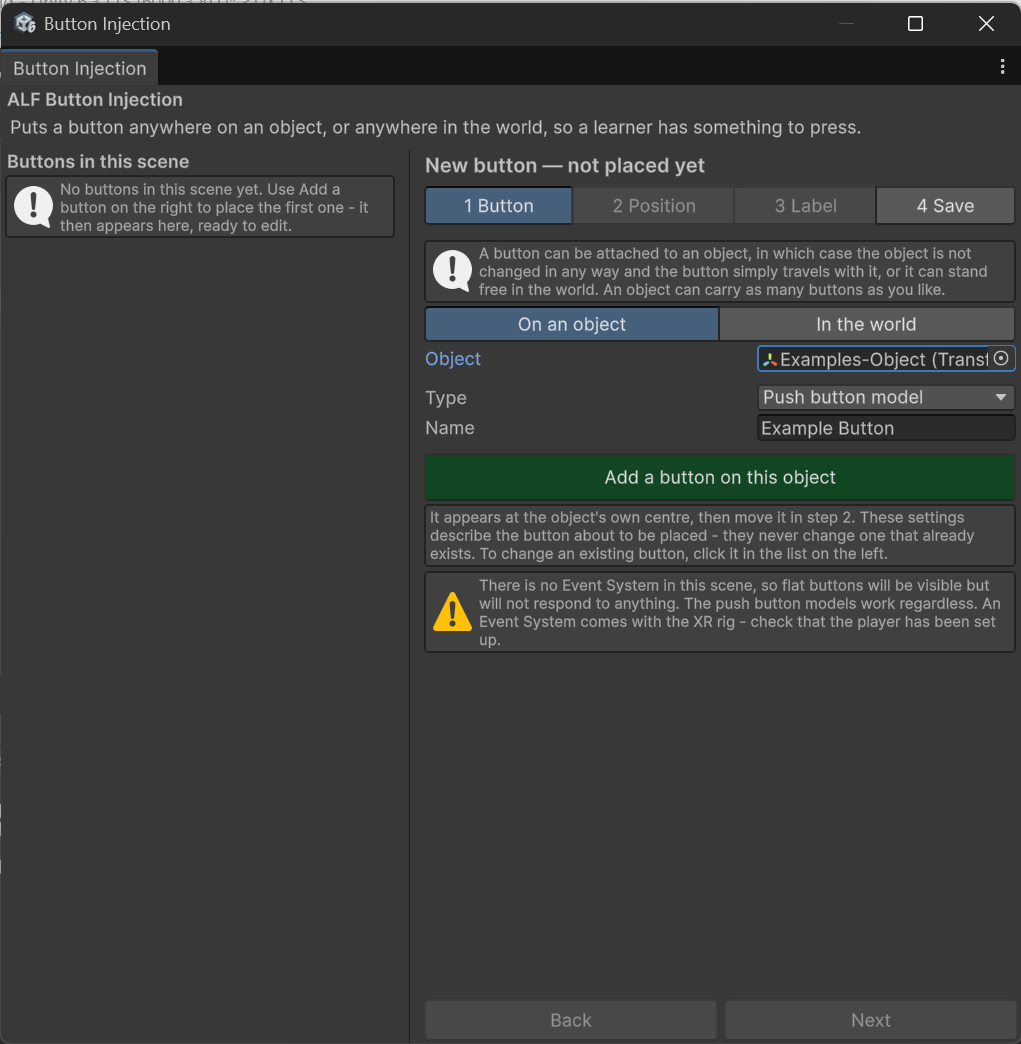
In step 1 Button:
- For where the button goes, choose On an object.
- Drag the machine (or the part the button belongs on) from the Hierarchy into the object field.
- Choose the Type. See Which kind of button?
- Type a Name, for example
Start. If you leave it empty, the button is named after the object. - Press Add.
-
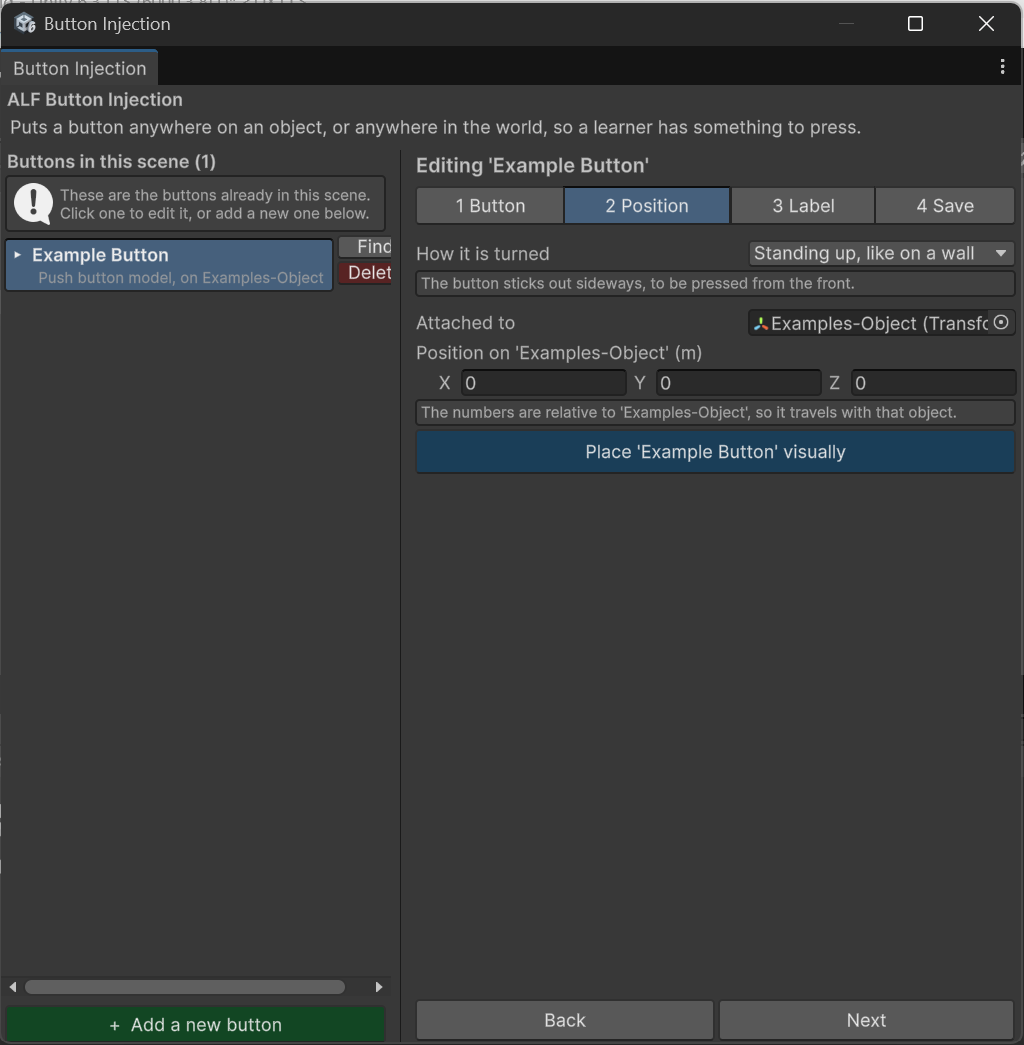
The new button appears at the centre of the object and is selected, with step 2 Position open.
-
Move it to where it should be. See Move and turn a button.
-
Go to step 4 Save and press Save the scene.
Result
The button is listed on the left as on your object. When the object moves, the button moves with it. In the hierarchy you can see that the button is placed as a child of the object it is assigned to.
Good to know
- The button starts at the centre of the object, which may be inside it and hidden. That's expected. Move it in step 2.
- Names are kept unique. If another button already has the name, a number is added to the end.
- An object can have as many buttons as you like. Repeat these steps for each one.
- Placing a button doesn't make it do anything yet. To make it advance the lesson, see Use a button to advance a lesson step.
- Drag from the Hierarchy, not from the Project window. The Hierarchy holds the objects in your scene.