Prepare Unity
Install Android build support
All supported headsets are Android devices, so Unity needs the Android module before the project can be switched to Android.
- Open Unity Hub and go to Installs.
- Next to Unity 6000.3, click the gear icon and choose Add modules.
- Tick Android Build Support, including OpenJDK and Android SDK & NDK Tools, and install.
Switch the project to Android
Unity projects start out set up for Windows. The headsets are Android devices, so the project has to be switched to Android before you can build for them. You do this once; after that the project stays on Android.
-
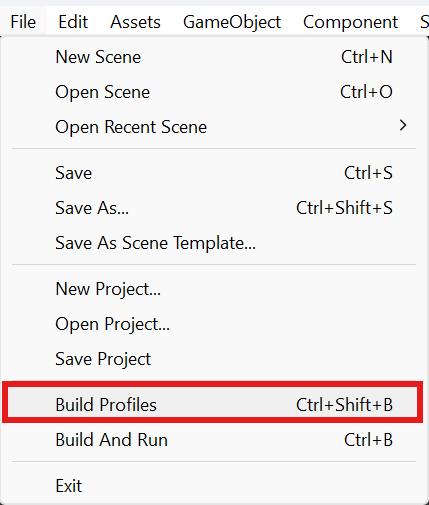
In Unity's top menu, open File > Build Profiles (or press Ctrl+Shift+B).
-
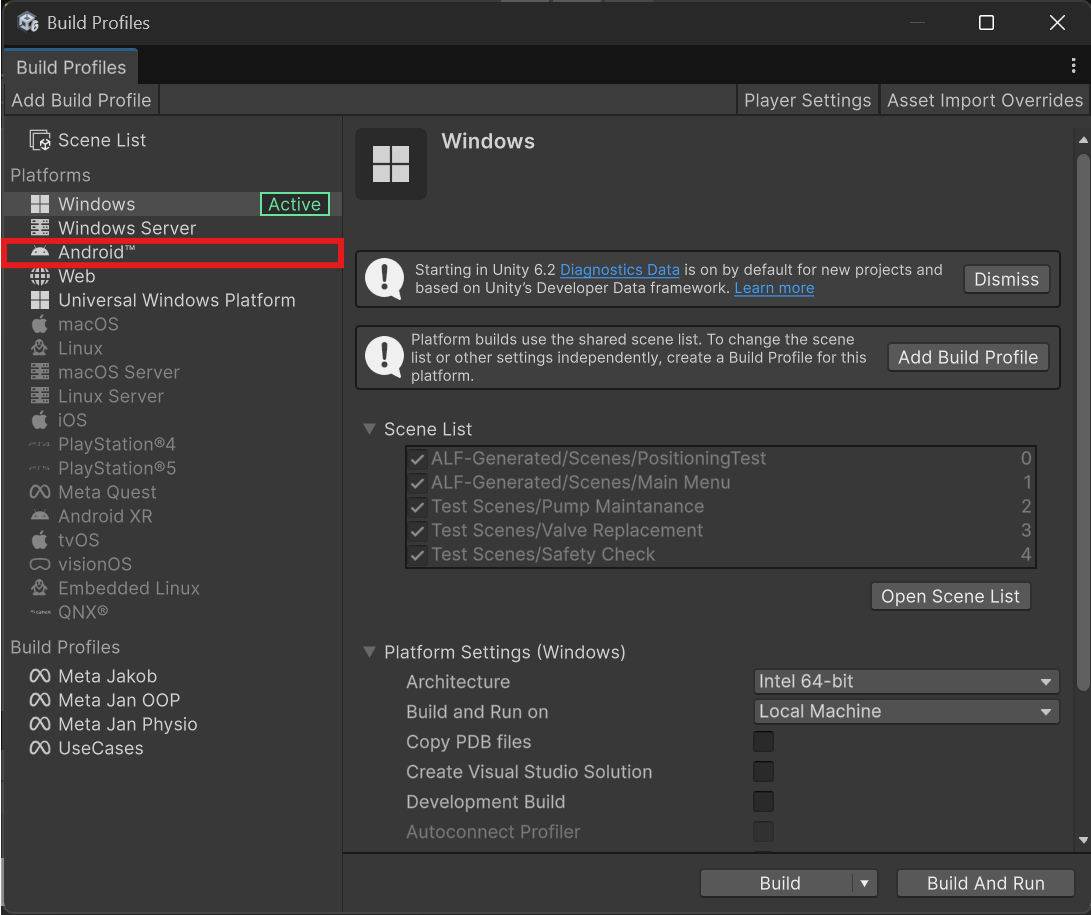
Under Platforms on the left, click Android. The platform marked Active is the one the project is set up for at the moment, here still Windows.
-
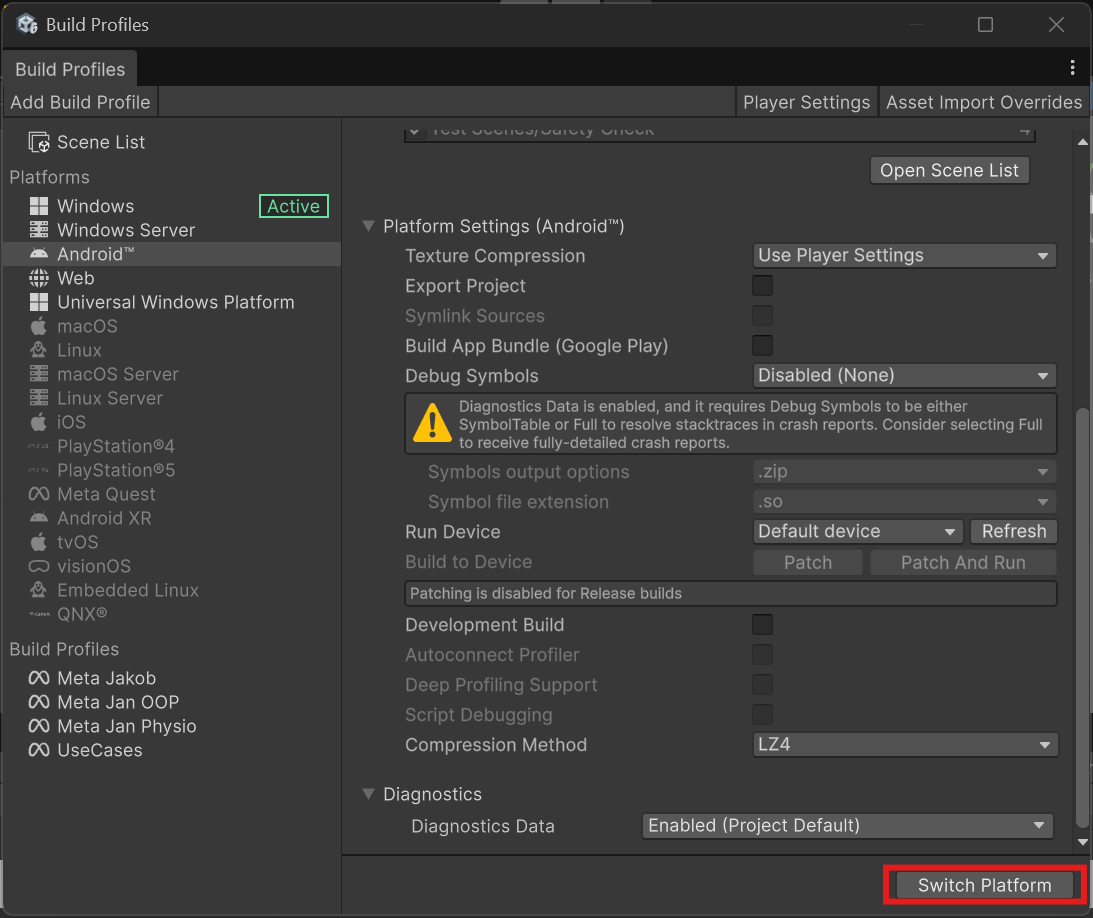
Scroll down on the right and click Switch Platform at the bottom.
-
Wait until Unity is done. Android is then marked Active.
What to expect:
- The first switch takes a while, from several minutes to much longer. Unity converts every picture and model for Android. Don't close Unity while the progress bar is running.
- Choosing a headset afterwards is quick. The Meta Quest 3 and PICO 4 build profiles are both Android profiles, so selecting one of them doesn't convert everything again.
- Switching back to Windows means waiting for the full conversion again. Avoid switching back and forth when you can.
In File > Build Profiles, the word Active shows what the project is set up for. Before building, make sure it's the profile for the headset that's connected.
Check the project
Open ALF > Utils > Project Status and fix anything it reports before building. A clean status here avoids most build problems.
Set the scene list
The app contains only the scenes in the build profile's Scene List. The first scene in the list is the one that opens when the app starts.
- Open File > Build Profiles and select Scene List.
- Put the main menu scene at the top. The main menu then opens the lessons. See Main Menu Setup.
- Add every lesson scene that the main menu links to. Lesson scenes made with Scene Generation are saved under
Assets/ALF-Generated/Scenes.
Placeholder: File > Build Profiles > Scene List, with the main menu first and the lesson scenes below.
If a lesson is missing from the Scene List, its button in the main menu does nothing on the headset. Add new lessons here every time. See Update the app on the headset.
Set the app's name and version
In Edit > Project Settings > Player:
- Product Name is the name shown in the headset's app library.
- Version is the version number, for example
1.4. Raise it when you put new lessons on the headsets, so you can tell versions apart. - Under Other Settings, Bundle Version Code is a whole number. Raise it by one each time too.
Under Other Settings > Identification, don't change the Package Name. If it changes, the headset installs a second copy of the app instead of updating the old one.